

Automate IT Support with Slack and OpenAI in n8n

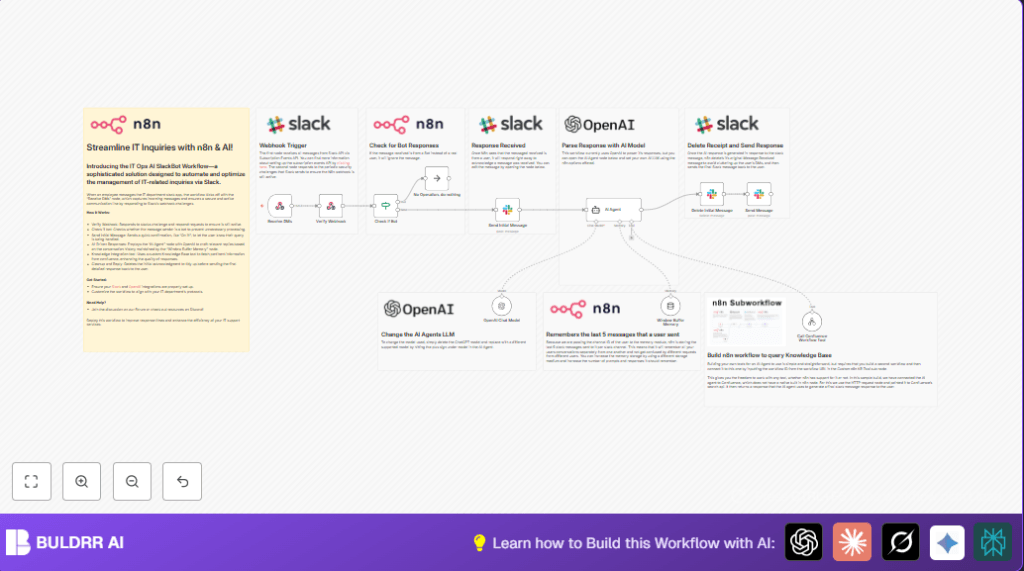
Streamline IT support by automating Slack message handling using n8n and OpenAI. This workflow handles Slack DMs, filters bots, queries a Confluence knowledge base, and delivers AI-generated responses, improving support efficiency and response time.
RespondToWebhook
If
Slack
+5
Workflow Identifier: 1205
NODES in Use: RespondToWebhook, If, Slack, NoOp, lmChatOpenAi, memoryBufferWindow, agent, toolWorkflow

Press CTRL+F5 if the workflow didn't load.

Learn how to Build this Workflow with AI:

Visit through Desktop for Best experience

Opening Problem Statement

Meet Alex, an IT support specialist at a growing tech company. Every day, Alex gets flooded with repetitive IT questions via Slack DMs, from password resets to software troubleshooting. This constant influx not only wastes Alex’s time—amounting to hours of manual responses every week—but also delays urgent support requests, frustrating employees and increasing downtime. Manually searching through Confluence for answers adds to the bottleneck, and sometimes Alex misses critical context from earlier conversations, resulting in repeated questions and inefficient back-and-forth.

This scenario is all too common for IT departments struggling to keep up with employee inquiries quickly and accurately. What if Alex could automate the initial handling of these Slack messages, provide instant, AI-powered answers sourced from the company’s knowledge base, and keep track of ongoing conversations? That’s exactly what this n8n workflow achieves.

What This Automation Does

This workflow receives Slack direct messages, processes queries using OpenAI’s GPT-4 large language model, and integrates with a Confluence knowledge base to provide accurate, context-aware responses. Here’s what happens when the workflow runs:

  • Instantly acknowledges incoming Slack DMs with a friendly “On it!” message to let users know their requests are being handled.
  • Filters out any messages sent by bots to avoid unnecessary processing and response loops.
  • Maintains a conversation history per Slack channel by storing the last 10 messages, enabling context-rich AI replies.
  • Queries a custom Confluence knowledge base workflow to fetch relevant articles based on user input keywords.
  • Generates detailed, formatted responses using OpenAI’s GPT-4, referencing retrieved knowledge to answer complex IT questions.
  • Deletes the initial acknowledgement message to keep user channels clutter-free before sending the final AI-crafted reply.

This automation saves Alex hours of repetitive work, reduces response latency, and enhances employee satisfaction through accurate, contextual IT support, all without manual intervention.

Prerequisites ⚙️

  • n8n account with workflow execution permissions.
  • Slack workspace with admin access to create slash commands, bots, and enable event subscriptions.
  • Valid Slack API credentials for the Slack node integration.
  • OpenAI API key set up with GPT-4 access.
  • Access to a Confluence knowledge base and a secondary n8n workflow configured for querying it.
  • Basic understanding of workflow automation in n8n.

Step-by-Step Guide to Build the Workflow

Step 1: Set Up the Slack Incoming Webhook Trigger

Navigate to n8n dashboard, click Add Node → search and select Webhook node.

Configure: Set the HTTP method to POST and specify the webhook path (e.g., 44c26a10-d54a-46ce-a522-5d83e8a854be).

What to Expect: This node will receive incoming Slack message events via Slack’s Event Subscriptions API.

Common Mistake: Forgetting to expose the webhook publicly or not configuring Slack Event URLs correctly, leading to missed events.

Step 2: Verify Slack Webhook with “Verify Webhook” Node

Add the Respond to Webhook node connected from the Webhook node.

Configure: Set response code to 200, add header Content-type: application/json, and return JSON body {"challenge":"{{ $json.body.challenge }}"}.

Purpose: Slack sends a challenge during setup to confirm the webhook is active — this node handles that.

Common Mistake: Not returning the challenge value properly will cause Slack to reject the webhook.

Step 3: Check if Message Sender Is a Bot

Insert an If node named “Check if Bot” after the verification step.

Configure: Check if the field body.event.user exists; if not, treat the sender as bot and do no operation, else proceed.

Outcome: Filters out bot messages to avoid endless loops or irrelevant responses.

Common Mistake: Misconfiguring the condition might block legitimate user messages.

Step 4: Send an Initial Acknowledgement Message on Slack

Add a Slack node titled “Send Initial Message” connected from “Check if Bot” true branch.

Configure: Choose channel mode, then set the channel ID dynamically from the incoming Slack event {{ $('Receive DMs').item.json.body.event.channel }}.

Message Text: “On it! Let me check Confluence to see if there are any relevant links to answer your question.”

Common Mistake: Hardcoding channel IDs will make the bot unable to respond in other channels.

Step 5: Maintain Conversation History with Window Buffer Memory

Add a Window Buffer Memory node to store conversation context, connected to the AI Agent node.

Configuration: Use channel ID as session key: {{ $('Receive DMs').item.json["body"]["event"]["channel"] }}, with a context window length of 10.

Impact: Enables the AI to respond based on recent messages for better relevance.

Common Mistake: Using incorrect session key variable may cause context mixing between users.

Step 6: Configure the AI Agent Node with OpenAI GPT-4

Add the AI Agent node with the OpenAI Chat Model linked.

Input: Pass the Slack message text: {{ $('Receive DMs').item.json.body.event.text }}.

Settings: Use the GPT-4o model from OpenAI credentials; configure the system message describing the AI as an IT support assistant.

Common Mistake: Forgetting to set API credentials or using the wrong model ID results in failed calls.

Step 7: Integrate with Confluence Knowledge Base

Add a Tool Workflow node that points to the secondary workflow responsible for searching Confluence (workflow ID Pxzc65WaCPn2yB5I).

Configuration: Pass keywords extracted from the user’s input to fetch relevant articles.

Benefit: Enriches AI replies with real company knowledge.

Common Mistake: Incorrect workflow ID or misconfigured permissions causes empty or failed searches.

Step 8: Delete the Initial Acknowledgement to Keep Slack Clean

Use another Slack node titled “Delete Initial Message” to delete the first “On it!” message once the AI has generated the answer.

Configure: Delete operation on the channel and message timestamp of the initial message.

Purpose: Avoids cluttering user’s direct messages with temporary messages.

Common Mistake: Using wrong message timestamps or channels will fail silently.

Step 9: Send Final AI-Generated Message Back to User

Add a final Slack node “Send Message” connected after deleting the acknowledgement.

Configure: Use dynamic text output from AI Agent node, replacing markdown syntax to Slack formatting.

Outcome: Sends a polished, helpful IT support response to the user.

Common Mistake: Not properly formatting message text leads to garbled output in Slack.

Customizations ✏️

  • Change AI Model: In the “OpenAI Chat Model” node, select a different OpenAI model like GPT-3.5-turbo for cost savings or experimentation.
  • Adjust Memory Length: In the “Window Buffer Memory” node, increase or decrease the context window size to tune the AI’s conversation retention.
  • Modify Initial Message Text: Edit the “Send Initial Message” Slack node to use a custom greeting or status update tailored to your company culture.
  • Expand Knowledge Sources: Connect additional tools or workflows in the AI Agent’s tool options to query other knowledge bases or APIs.
  • Change Bot Profile Photo: In Slack nodes, update the botProfile icon URL for custom branding.

Troubleshooting 🔧

  • Problem: Workflow not triggering on Slack messages.

    Cause: Incorrect webhook URL in Slack Event Subscriptions or network exposure issues.

    Solution: Verify webhook URL matches the n8n webhook URL and that your server is reachable externally.

  • Problem: AI Agent returns error or no response.
  • Cause: Missing or incorrect OpenAI API credentials, or exceeded usage limits.
  • Solution: Check OpenAI API key configuration, and monitor usage quota in the OpenAI dashboard.
  • Problem: Slack message deletion fails silently.
  • Cause: Invalid timestamp or insufficient bot permissions.
  • Solution: Ensure the Slack bot token has ‘chat:write’ and ‘chat:write.public’ and ‘channels:history’ scopes and the timestamp is correctly referenced.

Pre-Production Checklist ✅

  • Verify Slack app is correctly configured with Event Subscriptions and bot tokens.
  • Test webhook triggers externally using tools like Postman or curl.
  • Check OpenAI API credentials are valid and active.
  • Validate that the Confluence knowledge base workflow returns expected search results.
  • Run end-to-end test by sending a Slack DM and confirming workflow messages and deletion behavior.
  • Backup existing n8n workflows before major changes.

Deployment Guide

Activate the workflow in your n8n instance by toggling it “active”.

Monitor executions via n8n’s Execution List to ensure all steps succeed.

Set up error notifications through n8n to alert IT staff of failure states.

Regularly update OpenAI API keys and Confluence workflow integration for continuous improvement.

FAQs

  • Q: Can I use another AI model besides OpenAI GPT-4?
    Yes, you can replace the “OpenAI Chat Model” node with other supported models available in n8n’s langchain or other AI integrations.
  • Q: Does this consume a lot of OpenAI API credits?
    Usage depends on the frequency of messages and AI prompt complexity. Monitor your OpenAI dashboard to manage costs.
  • Q: Is my data safe when processed through OpenAI?
    Data security depends on your organization’s compliance policies and OpenAI’s terms. Consider anonymizing sensitive data if needed.
  • Q: Can this handle multiple Slack users simultaneously?
    Yes, the Window Buffer Memory node uses channel-specific session keys, allowing separate conversations per user without overlap.

Conclusion

By following this comprehensive guide, you’ve built an intelligent IT support SlackBot using n8n and OpenAI GPT-4 integrated with your Confluence knowledge base. This automation transforms how IT questions are handled, cutting down hours of manual interaction and improving the support experience for your entire team.

Imagine saving 5+ hours per week, reducing repetitive queries, and enabling your IT staff to focus on critical issues. Looking ahead, you can enhance the bot by integrating with Jira for ticketing, adding more knowledge bases, or enabling voice command support to expand its capabilities.

Let’s keep automating smarter workflows together!

Promoted by BULDRR AI

Related Workflows

Automate Viral UGC Video Creation Using n8n + Degaus (Beginner-Friendly Guide)

Learn how to automate viral UGC video creation using n8n, AI prompts, and Degaus. This beginner-friendly guide shows how to import, configure, and run the workflow without technical complexity.
Form Trigger
Google Sheets
Gmail
+37
Free

AI SEO Blog Writer Automation in n8n

A complete beginner guide to building an AI-powered SEO blog writer automation using n8n.
AI Agent
Google Sheets
httpRequest
+5
Free

Automate CrowdStrike Alerts with VirusTotal, Jira & Slack

This workflow automates processing of CrowdStrike detections by enriching threat data via VirusTotal, creating Jira tickets for incident tracking, and notifying teams on Slack for quick response. Save hours daily by transforming complex threat data into actionable alerts effortlessly.
scheduleTrigger
httpRequest
jira
+5
Free

Automate Telegram Invoices to Notion with AI Summaries & Reports

Save hours on financial tracking by automating invoice extraction from Telegram photos to Notion using Google Gemini AI. This workflow extracts data, records transactions, and generates detailed spending reports with charts sent on schedule via Telegram.
lmChatGoogleGemini
telegramTrigger
notion
+9
Free

Automate Email Replies with n8n and AI-Powered Summarization

Save hours managing your inbox with this n8n workflow that uses IMAP email triggers, AI summarization, and vector search to draft concise replies requiring minimal review. Automate business email processing efficiently with AI guidance and Gmail integration.
emailReadImap
vectorStoreQdrant
emailSend
+12
Free

Automate Email Campaigns Using n8n with Gmail & Google Sheets

This n8n workflow automates personalized email outreach campaigns by integrating Gmail and Google Sheets, saving hours of manual follow-up work and reducing errors in email sequences. It ensures timely follow-ups based on previous email interactions, optimizing communication efficiency.
googleSheets
gmail
code
+5
Free