

1. Opening Problem Statement
Meet Nathan, a busy project manager drowning in an ever-growing inbox full of emails ranging from important business automation inquiries to music event invitations. Every day, Nathan spends upwards of 2 hours manually sifting through emails to label and organize them appropriately. On top of that, scheduling appointments with his developer advocate colleague, Max Tkacz, is a painful back-and-forth, resulting in lost time and missed meetings. This chaos not only impacts Nathan’s productivity but also the team’s responsiveness and client satisfaction.
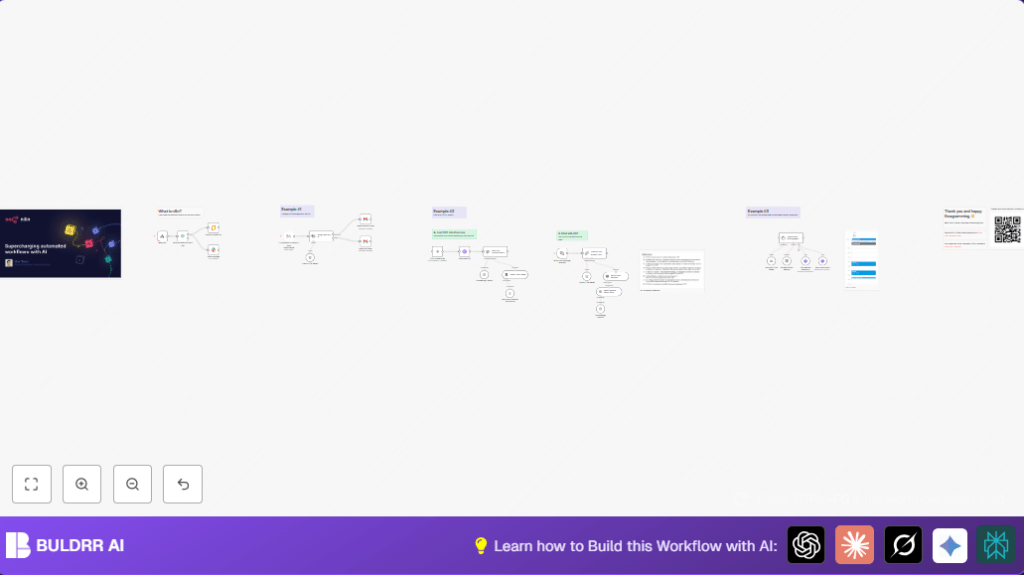
This is the exact problem that the n8n workflow we will explore solves — by automatically categorizing Nathan’s incoming emails using AI and providing an intelligent chat-based assistant to book appointments with Max seamlessly through Google Calendar.
2. What This Automation Does
This n8n workflow strategically combines email triggers, AI classification, chatbots, and calendar API integrations to streamline Nathan’s workflow. When this automation runs, it:
- Monitors incoming emails to Nathan’s Gmail inbox and identifies if they contain Nathan’s n8n-related email queries.
- Uses OpenAI GPT-4 to classify emails into categories like “automation” or “music,” then automatically applies the corresponding Gmail labels.
- Sends Slack notifications with relevant email data, keeping the team instantly informed without manually checking the inbox.
- Offers a chat interface to users allowing them to schedule appointments directly with Max Tkacz via conversational messages.
- Checks calendar availability via Google Calendar API to ensure appointment times are free and books 30-minute meetings if available.
- Maintains conversation context with memory buffers so the scheduling assistant remembers prior chats and user inputs.
By automating these complex tasks, Nathan saves up to 2 hours daily, reduces labeling errors, and achieves a frictionless scheduling experience.
3. Prerequisites ⚙️
- Gmail account 📧 – For monitoring incoming emails and applying labels.
- Slack workspace 💬 – To send notifications to specific channels.
- Google Calendar account ⏱️ – To check calendar free/busy times and book appointments.
- OpenAI API key 🔑 – Enables AI text classification and chatbot responses.
- n8n account 🔌 – Platform to build and run your workflow.
- Optional: Self-hosting option for n8n available via platforms like Hostinger.
4. Step-by-Step Guide
Step 1: Set Up Gmail Trigger to Monitor New Emails
Navigate to n8n and create a new workflow. Add the Gmail Trigger node named “On new email to Nathan’s inbox”. Configure it with the Gmail account credentials to watch for all incoming emails in the inbox. Optionally, set the polling frequency to every minute for near real-time detection.
You should see this node trigger whenever a new email arrives in Nathan’s Gmail.
Common mistake: Forgetting to authenticate Gmail properly, resulting in no emails detected.
Step 2: Use AI Text Classifier Node to Categorize Emails
Add the Text Classifier node named “Assign label with AI” from the LangChain nodes. Map the incoming email’s plain text body to this node’s inputText parameter using {{$json.text}}.
Define two categories: “automation” for workflow-related emails and “music” for artist or music-based messages with descriptions for each.
The classification will use OpenAI GPT-4 behind the scenes to categorize the content.
Outcome: Automation-related emails will be distinct from music invites, reducing manual sorting.
Common mistake: Not specifying meaningful categories or input text improperly mapped.
Step 3: Automatically Apply Gmail Labels Based on AI Category
Add two separate Gmail nodes named “Add automation label” and “Add music label.” Connect the “Assign label with AI” node so that based on the classification output, the appropriate Gmail label is added to the email message using messageId referencing.
Example: If AI classifies the email as “automation,” the “Add automation label” node tags it with the related Gmail label behind the scenes.
Note: Gmail labels must be pre-created in the Gmail account.
Common mistake: Using incorrect label ID or messageId mapping.
Step 4: Send Slack Notification of New Classified Email
Add a Slack node named “Send message.” Configure it with OAuth2 credentials and select the target channel (e.g., #general) to post a message. Use the expression =Data from webhook: {{$json.query.email}} to share relevant details about the email.
You should see a Slack message posting similar to: “Data from webhook: [email protected]”.
Common mistake: Not authorizing Slack node properly, messages won’t send.
Step 5: Set Up Chat Trigger for Appointment Scheduling
Add the LangChain Chat Trigger node “When chat message received.” This creates an endpoint accessible publicly that initiates a chatbot interaction to assist with booking appointments.
Define the initial message as: “Hi there! 👋 I can help you schedule an appointment with Max Tkacz. On which day would you like to meet?”
Outcome: Users can start conversation threads directly through this chat-triggered webhook.
Common mistake: Missing to set the webhook publicly accessible or incorrect URL sharing.
Step 6: Integrate Question and Answer Chain with Embedded Vector Store
Link the Chat Trigger node’s output to the Question and Answer Chain node that processes the user query using a vector index (Pinecone) embedding.
This ensures that chatbot answers rely solely on indexed knowledge — for example, whitepaper content — ensuring accurate, up-to-date responses.
Common mistake: Not connecting the correct retriever or empty Pinecone vector store.
Step 7: Load and Process PDF Documents into Pinecone
Use HTTP Request node “Download PDF” to fetch whitepaper documents from URLs held in JSON. Feed this binary content into the Default Data Loader node configured as a PDF loader to prepare documents for embedding.
Next, split content recursively with the Recursive Character Text Splitter to chunk texts into digestible sizes for embeddings.
Generate embeddings using the Embeddings OpenAI node, then insert vectors into Pinecone via the Insert into Pinecone vector store node. Specify a namespace, e.g., “whitepaper.”
Common mistake: Ignoring chunk size setup, leading to poor embedding subsets.
Step 8: Create Appointment Booking Agent with Google Calendar API
Set up the Appointment booking agent LangChain agent node configured with a system message describing Max Tkacz’s rules for appointments (30 minutes duration, avoid conflicts). It connects to tools for querying and booking availability.
Link Google Calendar API nodes for Get calendar availability and Book appointment to provide real-time free/busy checks and event creation.
Outcome: The assistant automatically schedules meetings only if there’s availability, avoiding double bookings.
Common mistake: Misformatted date-time or timezone conversion errors causing booking failures.
Step 9: Maintain Chat Memory for Smarter Conversations
Add the Window Buffer Memory node to keep context across conversations, limiting stored entries to the last 10 exchanges.
This allows the assistant to remember user preferences and previous appointment details, providing a natural and human-like experience.
Common mistake: Not connecting memory to the agent node, causing the context to be lost.
Step 10: Test End-to-End Workflow
Trigger a new email, verify labels are correctly applied, and check Slack notifications. Use the provided chat interface to schedule an appointment, ensuring the assistant respects calendar availability and books the meeting.
Expected result: Smooth categorization and booking with zero manual interventions.
5. Customizations ✏️
- Add new email categories: In the “Assign label with AI” node, add more categories such as “support” or “sales” by editing the categories JSON and training the AI to recognize those topics.
- Change Slack notification content: Modify the message field in the “Send message” Slack node to include more email metadata or links.
- Adjust appointment duration: In the “Appointment booking agent” system message, change the wording and parameters to allow 60-minute meetings or multiple concurrent appointments.
- Integrate other calendars: Add more Google Calendar API nodes for different team members and update the agent logic accordingly.
- Customize memory length: Increase or decrease the context window in the “Window Buffer Memory” node to track more or fewer conversational exchanges.
6. Troubleshooting 🔧
Problem: AI classifier returns errors or empty categories
Cause: Invalid or incomplete input text mapping, or OpenAI API key limits reached.
Solution: Check the “Assign label with AI” node’s inputText field, ensure it receives valid email text. Verify the API key and usage quotas in OpenAI.
Problem: Gmail labels not applied
Cause: Incorrect labelIds or messageId references.
Solution: Double-check Gmail label IDs from Gmail’s label settings and ensure the message ID is correctly passed from the trigger node.
Problem: Appointment booking fails due to time zone errors
Cause: Date-time format or timezone mismatch in the booking node’s JSON body.
Solution: Ensure date-time strings are ISO 8601 formatted with time zone offsets like “Europe/Berlin”. Test with static hard-coded values first.
7. Pre-Production Checklist ✅
- Verify Google OAuth authentication for Gmail and Calendar are correctly configured.
- Test AI category classifier with sample emails to ensure it assigns expected labels.
- Ensure Slack OAuth tokens have permission to post messages in the target channel.
- Run complete workflow testing for both email categorization and appointment scheduling paths.
- Backup the workflow JSON for rollback in n8n.
8. Deployment Guide
Activate the workflow in n8n by toggling it On. Share the chat trigger webhook URL with your team to start booking appointments. Monitor the workflow executions via the n8n dashboard for errors or failures. Make adjustments based on logs or user feedback. Self-hosters can configure webhook endpoints accordingly with their domain.
9. FAQs
Q: Can I use Microsoft Outlook instead of Gmail?
A: This specific workflow is designed around Gmail’s node and labels, but you can recreate similar logic with Outlook nodes in n8n with additional customization.
Q: Does this consume OpenAI API credits?
A: Yes, using the Text Classifier and Chat nodes consumes OpenAI API credits according to your plan.
Q: Is my calendar data secure?
A: All data remains within your configured Google account credentials. Ensure you follow best practices for OAuth token security.
10. Conclusion
By following this workflow, you’ve built a powerful automation that saves Nathan hours each day by automatically organizing emails into categories and enabling a friendly conversational assistant to schedule appointments flawlessly. This not only boosts productivity but also ensures important meetings with Max Tkacz are never missed.
Next, consider extending this workflow by integrating SMS notifications for appointments, adding support for other email accounts, or enriching AI models to handle more complex customer queries.
Happy automating with n8n! ⚙️