

Automate Company Data Enrichment with n8n and AI Agents

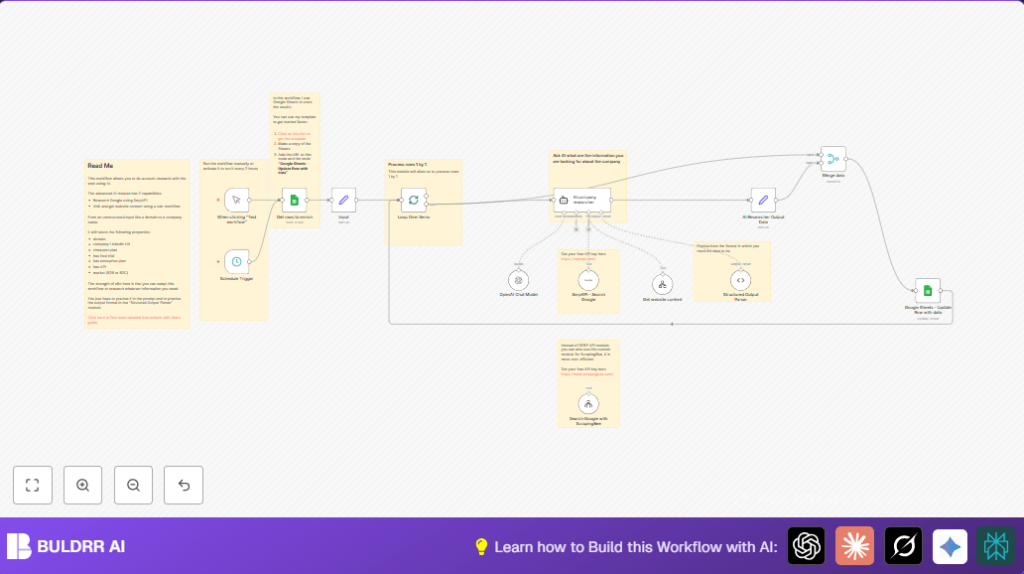
This n8n workflow automates company data enrichment by combining AI research agents, Google Sheets, and web tools to extract structured company information such as domains, pricing plans, and integrations. It solves the tedious task of manual research by providing up-to-date actionable insights through automation.
ManualTrigger
GoogleSheets
agent
+9
Workflow Identifier: 1196
NODES in Use: ManualTrigger, Set, lmChatOpenAi, toolWorkflow, toolSerpApi, outputParserStructured, SplitInBatches, GoogleSheets, Merge, StickyNote, ScheduleTrigger, agent

Press CTRL+F5 if the workflow didn't load.

Learn how to Build this Workflow with AI:

Visit through Desktop for Best experience

Opening Problem Statement

Meet Sarah, a business analyst at a fast-growing marketing agency. Every day, Sarah spends hours manually researching potential clients’ company data – looking up domains, LinkedIn profiles, pricing plans, integrations, and whether they offer free trials or enterprise plans. This process easily takes her 4+ hours weekly, prone to errors and outdated info. Worse, Sarah’s team often misses important opportunities due to incomplete or stale data.

This tedious and error-prone manual research slows down strategic decisions and business growth. Sarah desires a streamlined way to automatically gather and enrich company profiles accurately, freeing her time for high-impact work.

What This Automation Does

This n8n workflow automates Sarah’s company data enrichment process using AI agents, Google Sheets, and web scraping tools to research and update company info from just a name or domain. Here’s what happens when it runs:

  • Automatically retrieves company data one row at a time from a Google Sheet input list with unresearched companies.
  • Uses OpenAI GPT-4 powered AI agents to research companies, extracting info like domain, LinkedIn URL, market type (B2B or B2C), cheapest pricing plan, availability of enterprise plans, APIs, free trials, and case study links.
  • Augments AI research by searching Google results via SerpAPI or alternative scraping, and fetching website content with a sub-workflow to analyze URLs directly.
  • Parses AI output into structured data fields for easy integration and reliability.
  • Updates the original Google Sheet with enriched data and marks each row as completed, all automatically.
  • Can run on-demand via manual trigger or on a schedule, meaning data is consistently fresh without manual effort.

By automating company research, Sarah saves around 4+ hours weekly and eliminates errors, enabling smarter sales outreach and competitive analysis faster. This workflow is a game-changer for those needing reliable and up-to-date business intelligence.

Prerequisites ⚙️

  • 📊 Google Sheets account with a prepared spreadsheet for storing company data
  • 🔑 OpenAI API key for access to GPT-4 model AI research capabilities
  • 🔑 SerpAPI or ScrapingBee API key for Google search scraping (SerpAPI is default, ScrapingBee is an alternative)
  • ⚙️ n8n account (cloud or self-hosted) to orchestrate workflow automation

Step-by-Step Guide

1. Prepare Your Google Sheet

Start with a Google Sheet structured to hold your company names and enrichment results. Use the template linked in the Sticky Note node or create columns: company_input, domain, linkedinUrl, market, cheapest_plan, has_free_trial, has_enterprise_plan, has_API, integrations, last_case_study_link, and enrichment_status.

Ensure the sheet ID and sheet name are correctly set in the Google Sheets nodes using the document and sheet IDs found in the URL.

Common mistake: Not matching the column names exactly will cause update failures.

2. Trigger the Workflow Manually or Schedule

Use the Manual Trigger node named “When clicking “Test workflow”” to run your workflow on demand from n8n. For automated runs, configure the Schedule Trigger node to execute every 2 hours or as needed.

Visual: You should see the workflow initiate run logs in n8n when triggered.

Common mistake: Forgetting to activate the schedule trigger will prevent automated runs.

3. Fetch Rows to Enrich from Google Sheets

The Google Sheets – Get rows to enrich node is configured to pull all rows with enrichment_status unset or not “done”. This ensures only new or updated companies are researched.

Set filter in this node under ‘filtersUI’ to only grab rows needing enrichment.

Expected outcome: The node outputs company names and row indexes one by one.

4. Iterate Rows with SplitInBatches

The Loop Over Items node uses SplitInBatches to process companies one at a time, preventing API overload and improving data integrity.

You will see variables like company_input and row_number prepared for the research steps.

5. Set Company Input Data

Input node sets and formats the company name and row number for downstream nodes using the Set node type.

Ensure the company name is correctly passed, as this is the core input for AI research.

6. Run the AI Company Researcher Agent

The heart of the workflow is the AI company researcher node (LangChain Agent). It sends a structured prompt to OpenAI’s GPT-4 model requesting details about the company such as domain, LinkedIn URL, pricing, API availability, and integrations.

Prompt excerpt:

=This is the company I want you to research info about:
{{ $json.company_input }}

Return me:
- the linkedin URL of the company
- the domain of the company. in this format ([domain].[tld])
- market: if they are B2B or B2C. Only reply by "B2B" or "B2C"
- the lowest paid plan ...

This agent also integrates outputs from two specialized AI tools:

  • SerpAPI – Search Google for scraping Google search results relevant to pricing and case studies.
  • Get website content sub-workflow that fetches the raw HTML content of a company website for deeper analysis.

Common mistake: Missing or incorrect OpenAI or SerpAPI credentials will cause this step to fail.

7. Parse Structured Output from AI

The Structured Output Parser node ensures the AI response matches the expected JSON schema with keys like domain, linkedinUrl, market, cheapest_plan, etc. This validation step prevents malformed data.

Expected result: A clean JSON object containing all requested company details.

8. Format Data for Sheet Update

The AI Researcher Output Data node uses a Set node to map AI output fields to variables that correspond to Google Sheet columns.

Example mapping:

{
  "domain": "={{ $json.output.domain }},
  "linkedinUrl": "={{ $json.output.linkedinUrl }}",
  "market": "={{ $json.output.market }}",
  ...
}

9. Merge with Input Data

The Merge data node combines original input data with the AI-enriched output data to prepare a full row update.

10. Update Company Row in Google Sheets

The final Google Sheets – Update Row with data node updates the corresponding row by row_number, writing all enriched company info back to the sheet and marks enrichment_status as “done”.

Outcome: You will see your Google Sheet automatically populated with rich company profiles.

Common mistake: Incorrect sheet or document ID configurations will cause update failures.

Customizations ✏️

  • Add additional company info: Modify the AI researcher node prompt to request more company data fields like CEO name, revenue, or competitor info.
  • Use ScrapingBee instead of SerpAPI: Replace the SerpAPI - Search Google node with the Search Google with ScrapingBee custom workflow for a cost-efficient alternative. Don’t forget to update your credentials.
  • Run workflow only on specific companies: Adjust the Google Sheets node filter to enrich companies based on custom criteria like market sector or geographic region by adding filter conditions.
  • Expand integrations: Broaden the AI prompt to gather and parse additional integration tools used by companies, then extend the sheet columns accordingly.
  • Schedule frequency: Change Schedule Trigger node to run more or less frequently based on your update needs (e.g., every 24 hours or daily at midnight).

Troubleshooting 🔧

Problem: “Invalid API key” error from OpenAI node

Cause: Incorrect or expired OpenAI credential in n8n settings.

Solution: Go to Credentials → OpenAI API → Re-enter or update your API key. Test connection before running.

Problem: Google Sheets update fails with “row not found”

Cause: Mismatch between row_number from data and actual Google Sheets row index.

Solution: Verify the sheet configuration and ensure the filter and batch processing correctly track row indexes. Refresh schema if needed.

Problem: AI company researcher returns null or incomplete data

Cause: OpenAI request limits hit or prompt ambiguity.

Solution: Reduce batch size, increase model temperature for variety, clarify prompt instructions, or check API usage quotas.

Pre-Production Checklist ✅

  • Verify Google Sheets document and sheet IDs match your actual spreadsheet.
  • Test API connections for OpenAI, SerpAPI, and ScrapingBee in n8n credentials.
  • Run workflow manually on a few sample companies to check data enrichment accuracy.
  • Confirm output matches expected JSON schema in the structured output parser node.
  • Backup your Google Sheet before running large updates to prevent accidental data loss.

Deployment Guide

Activate the workflow in n8n after verification. Set the schedule trigger node to your desired frequency, or use the manual trigger for on-demand updates.

Monitor runs through n8n’s execution logs to catch any errors. Adjust API quotas or prompt parameters as your company list grows.

FAQs

Q: Can I replace Google Sheets with another database?
A: Yes, but you’ll need to replace Google Sheets nodes with the appropriate database nodes and adjust data mapping accordingly.

Q: Does using AI models consume a lot of API credits?
A: Yes, consider usage costs depending on your OpenAI plan. Running regular batches can add up, so adjust frequency accordingly.

Q: Is my data secure in this workflow?
A: n8n encrypts credentials, and data stays within your environment. Avoid sharing API keys publicly and use TLS when possible.

Conclusion

By following this guide, you transformed manual, error-prone company research into an automated, scalable process using n8n and AI agents. Sarah can now enrich hundreds of company profiles with detailed, structured data directly in Google Sheets automatically.

This saves her and her team hours of manual work weekly, improves data quality, and ensures up-to-date competitive intelligence. Next, consider expanding this with automated leads scoring, CRM integrations, or competitor trend analysis – all possible with n8n’s extensible workflow automation.

Ready to start automating your research? Let’s build smarter business intelligence together!

Promoted by BULDRR AI

Related Workflows

Automate Viral UGC Video Creation Using n8n + Degaus (Beginner-Friendly Guide)

Learn how to automate viral UGC video creation using n8n, AI prompts, and Degaus. This beginner-friendly guide shows how to import, configure, and run the workflow without technical complexity.
Form Trigger
Google Sheets
Gmail
+37
Free

AI SEO Blog Writer Automation in n8n

A complete beginner guide to building an AI-powered SEO blog writer automation using n8n.
AI Agent
Google Sheets
httpRequest
+5
Free

Automate CrowdStrike Alerts with VirusTotal, Jira & Slack

This workflow automates processing of CrowdStrike detections by enriching threat data via VirusTotal, creating Jira tickets for incident tracking, and notifying teams on Slack for quick response. Save hours daily by transforming complex threat data into actionable alerts effortlessly.
scheduleTrigger
httpRequest
jira
+5
Free

Automate Telegram Invoices to Notion with AI Summaries & Reports

Save hours on financial tracking by automating invoice extraction from Telegram photos to Notion using Google Gemini AI. This workflow extracts data, records transactions, and generates detailed spending reports with charts sent on schedule via Telegram.
lmChatGoogleGemini
telegramTrigger
notion
+9
Free

Automate Email Replies with n8n and AI-Powered Summarization

Save hours managing your inbox with this n8n workflow that uses IMAP email triggers, AI summarization, and vector search to draft concise replies requiring minimal review. Automate business email processing efficiently with AI guidance and Gmail integration.
emailReadImap
vectorStoreQdrant
emailSend
+12
Free

Automate Email Campaigns Using n8n with Gmail & Google Sheets

This n8n workflow automates personalized email outreach campaigns by integrating Gmail and Google Sheets, saving hours of manual follow-up work and reducing errors in email sequences. It ensures timely follow-ups based on previous email interactions, optimizing communication efficiency.
googleSheets
gmail
code
+5
Free