

What this workflow does
This workflow makes new blog posts by using AI and gets pictures automatically. It solves the problem of spending too much time writing and finding images for posts on WordPress. It creates well-structured articles with images and posts them at random times to look natural.
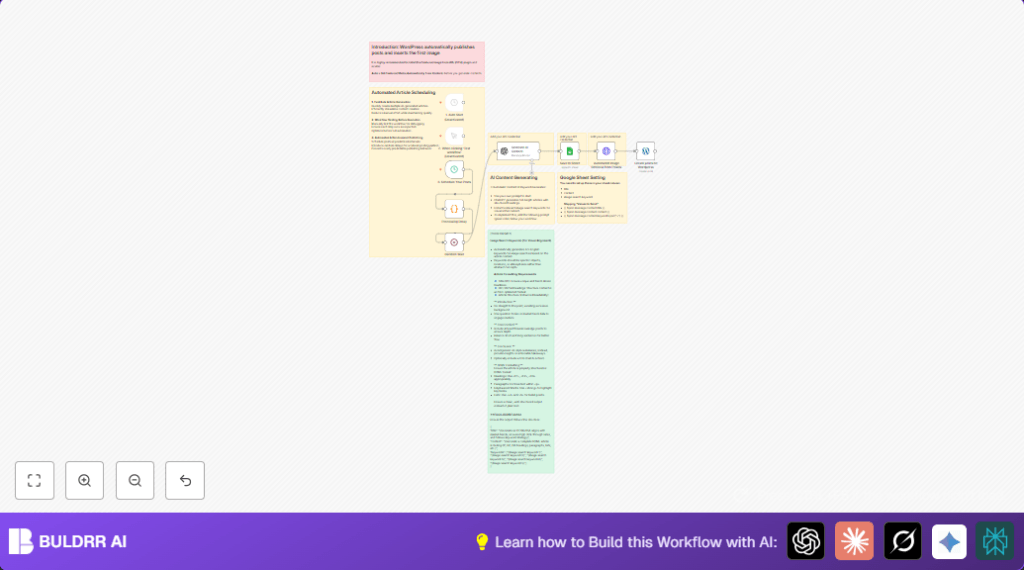
The workflow takes a schedule, waits a bit, creates content, finds images, saves info to a sheet, and posts on WordPress with pictures set as featured images automatically.
Who should use this workflow
People who run WordPress blogs but find writing and publishing posts slow and hard. Non-technical marketers or small team members wanting to save time and keep posts regular benefit.
No deep technical skill needed, but user should have API keys and access to services used. Good for those looking to automate content creation with AI and automated image search.
Tools and services used
- n8n: To build and run workflow automation.
- OpenAI GPT-4o API: To generate full articles with HTML formatting.
- Google Sheets: To save article data and keywords.
- Pexels API: To get free high-quality images matching keywords.
- WordPress REST API: To post articles and images automatically.
- Featured Image from URL (FIFU) plugin: To set featured image from inline images.
Users relying on self-host n8n can use self-host n8n for better control and security.
Beginner step-by-step: How to build this in n8n for production
Step 1: Import the workflow
- Download the workflow file using the Download button on this page.
- Go to the n8n editor where you work on workflows.
- Click on “Import from File” and select the downloaded workflow.
Step 2: Configure credentials and settings
- Add your OpenAI API key in the OpenAI node credentials.
- Set your Google Sheets OAuth2 credentials in the Google Sheets node.
- Enter your Pexels API key in the HTTP Request node header.
- Configure your WordPress site API URL and username/password or application password in the WordPress node.
- Check and update Google Sheet name, column names if different.
- Update list of posting days or time in the Schedule Trigger.
Step 3: Test the workflow
- Run the workflow manually once to check for errors.
- Verify that the article is generated, saved to Google Sheets, image fetched from Pexels, and a post appears on WordPress.
Step 4: Activate for production
- Activate the Schedule Trigger to run on planned days automatically.
- Monitor initial runs in execution logs inside n8n to catch any issues.
This simple import and configure method avoids building from scratch. Follow these steps carefully in your n8n instance. For more control, consider self-host n8n.
Workflow inputs, processing, and outputs
Inputs
- A schedule trigger for posting days and time.
- OpenAI prompt requesting a detailed HTML article and image keywords.
- Google Sheet ID and OAuth for storing data.
- Pexels API key for image search queries.
- WordPress API credentials and site URL.
Processing steps
- Schedule Trigger fires the workflow on selected days.
- Code node creates a random delay up to 6 hours.
- Wait node pauses workflow using generated delay.
- OpenAI node generates a full SEO article with headings, paragraphs, lists, and keywords output as JSON.
- Google Sheets node appends generated article title, content, and image keywords.
- HTTP Request node sends request to Pexels API using keywords to get top landscape image.
- WordPress node creates a new post with full HTML content including the image and enables featured image auto-setting using the FIFU plugin.
Outputs
- New blog post on WordPress with well-structured HTML content and inline image.
- Featured image set automatically using the URL image and FIFU plugin.
- New row appended to Google Sheets with article data and keywords.
- Posts published at randomized times to look natural.
Customizations
- Change the Schedule Trigger to post daily or monthly.
- Edit OpenAI prompt to match different topics or writing styles.
- Get multiple images from Pexels by increasing per_page or adding more queries.
- Set WordPress post status to draft for review instead of publishing immediately.
- Expand AI prompt to include tags or categories for WordPress.
Troubleshooting
Issue: WordPress posts do not have images.
Cause: FIFU plugin missing or not set for auto-featured image.
Fix: Install the Featured Image from URL (FIFU) plugin and enable automatic featured image setting in plugin settings.
Issue: Google Sheets rows not updating.
Cause: Wrong sheet name or column headers.
Fix: Verify Google Sheet ID and that columns match exactly: title, content, Image search keyword.
Issue: OpenAI node fails or no output.
Cause: Bad API key or JSON formatting errors in prompt.
Fix: Confirm OpenAI API key is correct and prompt output is valid JSON as expected.
Pre-Production checklist
- Confirm all API keys and credentials are properly set in n8n.
- Test OpenAI node separately for correct article generation.
- Check Google Sheets connection and exact sheet name with columns.
- Run Pexels HTTP request node with sample keywords to verify images come back.
- Test WordPress node posting a draft before publishing.
- Verify schedule trigger days and time settings.
Deployment guide
After testing, activate the Schedule Trigger node to run automatically. Watch logs for runtime success or errors. Keep manual execution logs for tracking. Adjust prompt, timing, or schedule if needed to improve quality and SEO.
Summary
✓ Saves time by automating full blog post creation and publishing.
✓ Produces SEO-ready, well-formatted articles with relevant images.
✓ Auto-sets featured images on WordPress posts using FIFU plugin.
→ Posts published at random times to look natural.
→ Keeps consistent posting schedule without manual effort.
