

Automate WordPress Posts Using n8n and AI for SEO Content

This workflow automates the creation of WordPress draft posts using AI, starting from user-provided keywords. It solves the time-intensive challenge of writing structured, SEO-friendly articles by generating titles, chapters, and featured images automatically.
openAi
WordPress
FormTrigger
+7
Workflow Identifier: 1161
NODES in Use: FormTrigger, Set, If, SplitOut, Merge, Code, WordPress, HttpRequest, openAi, toolWikipedia

Press CTRL+F5 if the workflow didn't load.

Learn how to Build this Workflow with AI:

Visit through Desktop for Best experience

1. Opening Problem Statement

Meet Sophia, a content manager for a growing digital marketing agency. Every week, she struggles to write well-structured, SEO-friendly blog posts for her clients’ WordPress sites. Sophia often spends hours brainstorming titles, outlining chapters, crafting engaging introductions, and finding or creating fitting images — only to get stuck and lose precious time. This slow, manual process delays content publication, reduces the agency’s ability to scale content production, and frustrates Sophia, who wishes there was an easier way to generate consistent quality articles starting from just a few keywords.

Content creation at scale is a pain point both in terms of time and creative effort, especially when each article needs a logical structure, engaging narrative, and a professional look with cover images. Sophia is losing several hours each week that could be spent on strategy, client management, or higher-impact tasks.

2. What This Automation Does

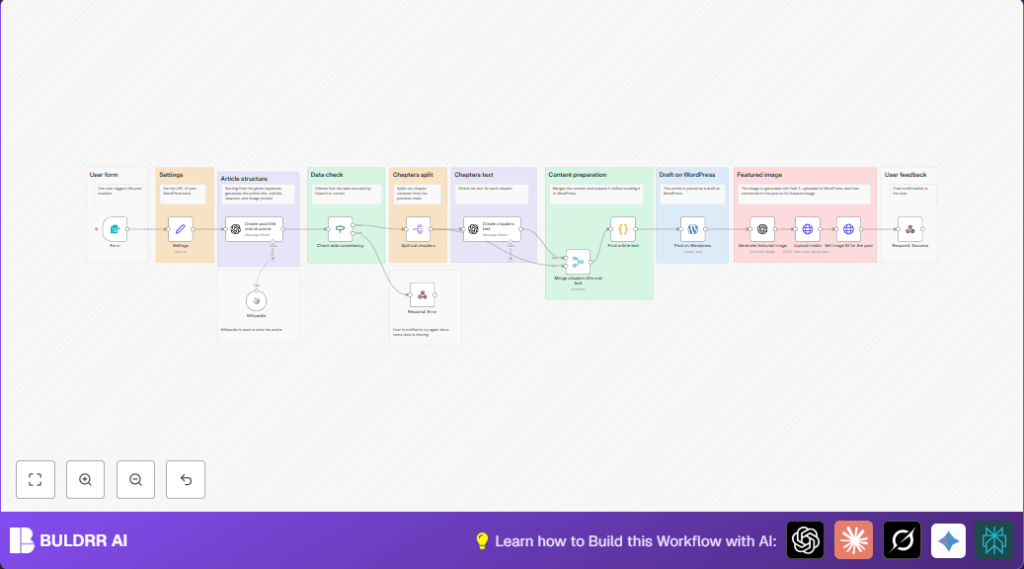
This specific n8n workflow automates the entire WordPress draft post creation process starting from a simple form input of keywords, number of chapters, and max word count. When you run this workflow, here is exactly what happens:

  • The user submits a form with keywords, desired chapter count, and max word count.
  • Using OpenAI’s GPT-4, it generates a detailed article outline, including title, subtitle, introduction, conclusions, and chapter prompts.
  • Each chapter text is then written independently by AI, ensuring flow and depth, checked with Wikipedia for accuracy where possible.
  • The chapter texts are combined with the introduction and conclusion to create a cohesive full article in HTML format.
  • An AI-generated featured image is created by Dall-E, then uploaded to WordPress and set as the post’s featured image.
  • The entire article is posted as a draft on WordPress, ready for review and further editing.

By harnessing AI content generation with n8n’s automation capabilities, this workflow can save hours of manual writing and formatting. It eliminates the need for separate tools by integrating OpenAI, Wikipedia data verification, WordPress posting, and image creation into a seamless pipeline.

3. Prerequisites ⚙️

  • n8n Account: You need a running n8n instance, either cloud-hosted or self-hosted. (Self-hosted can be set up easily on platforms like Hostinger.)
  • OpenAI API Key: For GPT-4-powered text and image generation nodes.
  • WordPress site with API access: Your WordPress must have the REST API enabled, and you must create credentials (username and application password or OAuth) for n8n.
  • Wikipedia API access (built-in LangChain node): Used for validating and enriching article content.

4. Step-by-Step Guide

Step 1: Trigger the Workflow with a Form

Navigate to your n8n dashboard and add a Form Trigger node.

  • Set the webhook path to something identifiable, e.g., create-wordpress-post.
  • Configure the form fields: Keywords (required), Number of chapters (dropdown, 1-10), Max words count (required number).
  • This form will appear as an endpoint you can submit to start the post creation process.
  • Test by submitting example keywords like “Digital marketing, SEO” with 3 chapters and 1500 max words.

Outcome: The workflow receives the user inputs and continues processing.

Step 2: Set Workflow Variables with “Set” Node

Add a Set node immediately after the form input.

  • Configure variables to assign the WordPress site URL, keywords, chapters count, and words from the form data (using expressions).
  • Example: Assign wordpress_url to your WordPress API URL, keywords to {{$json["Keywords (comma-separated)"]}}, etc.

Outcome: Variables are ready for downstream nodes to use.

Step 3: Generate Article Structure Using GPT-4

Add a LangChain OpenAi Node with GPT-4 model to create the article outline based on keywords, number of chapters.

  • Use a detailed system prompt that instructs the model to create a JSON object with title, subtitle, introduction, conclusions, image prompt, and chapters array.
  • The chapters field contains title and prompt for each chapter, following logical flow without repeats.
  • Enable JSON output for seamless integration.

Outcome: You get structured data to build the article content.

Step 4: Validate Data Consistency with an If Node

Add an If node to check the output from GPT-4 for completeness: title, subtitle, introduction, conclusions, chapters, and image prompt.

  • If data is missing or empty, respond with an error message to the form user (using a Respond to Webhook node attached to the If node’s false branch).
  • If data is valid, proceed to split chapters for further processing.

Outcome: Ensures only complete article outlines move forward.

Step 5: Split Chapters and Generate Chapter Texts

Add a Split Out node to iterate through the chapters array and a LangChain OpenAi node to generate the chapter text based on each chapter prompt.

  • Each chapter’s content is written separately with attention to flow and depth.
  • The prompt references the article title, subtitle, keywords, and neighboring chapters for coherence.

Outcome: Chapter contents are created asynchronously, enriching the article.

Step 6: Merge Chapter Titles and Texts

Use a Merge node in “combine” mode to bring back all generated chapters with their titles and content.

Outcome: A unified set of chapter data ready to be combined into the final article.

Step 7: Assemble the Full Article Text

Insert a Code node with JavaScript to combine the introduction, chapter titles and texts, and conclusions into one HTML-formatted article.

let article = "";

// Introduction
article += $('Create post title and structure').first().json.message.content.introduction;
article += "

"; for (const item of $input.all()) { article += "" + item.json.title + ""; article += "

"; article += item.json.message.content; article += "

"; } // Conclusions article += "Conclusions"; article += "

"; article += $('Create post title and structure').first().json.message.content.conclusions; return [ { "article": article } ];

Outcome: The article is ready for WordPress.

Step 8: Post the Article as Draft on WordPress

Add a WordPress node configured to your site’s API with the credentials and endpoint URL.

  • Set the post title dynamically from the generated title.
  • Set the post content to the HTML-formatted article.
  • Set the post status to “draft” for manual review before publishing.

Outcome: A draft post appears in your WordPress admin ready for editing.

Step 9: Generate a Featured Image with AI (Dall-E)

Add a LangChain OpenAi node configured for image generation.

  • Use the image prompt generated earlier as the Dall-E prompt.
  • Configure image size and style for a professional look.

Outcome: High-quality cover image is generated automatically.

Step 10: Upload the Image to WordPress

Insert an HTTP Request node configured with authentication to upload the image as media to WordPress.

  • Set the request URL to the WordPress media endpoint.
  • Send the image binary data with proper headers for attachment filename.

Outcome: Image is available in WordPress media library.

Step 11: Link the Featured Image to the Post

Use another HTTP Request node to set the uploaded image ID as the post’s featured_media property in WordPress.

Outcome: The post will display the generated image as its featured image.

Step 12: Respond to the User with Confirmation

Finish with a Respond to Webhook node sending a JSON confirmation message that the draft post was created successfully, including the post title.

Outcome: The user submitting the form gets instant feedback.

5. Customizations ✏️

  • Adjust Chapter Count: In the Form Trigger node, change the “Number of chapters” dropdown maximum or defaults to fit your desired article complexity.
  • Modify Word Count Allocation: In the “Create chapters text” OpenAi node, tweak the word count calculation formula to increase or decrease chapter lengths.
  • Use Custom WordPress URLs: Update the “wordpress_url” variable in the Set node to point at different WordPress installations for multi-site publishing.
  • Change Image Style: In the AI image generation node, alter the prompt options (e.g., image size, style) for different aesthetics on the cover image.
  • Enhance Wikipedia Integration: Modify the “Create post title and structure” node’s prompt to include more specific Wikipedia queries or skip them if less verification is desired.

6. Troubleshooting 🔧

Problem: “OpenAI API returned incomplete data or missing chapters.”
Cause: GPT-4 may hit token limits or have prompt issues.
Solution: Break the article into fewer chapters or increase max tokens in the AI nodes’ configuration.

Problem: “WordPress API upload fails with 401 Unauthorized.”
Cause: Incorrect API credentials or permissions.
Solution: Recheck your WordPress API credentials, confirm OAuth or application password setup, and refresh credentials in n8n.

Problem: “Featured image fails to appear on post.”
Cause: Incorrect media ID not linked properly.
Solution: Verify the HTTP Request node updating the post uses the correct post ID and media ID, test with sample posts.

7. Pre-Production Checklist ✅

  • Confirm OpenAI API key is valid and has sufficient quota.
  • Verify WordPress REST API endpoint and credential permissions.
  • Test form endpoint submission with valid sample data.
  • Check AI node outputs using n8n’s debug to ensure full article structure is present.
  • Ensure HTTP requests for media upload succeed.
  • Back up WordPress site before running first posts for safety.

8. Deployment Guide

To deploy this workflow:

  • Activate all nodes and publish your webhook (Form Trigger) URL.
  • Share the form URL internally or with clients to collect keywords and article parameters.
  • Monitor workflow executions via n8n dashboard for errors.
  • Review draft posts on WordPress after each run for quality and manual edits.

9. FAQs

Can I use a different AI model instead of GPT-4?
Yes, you can switch to other OpenAI models or AI providers supported by n8n, but GPT-4 offers the best results for content coherence and depth.
Does this automation consume many API credits?
Each execution calls GPT-4 multiple times (outline and chapters), so depending on usage, it may increase API costs. Adjust chapter count or word limits to control usage.
Is the generated content checked for accuracy?
The workflow integrates Wikipedia queries to validate and enrich article data, helping improve factual correctness.

10. Conclusion

By following this detailed tutorial, you have built a powerful n8n workflow that turns a few keywords from a form into a full-fledged, SEO-optimized WordPress draft post complete with AI-generated text and images. Imagine how much time you save by automating the tedious writing and media handling steps—hours per article, every week.

From Sophias struggle to streamlined content production, this workflow exemplifies smart automation applied to digital marketing. Next steps could include automating post publishing, integrating social media sharing, or adding SEO metadata generation to enhance discoverability.

Now, youre ready to create professional blog articles with minimal fuss—happy automating!

Promoted by BULDRR AI

Related Workflows

Automate Viral UGC Video Creation Using n8n + Degaus (Beginner-Friendly Guide)

Learn how to automate viral UGC video creation using n8n, AI prompts, and Degaus. This beginner-friendly guide shows how to import, configure, and run the workflow without technical complexity.
Form Trigger
Google Sheets
Gmail
+37
Free

AI SEO Blog Writer Automation in n8n (Beginner Guide)

A complete beginner guide to building an AI-powered SEO blog writer automation using n8n.
AI Agent
Google Sheets
httpRequest
+5
Free

Automate CrowdStrike Alerts with VirusTotal, Jira & Slack

This workflow automates processing of CrowdStrike detections by enriching threat data via VirusTotal, creating Jira tickets for incident tracking, and notifying teams on Slack for quick response. Save hours daily by transforming complex threat data into actionable alerts effortlessly.
scheduleTrigger
httpRequest
jira
+5
Free

Automate Telegram Invoices to Notion with AI Summaries & Reports

Save hours on financial tracking by automating invoice extraction from Telegram photos to Notion using Google Gemini AI. This workflow extracts data, records transactions, and generates detailed spending reports with charts sent on schedule via Telegram.
lmChatGoogleGemini
telegramTrigger
notion
+9
Free

Automate Email Replies with n8n and AI-Powered Summarization

Save hours managing your inbox with this n8n workflow that uses IMAP email triggers, AI summarization, and vector search to draft concise replies requiring minimal review. Automate business email processing efficiently with AI guidance and Gmail integration.
emailReadImap
vectorStoreQdrant
emailSend
+12
Free

Automate Email Campaigns Using n8n with Gmail & Google Sheets

This n8n workflow automates personalized email outreach campaigns by integrating Gmail and Google Sheets, saving hours of manual follow-up work and reducing errors in email sequences. It ensures timely follow-ups based on previous email interactions, optimizing communication efficiency.
googleSheets
gmail
code
+5
Free