

n8n Automation for Smart Applicant Shortlisting with ERPNext

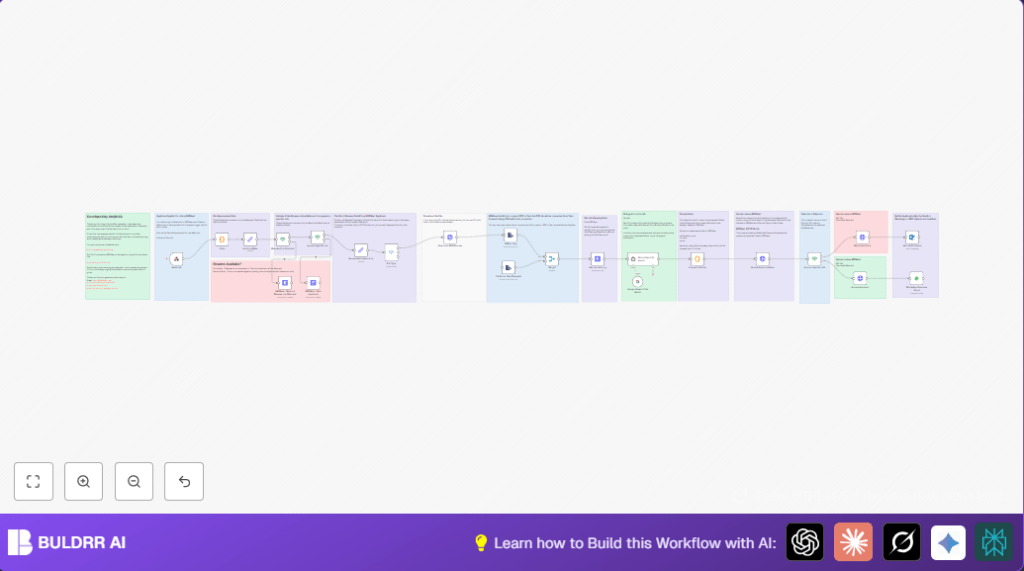
This unique n8n workflow automates applicant shortlisting by integrating ERPNext with AI-driven resume analysis. It smartly handles resume validation, scores candidates, and updates ERPNext statuses to save recruiters hours of manual screening.
erpNext
webhook
agent
+10
Workflow Identifier: 1135
NODES in Use: stickyNote, code, erpNext, if, set, switch, httpRequest, extractFromFile, agent, httpRequest, microsoftOutlook, whatsApp, webhook

Press CTRL+F5 if the workflow didn't load.

Learn how to Build this Workflow with AI:

Visit through Desktop for Best experience

1. Opening Problem Statement

Meet Sarah, a busy HR manager overwhelmed by a flood of job applications in her ERPNext system. Each day, she spends hours manually checking if applicants have uploaded resumes, reading through the job descriptions, and trying to match candidate qualifications against open roles. Without automation, Sarah risks delaying candidate feedback, making errors in shortlisting, and missing out on top talent. What if Sarah could automate this tedious process, accurately shortlist candidates using AI, and update her ERP system automatically, saving precious hours every week?

2. What This Automation Does

This n8n workflow is tailor-made to transform Sarah’s recruitment pipeline by:

  • Automatically receiving new job applicant data from ERPNext via a webhook upon application submission.
  • Validating if the applicant attached a resume and applied for a specific job opening.
  • Downloading the applicant’s resume (PDF format), converting it from PDF to text for AI processing.
  • Using a smart AI agent (Google Gemini/PaLM) to analyze the resume text against the job description from ERPNext, scoring and rating candidate fit.
  • Converting AI output into structured ERPNext fields like fit level, score, rating, and justification.
  • Automatically updating the job applicant’s status in ERPNext to Accepted, Rejected, or Hold based on score thresholds and validation checks.
  • Sending notification messages to applicants through Microsoft Outlook email or WhatsApp Business Cloud about their application status.

By leveraging AI and strategic API integrations, this workflow eliminates manual resume screening, reduces human error, and accelerates recruitment responses—potentially saving Sarah and her team over 10 hours weekly.

3. Prerequisites ⚙️

  • ERPNext account with API access and configured webhook for the Job Applicant DocType.
  • n8n automation platform account.
  • Google Gemini (PaLM) API account for AI resume analysis.
  • Microsoft Outlook account connected with n8n for sending emails.
  • WhatsApp Business Cloud API credentials for sending WhatsApp messages.
  • Basic knowledge of webhook URLs and API authentication.

4. Step-by-Step Guide

Step 1: Creating and Pinning ERPNext Webhook for New Job Applicants

Navigate in ERPNext to the Webhooks settings. Create a webhook for the Job Applicant document type, triggering on the insert event (new application). Test and pin this webhook to enable n8n to receive applicant data.

Step 2: Setting up the n8n Webhook Node

In n8n, add a Webhook node with POST method and path syncbricks-com-tutorial-candidate-shortlist matching your ERPNext webhook URL. This node captures new job application payloads.

Step 3: Extract Applicant Data Using the Code Node

Link the Webhook node to a Code node that loops through incoming items and adds a new field for processing. This isolates relevant JSON data to prepare for validation and analysis.

// Loop over input items and add a new field called 'myNewField' to the JSON
tfor (const item of $input.all()) {
  item.json.myNewField = 1;
}
return $input.all();

Step 4: Check if Resume Link is Provided and Job is Applied Against Opening

Add an If node to validate if the resume link starts with http. If yes, continue; if no, trigger an ERPNext update to reject the applicant.

Use another If node to confirm the application is against a valid Job Opening, otherwise mark the applicant status as “Hold” in ERPNext.

Step 5: Extract Resume Attachment Link

Use a Set node to extract the resume attachment URL from the data to process file download and conversion.

Step 6: Download and Identify Resume File Type

Use a Switch node to route based on file extension (.pdf, .doc, .jpg) of the attachment link. Currently, this workflow fully supports PDF for text extraction.

Use an HTTP Request node to download the resume PDF file from the provided URL.

Step 7: Convert PDF Resume to Text

Use the ExtractFromFile node set to PDF operation to convert the downloaded file into plain text ready for AI analysis.

Step 8: Fetch the Job Opening Description from ERPNext

Employ the ERPNext node to get the job description by using Job Opening ID from the applicant data. This provides context for the AI to compare against the resume.

Step 9: Analyze Resume vs Job Description with AI Agent

Send the extracted text and job description to the Langchain Agent node using the Google Gemini chat model. The AI will evaluate skill matches, assign a fit level, score (0-100), rating (0-5), and justification narrative.

Step 10: Convert AI Output Into ERPNext Field Format with Code Node

Use a Code node to parse the AI agent’s text output with regex, extracting fields: fit_level, score, applicant_rating, and justification_by_ai. This formats data to update ERPNext applicant records accurately.

const textOutput = $json.output || '';
function extractFields(text) {
  const fields = {};
  const fitLevelMatch = text.match(/FitLevel:s*(.+)n/);
  const scoreMatch = text.match(/Score:s*(d+)n/);
  const ratingMatch = text.match(/Rating:s*(d+)n/);
  const justificationMatch = text.match(/Justification:s*([sS]+)/);
  fields.fit_level = fitLevelMatch ? fitLevelMatch[1].trim() : null;
  fields.score = scoreMatch ? scoreMatch[1].trim() : null;
  fields.applicant_rating = ratingMatch ? ratingMatch[1].trim() : null;
  fields.justification_by_ai = justificationMatch ? justificationMatch[1].trim() : null;
  return fields;
}
const extractedFields = extractFields(textOutput);
return {json: extractedFields};

Step 11: Update Applicant Data in ERPNext with AI Results

Use an HTTP Request node with method PUT to update custom fields in ERPNext for the applicant record (justification, fit level, score, rating).

Step 12: Decision to Accept or Reject

Add an If node to check if the score is less than 80. If yes, perform a PUT request to reject the applicant and send an email via Microsoft Outlook notifying rejection.

If the score is 80 or above, send a PUT request to accept the applicant and notify them via WhatsApp Business Cloud message.

Step 13: Notifications to Applicants

Configure Microsoft Outlook node to send rejection emails, and WhatsApp Business Cloud node for acceptance notifications to keep applicants informed automatically.

5. Customizations ✏️

  • Expand support for different resume formats by adding ExtractFromFile nodes for Word or image-to-text OCR conversions.
  • Adjust the AI scoring threshold from 80 to a custom value per recruitment policy by modifying the If node condition.
  • Incorporate Slack or SMS notification nodes instead of or alongside existing email and WhatsApp for diverse communication preferences.
  • Add a node to download resumes directly from S3 by replacing the HTTP Request node with the n8n S3 integration.
  • Modify AI agent prompts to include additional role-specific criteria or compliance checks for nuanced candidate assessments.

6. Troubleshooting 🔧

Problem: “Webhook not triggering on new job application”

Cause: ERPNext webhook improperly configured or not pinned.

Solution: Double-check webhook setup in ERPNext, ensure it triggers on Job Applicant insert events, test webhook manually, and confirm it is pinned in n8n.

Problem: “Resume is not downloaded or PDF to text conversion fails”

Cause: Resume URL invalid or ExtractFromFile node unsupported format.

Solution: Verify resume attachment URL is correct and accessible. Add processing nodes for other formats if needed. Test with sample PDF resumes.

Problem: “AI Agent returns no output or format error”

Cause: API credentials invalid or prompt misconfigured.

Solution: Check Google Gemini API credentials in n8n. Review AI prompt syntax. Test AI node with simple inputs.

7. Pre-Production Checklist ✅

  • Verify ERPNext webhook triggers correctly and sends expected applicant data.
  • Test resume URL extraction and file download functionality.
  • Confirm PDF to text extraction is accurate for sample resumes.
  • Validate AI agent response format matches code node parsing requirements.
  • Ensure ERPNext API credentials allow PUT updates on Job Applicant document.
  • Perform test runs with dummy applicants to confirm status updates (Accepted, Rejected, Hold) operate properly.
  • Create backup plan and rollback method for ERPNext data before automation deployment.

8. Deployment Guide

Once tested, activate the workflow by toggling the webhook node to active. Monitor the workflow executions via n8n dashboard, check logs for errors or rejections, and refine AI prompts or scoring thresholds if needed. Since this is an API-driven pipeline, production monitoring is essential to ensure all candidates are processed timely and statuses updated as intended.

9. FAQs

Q: Can I use a different AI model instead of Google Gemini?

A: Yes, n8n supports multiple AI integrations. You can replace the Google Gemini node with OpenAI or other language models, ensuring that the prompt syntax matches accordingly.

Q: Does this workflow consume API credits?

A: AI analysis and ERPNext API calls do consume respective API credits. Monitor your usage to manage costs effectively.

Q: Is my candidate data secure in this automation?

A: Data security depends on your ERPNext and n8n hosting environment. Use secure credentials, HTTPS endpoints, and restrict access to keep data safe.

10. Conclusion

By following this detailed guide, you’ve built an advanced n8n workflow that automates candidate shortlisting with ERPNext and AI-powered resume analysis. This workflow saves hours of manual screening, reduces recruiter workload, and increases hiring accuracy with data-driven decisions. Next, consider expanding the automation to multi-role recruitment, integrate calendar scheduling for interviews, or add sentiment analysis of cover letters. Happy automating!

Promoted by BULDRR AI

Related Workflows

Automate Viral UGC Video Creation Using n8n + Degaus (Beginner-Friendly Guide)

Learn how to automate viral UGC video creation using n8n, AI prompts, and Degaus. This beginner-friendly guide shows how to import, configure, and run the workflow without technical complexity.
Form Trigger
Google Sheets
Gmail
+37
Free

AI SEO Blog Writer Automation in n8n (Beginner Guide)

A complete beginner guide to building an AI-powered SEO blog writer automation using n8n.
AI Agent
Google Sheets
httpRequest
+5
Free

Automate CrowdStrike Alerts with VirusTotal, Jira & Slack

This workflow automates processing of CrowdStrike detections by enriching threat data via VirusTotal, creating Jira tickets for incident tracking, and notifying teams on Slack for quick response. Save hours daily by transforming complex threat data into actionable alerts effortlessly.
scheduleTrigger
httpRequest
jira
+5
Free

Automate Telegram Invoices to Notion with AI Summaries & Reports

Save hours on financial tracking by automating invoice extraction from Telegram photos to Notion using Google Gemini AI. This workflow extracts data, records transactions, and generates detailed spending reports with charts sent on schedule via Telegram.
lmChatGoogleGemini
telegramTrigger
notion
+9
Free

Automate Email Replies with n8n and AI-Powered Summarization

Save hours managing your inbox with this n8n workflow that uses IMAP email triggers, AI summarization, and vector search to draft concise replies requiring minimal review. Automate business email processing efficiently with AI guidance and Gmail integration.
emailReadImap
vectorStoreQdrant
emailSend
+12
Free

Automate Email Campaigns Using n8n with Gmail & Google Sheets

This n8n workflow automates personalized email outreach campaigns by integrating Gmail and Google Sheets, saving hours of manual follow-up work and reducing errors in email sequences. It ensures timely follow-ups based on previous email interactions, optimizing communication efficiency.
googleSheets
gmail
code
+5
Free