

1. Opening Problem Statement
Meet Sarah, a product manager at a growing tech company. Every month, Sarah needs to gather detailed API documentation from dozens of third-party services her team integrates with. Manually searching for accurate API docs, extracting endpoint details, and compiling them into structured formats wastes her at least 10 hours monthly. Mistakes and outdated data lead to integration delays costing the company time and money. She needs a precise, reliable automation that can find, scrape, and analyze up-to-date API documentation automatically to save time and improve productivity.
2. What This Automation Does
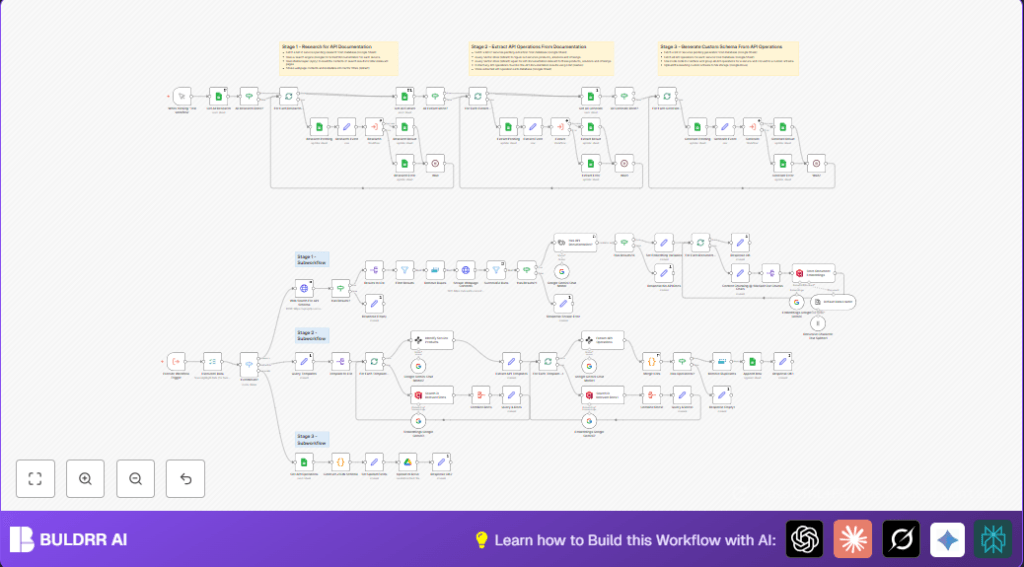
This unique n8n workflow tackles Sarah’s challenge by automating the entire process of researching, extracting, and generating API schema data. When triggered, it:
- Fetches a list of services pending research from Google Sheets and uses a Google search API to find relevant API documentation pages.
- Scrapes web pages of documentation to cleanly extract textual content relevant to APIs, filtering out non-essential media and scripts.
- Employs Google Gemini and LangChain AI models to classify documents for API schema presence and extract REST API endpoint details.
- Stores document content and API endpoints as vector embeddings in Qdrant for efficient querying and future reference.
- Compiles extracted API operations into a custom JSON schema grouped by resource and uploads this schema file to Google Drive.
- Logs progress and results through status updates directly in Google Sheets, enabling easy tracking and management.
Thanks to this workflow, Sarah saves over 10 hours per month, reduces human error, and keeps an up-to-date centralized API schema repository.
3. Prerequisites ⚙️
- n8n account (Cloud or self-hosted) 🔌
- Google Sheets account 📊 (for input and output of data)
- Google Drive account 📁 (to store resulting JSON schema files)
- Qdrant Vector Store account 🔑 (for embedding storage and retrieval)
- Apify APIs (HTTP Request node config) 🕸️ (for Google Search and Web Scraping)
- Google Gemini AI integration (LangChain nodes) 🤖
4. Step-by-Step Guide
Step 1: Trigger the Workflow Manually
Navigate to your n8n instance, open this workflow, and click Execute Workflow or use the Manual Trigger node named “When clicking ‘Test workflow’”. This initiates the process for services listed in your Google Sheet.
Expected Outcome: The workflow retrieves pending service entries for research.
Common Mistake: Forgetting to link Google Sheets credentials properly causing data fetch failure.
Step 2: Fetch and Filter Services to Research (Google Sheets nodes: Get All Research)
This step reads from your input Google Sheet, filtering services that have yet to undergo research. It helps queue the next stages.
Step 3: Perform Web Search for API Schema (HTTP Request node: Web Search For API Schema)
The workflow sends a POST request to Apify’s fast-google-search-results-scraper act, querying Google for API documentation specifically related to each service URL and name, restricting results to relevant pages only.
{
"searchTerms": [
`site:example.com "Formstack" api developer (intext:reference OR intext:resource) (-inurl:support OR -inurl:help) (inurl:api OR intitle:api) -filetype:pdf`
],
"resultsPerPage": 10
}
Expected Outcome: A list of refined search result URLs related to API documentation.
Step 4: Clean and Scrape Webpage Contents (HTTP Request node: Scrape Webpage Contents)
Using Apify’s web scraper act, this step visits each URL gathered and extracts the page title and only relevant HTML body text after removing images, scripts, and other non-text elements. Crawling depth and pages per crawl are limited for efficiency.
Common Mistake: Incorrect API authentication or proxy misconfiguration causing scraping to fail.
Step 5: Filter and De-duplicate Results (Filter and Remove Duplicates nodes)
The workflow filters out results that don’t match normal types and removes duplicate URLs to maintain a clean dataset for further processing.
Step 6: Segment Large Content and Generate Embeddings (Set, SplitOut, LangChain Embeddings Nodes)
Long webpage content is chunked into 50k-character batches, then split and loaded into LangChain’s Default Document Data Loader. The document content is embedded using Google Gemini embedding models and stored in Qdrant vector store with metadata tagging the originating service and URL.
Step 7: Use AI to Classify API Documentation Presence (Google Gemini Chat Model node)
The Google Gemini chat model classifies if the scraped document contains API schema documentation or definitions using a snippet of content (up to 40,000 characters).
Step 8: Extract API Operations Using Language Models (Information Extractor node + Gemini Chat Model)
The extracted documents classified as containing API schemas are processed to find REST API endpoints and operations (GET, POST, PUT, DELETE). Labels such as resource groups, operation verbs, descriptions, and URLs are generated.
Prompt example for extraction:
You have been given an extract of a webpage which should contain a list of web/REST api operations.
Step 1. Extract all REST API operation endpoints from the page content and generate labels for resource, operation, description, method.
Extract a max of 15 endpoints.
If none found, return an empty array.
Step 9: Store Extracted API Operations to Google Sheets
The discovered API operations are de-duplicated by method and URL, then appended as rows into a dedicated Google Sheet tracking all extracted API endpoint details per service.
Step 10: Generate a Custom JSON Schema from API Operations (Code node)
All API operations for a service are combined and grouped by resource in a custom schema format with necessary metadata and formatted endpoint details.
// Sample JavaScript from Code node
const service = {
documentation_url: $('EventRouter').first().json.data.url,
endpoints: [],
};
const resources = Array.from(new Set($input.all().map(item => item.json.resource.toLowerCase().trim())));
for (const resource of resources) {
const resourceLabel = resource.replace('api', '').trim();
if (!resourceLabel) continue;
const endpoint = {
resource: resourceLabel[0].toUpperCase() + resourceLabel.substring(1),
};
const operations = $input.all().filter(item => item.json.resource.toLowerCase().trim() === resource).map(item => item.json);
endpoint.operations = operations.map(op => ({
operation: op.operation[0].toUpperCase() + op.operation.substring(1),
description: op.description.match(/(^[^.]+.)/)[0],
ApiUrl: op.url,
method: op.method.toUpperCase(),
method_documentation_url: op.documentation_url || '',
}));
service.endpoints.push(endpoint);
}
return service;
Step 11: Upload the JSON Schema to Google Drive
The final JSON schema file is uploaded to a specified Google Drive folder with a timestamped and service-labeled filename for reference and integration by the development team.
Step 12: Update Workflow Progress Status in Google Sheets
Throughout all stages (Research, Extraction, Generation), the workflow updates the status columns in Google Sheets so Sarah can easily track which services are pending, processing, completed, or errored.
5. Customizations ✏️
- Adjust Search Query in “Web Search For API Schema” node: Modify the query parameter to target different keywords or domains for specific API documentation styles.
- Change Content Chunk Size: In the “Content Chunking @ 50k Chars” set node, customize the string length per chunk to suit longer or shorter content ingestion limits.
- Switch AI Models: Replace Google Gemini nodes with another LLM or embedding provider supported by LangChain if preferred.
- Update Google Sheets & Drive IDs: Change spreadsheet or folder IDs to integrate with your organization’s actual Google Workspace resources.
- Enable Proxy Rotation Settings: Customize Apify HTTP request proxy settings to conform with your network or scraping scale needs.
6. Troubleshooting 🔧
- Problem: “No web results” or empty API docs found
Cause: Incorrect or too restrictive search terms in the web search node
Solution: Relax search terms or verify service URLs. Check API quota on Apify request usage. - Problem: “Web scraping error” in Scrape Webpage Contents node
Cause: Failed proxy or bad URL response
Solution: Review Apify proxy settings in HTTP Request node and test URLs separately. - Problem: Google Sheets update fail or error
Cause: Missing or incorrect Google Sheets OAuth credentials
Solution: Re-authenticate Google Sheets node and confirm write access to the specified sheet. - Problem: AI model classification or extraction returns empty
Cause: Document content might not include API schema or exceeded size limits
Solution: Increase content chunks or validate the source content manually.
7. Pre-Production Checklist ✅
- Verify Google Sheets input data includes correct service names and URLs
- Test Apify web search and scraping APIs independently for quota and proxy correctness
- Confirm LangChain Google Gemini API keys configured and authorized
- Run manual tests triggering the workflow and check that nodes execute successfully with expected outputs
- Backup your Google Sheets data before running automated updates
8. Deployment Guide
Activate the workflow in your n8n environment and schedule it to run at desired intervals or trigger manually. Monitor execution logs in n8n for errors or performance issues. Use Google Sheets as your dashboard for progress tracking and Google Drive for output management. Adjust node parameters as needed based on workload.
9. FAQs
Q: Can I replace Apify with another search or scraping service?
A: Yes, you can replace HTTP Request configurations with alternative APIs that provide similar search and scrape capabilities, adjusting request parameters accordingly.
Q: Does this workflow consume a lot of API credits?
A: Usage depends on the volume of services and pages scraped. Monitor your API limits and optimize parameters like resultsPerPage and max pages accordingly.
Q: Is my data safe processing through Apify and Google APIs?
A: Ensure you comply with each service’s data privacy and usage policies. Use secure authentication and limit scope where possible.
Q: How does the vector store help?
A: It enables fast retrieval and semantic search of large document contents for future queries or expansions of this workflow.
10. Conclusion
By completing this tutorial, you have automated the complex, repetitive process of researching, scraping, and extracting API documentation using n8n integrated with AI-driven Google Gemini models, Apify web scraping, and Google Workspace tools. This workflow saves countless hours monthly and produces structured, actionable API schemas ready for your development teams.
Next steps could be to extend this workflow for continuous monitoring of API doc changes, integrate notifications via Slack or email for updates, or build a REST API from the gathered schema data for external access.
Let’s empower your team with precise API knowledge — automated and always up to date.