

Automate Jira Issue Resolution with n8n and OpenAI GPT-4

Struggling with unresolved Jira issues that waste time and delay projects? This unique n8n workflow uses OpenAI GPT-4 to classify, resolve, and close long-lived Jira tickets automatically, boosting your support team’s efficiency.
jira
lmChatOpenAi
slack
+9
Workflow Identifier: 1126
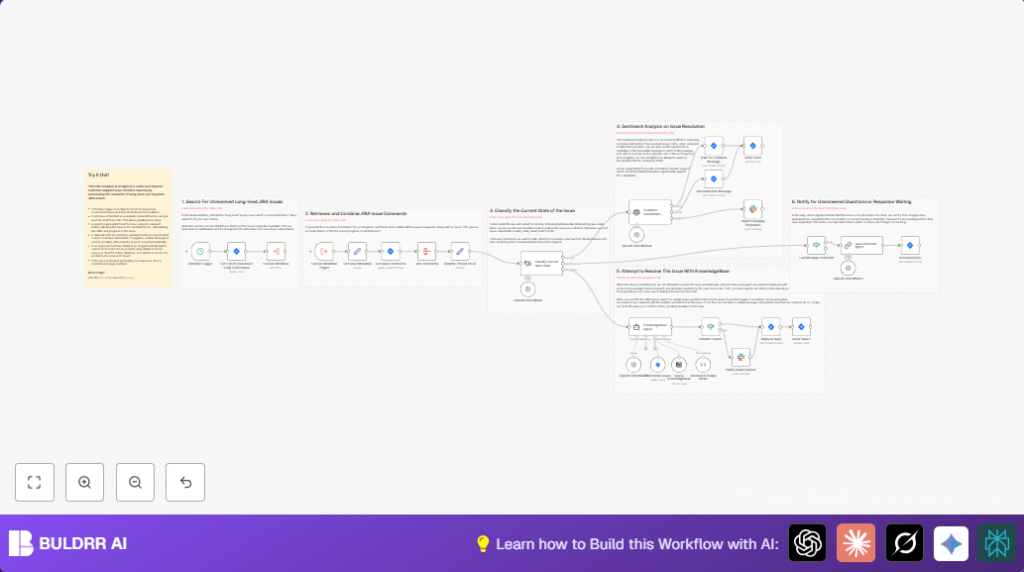
NODES in Use: Schedule Trigger, Jira, Aggregate, Set, Langchain lmChatOpenAi, Langchain textClassifier, Langchain agent, Langchain sentimentAnalysis, Langchain outputParserStructured, Langchain chainLlm, Slack, Notion

Press CTRL+F5 if the workflow didn't load.

Learn how to Build this Workflow with AI:

Visit through Desktop for Best experience

Opening Problem Statement

Meet Amanda, a project manager at a fast-growing tech startup. Every day, her support team faces a mountain of unresolved Jira issues lingering for over a week without progress. These forgotten tickets clog the backlog, causing critical delays and forcing her team to spend hours manually following up and closing tickets, leading to frustration and missed deadlines.

Time lost: Over 10 hours weekly spent tracking and resolving stale tickets.
Impact: Inefficient resource use and delayed project releases.
Amanda needs a reliable way to prioritize, analyze, and automatically close or remind about long-lived Jira issues.

What This Automation Does

This n8n workflow harnesses the power of OpenAI GPT-4 and Jira APIs to intelligently manage long-lived Jira tickets. Here’s what happens when you run this automation:

  • Daily Trigger: Automatically fetches all unresolved Jira issues older than 7 days.
  • Comment Aggregation: Gathers and consolidates all comments and metadata for each issue to provide full context.
  • AI Classification: Uses GPT-4 to classify the state of each issue as resolved, pending more info, or still waiting.
  • Auto-resolution Attempt: For unresolved tickets, an AI agent searches for solutions via similar Jira issues and your Notion knowledgebase.
  • Customer Sentiment Analysis: Evaluates resolved issues for customer satisfaction and either requests feedback or escalates negative responses.
  • Automated Notifications & Closures: Sends reminders for pending actions, auto-comments for closing tickets, and notifies Slack channels about unresolved or negatively reviewed tickets.

Benefits include saving over 10+ hours weekly on manual ticket handling, reducing forgotten tickets, and improving the customer support experience without increasing headcount.

Prerequisites ⚙️

  • n8n account with workflow execution permissions.
    You can self-host n8n for full control using platforms like Hostinger (learn more).
  • Jira Software Cloud account with API access and proper credentials for reading/updating issues.
  • OpenAI API key configured to use GPT-4o-mini or equivalent GPT-4 model.
  • Slack account and API token for sending notifications.
  • Notion account with API access to your knowledgebase for issue resolution searches.

Step-by-Step Guide to Build the Automation

Step 1: Schedule Daily Trigger for Long-lived Jira Issues

Navigate to the Schedule Trigger node.
Set it to run daily to start your workflow every day.
You should see the trigger firing once per day after saving.
This initiates the process of fetching long-standing issues older than 7 days.
Common mistake: Not setting the interval properly, resulting in missed or multiple trigger runs.

Step 2: Get List of Unresolved Long Lived Issues from Jira

Add the Get List of Unresolved Long Lived Issues Jira node.
Use JQL query status IN ("To Do", "In Progress") AND created <= -7d to filter unresolved issues older than 7 days.
Limit the result to 10 issues per run to avoid overload.
Test the node to confirm it fetches the correct issues.
Common mistake: Using incorrect JQL syntax or credentials might return empty results or cause errors.

Step 3: Execute Workflow to Process Each Issue in Parallel

Add Execute Workflow node set to "each" mode.
Provide the current workflow ID to run it for each issue independently.
This allows parallel and efficient processing.
After this step, each issue proceeds to fetch its metadata.

Step 4: Retrieve Metadata and Comments for Each Issue

Use the Get Issue Metadata node to set and extract key details from the issue (e.g., key, title, reporter, date, description).
Then, feed this data into the Get Issue Comments node to fetch all related comments.
Join these comments in the Join Comments aggregate node.
Visual cue: See all comments combined ready for AI processing.
Common mistake: Not correctly mapping issue key from metadata causes empty comments.

Step 5: Simplify Thread for AI Consumption

In the Simplify Thread For AI Set node, format each comment to include the author's name and message content, stripping unnecessary metadata.
Create a "topic" string summarizing the issue title, description, and reporter.
This prepares clean, contextual input for AI models.
Common mistake: Not properly formatting content can confuse AI responses.

Step 6: Classify Current Issue State Using GPT-4

Use the Classify Current Issue State Langchain Text Classifier node.
Input the formatted topic and comments.
Define categories: resolved, pending more information, and still waiting.
AI assesses the issue and routes the workflow to the correct branch.
Common mistake: Forgetting to configure input texts properly or categories mismatch.

Step 7: Customer Satisfaction Sentiment Analysis for Resolved Issues

For resolved issues branch, use Customer Satisfaction Agent Sentiment Analysis node.
Analyze comment sentiments to check if the customer's experience was positive or negative.
If positive, send an automated feedback request comment via Ask For Feedback Message Jira node.
If negative, notify Slack support channel using Report Unhappy Resolution Slack node for escalation.
Also, add autoclose comments and close the issue.
Common mistake: Not mapping sentiment outputs can skip important actions.

Step 8: Attempt Automated Resolution for Pending Issues

On the pending more information branch, use KnowledgeBase Agent Langchain agent connected to Jira Tool and Notion Tool nodes.
It searches for similar JIRA issues and knowledge base articles.
If a solution is found, it posts the solution comment (Reply to Issue) and closes the issue.
If not, post a notification to the reporter and close the issue.
Common mistake: Not providing proper API credentials or empty knowledge base reduces automation efficacy.

Step 9: Notify and Send Reminders for Issues Still Waiting on Response

For issues still waiting for human response, use Last Message is Not Bot condition node.
If last message is not by the bot, trigger the Issue Reminder Agent to generate a summarizing reminder message.
Send this reminder comment automatically via Send Reminder Jira node to prompt user or team action.
Common mistake: Improper condition settings may cause reminders to send repeatedly or not at all.

Step 10: Notify Slack on Unresolved or Problematic Issues

Use Notify Slack Channel node to alert the support team of zombie tickets or tickets with negative sentiment.
Craft a Slack message highlighting issue key, title, reporter, date, and summary.
This keeps the team aware and able to intervene when AI cannot resolve.

Customizations ✏️

  • Adjust Issue Age Threshold: Modify the JQL in Get List of Unresolved Long Lived Issues node to check for tickets older than 3 days instead of 7.
  • Add More AI Models: Swap out GPT-4o-mini in OpenAI Chat Model nodes with GPT-4 or GPT-3.5 for cost or performance preferences.
  • Extend Knowledge Base Sources: Add another knowledge source or integrate Confluence or Google Docs using API tools nodes for broader search.
  • Customize Slack Notifications: Modify the Slack message templates to include priority or severity information from Jira.
  • Multi-language Support: Adjust AI prompt inputs to handle multi-language comments or tickets for global teams.

Troubleshooting 🔧

Problem: "No issues returned from Jira with the JQL query"

Cause: Incorrect JQL syntax or API permission issues.
Solution: Verify your JQL in the Jira node matches the exact syntax supported. Check your API credentials have read access and the project matches the query criteria.

Problem: "AI output parsing errors" in KnowledgeBase Agent

Cause: Mismatch in the structured output parser schema or incomplete AI response.
Solution: Double-check the JSON schema in the Structured Output Parser node and ensure prompts explicitly instruct AI to follow the defined schema.

Problem: "Reminders sent repeatedly or missing"

Cause: Condition node misconfiguration or logic errors causing improper branching.
Solution: Review the Last Message is Not Bot condition logic to ensure it correctly filters automated comments from human comments.

Pre-Production Checklist ✅

  • Test the Schedule Trigger fires at expected intervals.
  • Verify the JQL query returns expected issues.
  • Confirm API credentials for Jira, Slack, OpenAI, and Notion are valid.
  • Run test issues through full workflow and check AI classification accuracy.
  • Test Slack notifications reach the intended channel.
  • Ensure AI-generated comments appear correctly formatted on Jira.

Deployment Guide

Once tested, activate your workflow by toggling it to 'active' in n8n.
Monitor the workflow execution logs daily to ensure smooth operation and catch any errors.
Slack messages and Jira comments will notify team members of important updates and actions.
Adjust the schedule or JQL queries as your team's support needs evolve.

FAQs

Q: Can I use a different AI model other than GPT-4o-mini?
A: Yes, you can replace the model in the OpenAI Chat Model nodes with GPT-3.5 or full GPT-4, but note possible cost changes.

Q: Will this consume a lot of OpenAI API credits?
A: The workflow is optimized to minimize calls, but frequent daily runs will use tokens based on issue volume and comment size.

Q: Is my Jira data secure while using this workflow?
A: Yes, n8n handles credentials securely. Make sure to restrict access to the workflow and rotate credentials regularly.

Q: Can this workflow handle hundreds of issues?
A: Processing many issues in parallel is possible by increasing your n8n resources and adjusting batch size in Jira node limits.

Conclusion

By implementing this sophisticated n8n workflow, you empower your support team to automatically identify, classify, and resolve long-standing Jira issues, saving countless hours of manual effort. Using OpenAI GPT-4, you gain smart ticket classification, AI-generated solutions, and customer sentiment insights — elevating your support quality and efficiency.

With this automation, Amanda and her team can reduce backlogs dramatically, improve customer satisfaction, and focus their time on new and urgent issues instead of chasing old tickets.
Next, consider automating SLA tracking in Jira, integrating chatbot support for live customer queries, or adding advanced analytics dashboards for support metrics.

Let's build smarter workflows together!

Promoted by BULDRR AI

Related Workflows

Automate Viral UGC Video Creation Using n8n + Degaus (Beginner-Friendly Guide)

Learn how to automate viral UGC video creation using n8n, AI prompts, and Degaus. This beginner-friendly guide shows how to import, configure, and run the workflow without technical complexity.
Form Trigger
Google Sheets
Gmail
+37
Free

AI SEO Blog Writer Automation in n8n (Beginner Guide)

A complete beginner guide to building an AI-powered SEO blog writer automation using n8n.
AI Agent
Google Sheets
httpRequest
+5
Free

Automate CrowdStrike Alerts with VirusTotal, Jira & Slack

This workflow automates processing of CrowdStrike detections by enriching threat data via VirusTotal, creating Jira tickets for incident tracking, and notifying teams on Slack for quick response. Save hours daily by transforming complex threat data into actionable alerts effortlessly.
scheduleTrigger
httpRequest
jira
+5
Free

Automate Telegram Invoices to Notion with AI Summaries & Reports

Save hours on financial tracking by automating invoice extraction from Telegram photos to Notion using Google Gemini AI. This workflow extracts data, records transactions, and generates detailed spending reports with charts sent on schedule via Telegram.
lmChatGoogleGemini
telegramTrigger
notion
+9
Free

Automate Email Replies with n8n and AI-Powered Summarization

Save hours managing your inbox with this n8n workflow that uses IMAP email triggers, AI summarization, and vector search to draft concise replies requiring minimal review. Automate business email processing efficiently with AI guidance and Gmail integration.
emailReadImap
vectorStoreQdrant
emailSend
+12
Free

Automate Email Campaigns Using n8n with Gmail & Google Sheets

This n8n workflow automates personalized email outreach campaigns by integrating Gmail and Google Sheets, saving hours of manual follow-up work and reducing errors in email sequences. It ensures timely follow-ups based on previous email interactions, optimizing communication efficiency.
googleSheets
gmail
code
+5
Free