

Automate Qualys VM Scans & Slack Alerts with n8n

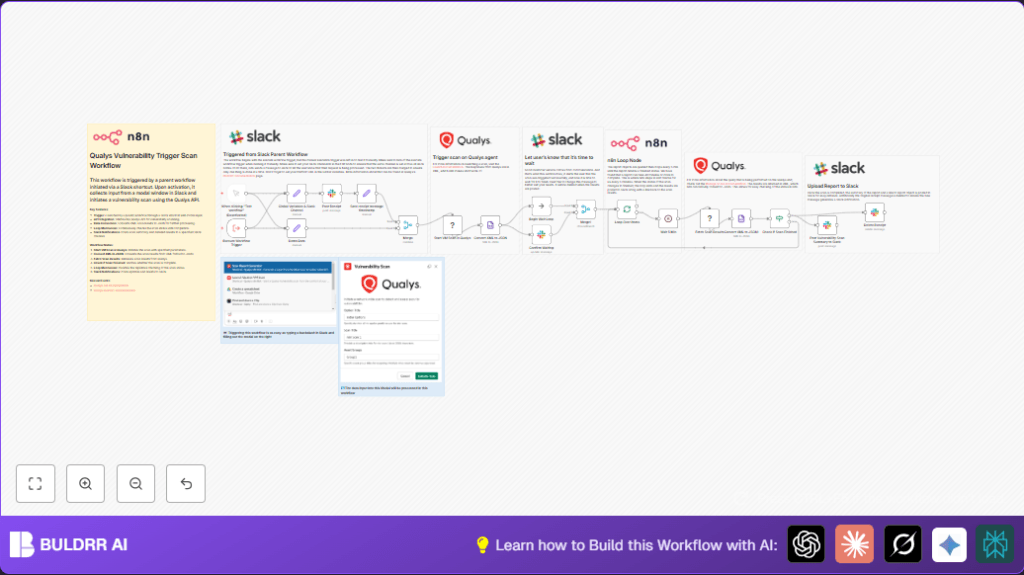
This workflow automates launching vulnerability scans on Qualys and notifies your Slack channel about progress and results, saving hours of manual monitoring and reporting. It converts Qualys’ XML reports to JSON for seamless status checks and posts detailed scan summaries as Slack messages.
httpRequest
slack
xml
+8
Workflow Identifier: 1114
NODES in Use: httpRequest, xml, splitInBatches, if, set, merge, slack, wait, noOp, executeWorkflowTrigger, stickyNote

Press CTRL+F5 if the workflow didn't load.

Learn how to Build this Workflow with AI:

Visit through Desktop for Best experience

Opening Problem Statement

Meet James, a cybersecurity analyst working round-the-clock to keep his company’s infrastructure safe. Every week, he manually triggers vulnerability scans using Qualys VM, waits anxiously for scan completion, and scrambles to fetch results from XML reports. This manual cycle eats up hours—sometimes days—causing delays in vulnerability detection and remediation. On top of that, coordinating communications via Slack about scan statuses is tedious and error-prone. Missing a scan update or misplacing reports can lead to costly security oversights.

James needs a reliable, automated solution that launches Qualys vulnerability scans, monitors progress, fetches results automatically, and posts clear status updates and detailed summaries directly to his team’s Slack channel. Without it, valuable analyst time is wasted, and security teams miss timely insights critical to their protection efforts.

What This Automation Does

This n8n workflow is tailor-made for James’s exact challenge. When triggered, here’s what happens:

  • Triggers a Qualys VM scan: It uses the Qualys API to start a vulnerability scan on specified asset groups with chosen scanning options.
  • Converts scan responses: Qualys returns XML data. The workflow makes it JSON for easy handling and processing.
  • Wait-and-loop monitoring: Every 5 minutes, it queries the scan progress until the scan status is confirmed as finished, eliminating manual polling.
  • Posts Slack notifications: Immediately informs the user that the scan request is received and processing, then updates once the scan is launched, and finally posts a detailed scan summary with severity counts and a report link.
  • Deletes interim messages: After the scan finishes, the initial receipt message is deleted to reduce Slack clutter and maintain clear communication threads.
  • Handles multiple inputs: Supports dynamic scan titles, asset groups, and scan options driven from Slack modals or other triggers.

For James, this workflow saves several hours per scan cycle, reduces human error from manual steps, and enhances team communication by pushing scan insights directly to Slack.

Prerequisites ⚙️

  • n8n account (cloud or self-hosted for automation running)
  • Qualys account with API access and valid credentials
  • Slack workspace and Slack app with permissions to post messages
  • Credentials configured in n8n for Qualys API and Slack API
  • Basic knowledge of n8n workflows including triggers, HTTP requests, and Slack nodes

Step-by-Step Guide to Building and Running This Workflow

Step 1: Set Up the Trigger Node

This workflow starts with an Execute Workflow Trigger node, anticipating triggers from a parent workflow (in this case likely from a Slack shortcut). To test manually, a manual trigger node exists but should be disabled in production.

  • Navigate: Click “+” → Search and add Execute Workflow Trigger.
  • No user input needed here, it listens for external activation.
  • Outcome: Workflow runs when the parent workflow triggers it.

Step 2: Define Demo or Modal Input Data

Use the Set node named “Demo Data” to define sample inputs: scan_title, option_title, and asset_groups. These mimic Slack modal inputs.

  • Navigate: Add Set node → Enter fields:
    scan_title: “n8n Scan 1”
    option_title: “Initial Options”
    asset_groups: “Group1”
  • You should see these fields previewed as JSON in node output.
  • Common mistake: Forgetting to define all required fields causes scan launch errors.

Step 3: Configure Global Variables for Qualys and Slack

The Set node titled “Global Variables & Slack Channel” holds your Qualys platform URL and Slack channel ID.

  • Navigate: Add Set node → Enter:
    platformurl: “https://qualysapi.qg3.apps.qualys.com”
    slackChannelId: “C05LAN72WJK” (replace with your actual Slack channel ID)
  • Outcome: These values are used throughout the workflow, so update if your environment changes.
  • Tip: Store sensitive info securely via credentials, not in plain text nodes.

Step 4: Post Receipt Confirmation to Slack

Once input is set, the Post Receipt Slack node sends a message to the configured channel confirming the scan request is processing.

  • Navigate: Add Slack node → Select your Slack app credentials → Choose channel as the variable from “Global Variables & Slack Channel” → Enter message: “Vulnerability Scan request received, processing now.”
  • Outcome: User sees immediate feedback in Slack boosting transparency.
  • Common mistake: Incorrect channel ID leads to no message posting.

Step 5: Save Receipt Message Timestamp

The Set node “Save receipt message timestamp” captures the timestamp (ts) from Slack’s response to allow later updates or deletion of this message.

  • Navigate: Add Set node → Assign ts from Slack message JSON.
  • Outcome: Timestamp is stored for later reference.

Step 6: Start the Qualys VM Scan (HTTP Request Node)

This critical HTTP Request node “Start VM Scan in Qualys” posts to Qualys’ scan API endpoint with parameters from previous nodes.

  • Navigate: Add HTTP Request node → Set URL as {{ $json.platformurl }}/api/2.0/fo/scan/ → Method: POST → Content-Type: multipart/form-data.
  • In Body Parameters use:
    asset_groups: {{ $json.asset_groups }}
    scan_title: {{ $json.scan_title }}
    option_title: {{ $json.option_title }}
  • Authentication: Use stored Qualys API credentials.
  • Outcome: Scan launch request sent, Qualys returns XML scan reference.
  • Common mistake: Misconfigured authentication causes 401 errors.

Step 7: Convert XML Response to JSON

Qualys responses come in XML format. Use the XML node “Convert XML to JSON” to transform the response to JSON for easy processing.

  • Navigate: Add XML node → Set data property as =data.
  • Outcome: JSON output includes SIMPLE_RETURN with scan reference details.

Step 8: Confirm Scan Successfully Triggered and Prepare for Loop

Use Slack update message node “Confirm Waiting” to notify that the scan started and the workflow is monitoring progress.

  • Message example: “Scan successfully initiated, now waiting for to complete. No action is needed…”
  • Outcome: User remains informed and patient.

Step 9: Loop Setup for Scan Status Check

The workflow then enters a loop implemented via the SplitInBatches node “Loop Over Items” and a combination of Wait, HTTP Request, and XML nodes.

  • Loop conditionally requests scan summary from Qualys every 5 minutes using “Fetch Scan Results” node.
  • Convert XML results to JSON with another XML node.
  • Evaluate scan status with an If node “Check if Scan Finished” which filters for status “FINISHED”.
  • If finished, exit loop; otherwise, wait another 5 minutes and retry.

Step 10: Delete Interim Slack Message

Once the scan is complete, the “Delete Receipt” Slack node removes the original receipt message to reduce clutter.

Step 11: Post Scan Summary to Slack

The final Slack node “Post Vulnerability Scan Summary to Slack” sends a beautifully formatted Slack block message that includes:

  • Scan title and user info
  • Scan timing, options, and targets details
  • Vulnerability detection summary broken down by severity
  • Button linking to full Qualys report

This provides the team with instant, actionable insight to prioritize response efforts with no manual intervention.

Customizations ✏️

  • Change Slack Channel: In the “Global Variables & Slack Channel” node, update slackChannelId to any valid Slack channel ID you prefer.
  • Adjust Scan Options: Modify the option_title or asset_groups fields in “Demo Data” or replace with dynamic Slack modal inputs to customize scan configurations.
  • Modify Wait Interval: In the “Wait 5 Min” node, change the wait time to any desired interval, like 2 or 10 minutes, depending on scan lengths and urgency.
  • Update Slack Messages: Tailor the content of “Post Receipt” and “Confirm Waiting” Slack messages to match your team’s tone or provide extra instructions.
  • Expand Result Processing: Add more Slack blocks or nodes after scan completion to send detailed vulnerability information or automate ticket creation.

Troubleshooting 🔧

  • Problem: “401 Unauthorized” or authentication failures when launching scans.
    Cause: Incorrect Qualys API credentials or expired tokens.
    Solution: Go to n8n Credentials → Update Qualys API credential with correct keys. Test connection before re-running workflow.
  • Problem: Slack messages not appearing in channel.
    Cause: Wrong Slack channel ID or insufficient Slack app permissions.
    Solution: Verify the channel ID in the “Global Variables & Slack Channel” node matches your workspace channel. Also check Slack app scopes for chat:write access.
  • Problem: Loop never ends, scan status never shows as finished.
    Cause: Wrong parsing of XML data or condition node filtering errors.
    Solution: Inspect the “Convert XML to JSON1” and “Check if Scan Finished” nodes. Confirm JSON path references match the returned XML structure. Test with manual API calls outside n8n if needed.

Pre-Production Checklist ✅

  • Verify Qualys API credentials are correctly imported and working (test with Postman or curl first).
  • Confirm Slack app is authorized and the channel ID is accurate.
  • Test running the workflow manually with known demo data.
  • Check the XML to JSON conversions output JSON as expected.
  • Simulate scan completion by mocking API responses or triggering a quick scan.
  • Back up workflow JSON and credential configuration before activating.

Deployment Guide

To deploy, ensure the “Execute Workflow Trigger” node is enabled for your parent workflow or Slack shortcut trigger. Disable manual triggers to avoid duplicate runs.

Enable workflow execution in n8n and monitor via workflow run logs for errors.

If hosting yourself, configure environment variables securely, and consider regular backups.

Leverage Slack message logs and Qualys dashboard to audit scan progress. Adjust wait times or add alerting nodes as needed.

FAQs

  • Q: Can I use other vulnerability scanners instead of Qualys?
    A: This workflow is built specifically for Qualys API structures, but with modifications to the HTTP request nodes and XML parsing, it can be adapted to other scanners with compatible APIs.
  • Q: Will this consume many API credits or rate limits?
    A: API calls are limited to starting the scan and checking every 5 minutes until completion. Adjust wait accordingly to reduce calls. Qualys API rate limits should be respected.
  • Q: Is my Slack data secure?
    A: Slack communications happen over encrypted channels. Only authorized Slack apps with proper scopes can post messages.
  • Q: Can this handle scans on thousands of assets?
    A: The workflow is designed to handle typical enterprise scan sizes. For extremely large scans, consider splitting asset groups or monitoring API rate limits.

Conclusion

By implementing this n8n workflow, James successfully automated Qualys vulnerability scan launches and reporting. He saved countless hours each week, eliminated manual polling errors, and kept his team fully informed via Slack without lifting a finger.

This tailored automation gives immediate visibility into scan statuses and results, enabling a faster, more efficient cybersecurity posture. Next, James can explore automating ticket creation for detected vulnerabilities, integrating other security tools, or extending Slack notifications with real-time alerts.

Take this proven n8n workflow, customize it for your environment, and start transforming how you manage vulnerability scans today!

Promoted by BULDRR AI

Related Workflows

Automate Viral UGC Video Creation Using n8n + Degaus (Beginner-Friendly Guide)

Learn how to automate viral UGC video creation using n8n, AI prompts, and Degaus. This beginner-friendly guide shows how to import, configure, and run the workflow without technical complexity.
Form Trigger
Google Sheets
Gmail
+37
Free

AI SEO Blog Writer Automation in n8n

A complete beginner guide to building an AI-powered SEO blog writer automation using n8n.
AI Agent
Google Sheets
httpRequest
+5
Free

Automate CrowdStrike Alerts with VirusTotal, Jira & Slack

This workflow automates processing of CrowdStrike detections by enriching threat data via VirusTotal, creating Jira tickets for incident tracking, and notifying teams on Slack for quick response. Save hours daily by transforming complex threat data into actionable alerts effortlessly.
scheduleTrigger
httpRequest
jira
+5
Free

Automate Telegram Invoices to Notion with AI Summaries & Reports

Save hours on financial tracking by automating invoice extraction from Telegram photos to Notion using Google Gemini AI. This workflow extracts data, records transactions, and generates detailed spending reports with charts sent on schedule via Telegram.
lmChatGoogleGemini
telegramTrigger
notion
+9
Free

Automate Email Replies with n8n and AI-Powered Summarization

Save hours managing your inbox with this n8n workflow that uses IMAP email triggers, AI summarization, and vector search to draft concise replies requiring minimal review. Automate business email processing efficiently with AI guidance and Gmail integration.
emailReadImap
vectorStoreQdrant
emailSend
+12
Free

Automate Email Campaigns Using n8n with Gmail & Google Sheets

This n8n workflow automates personalized email outreach campaigns by integrating Gmail and Google Sheets, saving hours of manual follow-up work and reducing errors in email sequences. It ensures timely follow-ups based on previous email interactions, optimizing communication efficiency.
googleSheets
gmail
code
+5
Free