
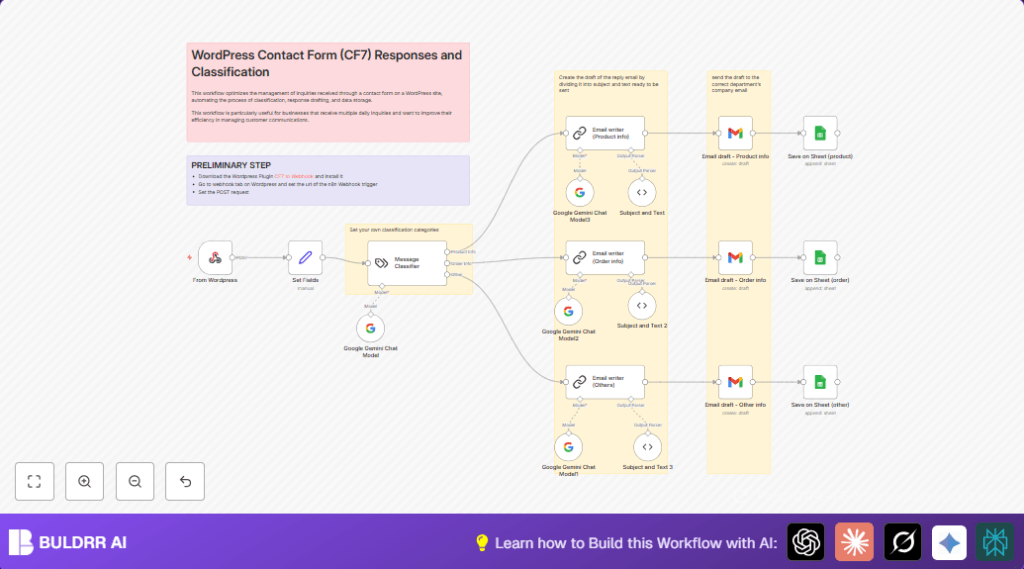

What this workflow does
This workflow takes contact form messages from a WordPress site using Contact Form 7 and sorts them automatically.
It reads messages, figures out if they ask about products, orders, or something else, then writes proper email replies and saves everything in a Google Sheet.
This saves time by stopping manual sorting and replying to customers.
Who should use this workflow
This is for small business owners or anyone using WordPress with Contact Form 7 and who get many customer questions.
If manually sorting and replying to messages takes too long, this workflow helps make that easier and faster.
Tools and services used
- WordPress CF7 to Webhook Plugin: Sends form data to the automation.
- n8n automation platform: Runs the workflow.
- Google Gemini Chat Model: Classifies message type and writes emails.
- LangChain: Organizes AI classification logic.
- Gmail API: Creates email drafts automatically.
- Google Sheets API: Records inquiries and replies.
How the workflow works: Inputs, Process, and Outputs
Inputs
- New customer contact form submission from WordPress.
- Data includes first name, last name, email, phone, and message text.
Processing Steps
- Webhook node receives the form submission through POST from WordPress.
- Set Fields node extracts and stores user details and message content for processing.
- Google Gemini Chat Model combined with LangChain analyzes the message.
- The Message Classifier LangChain node decides if the message is “Product Info,” “Order Info,” or “Other.”
- Based on the category, the workflow sends the data to specific Email writer nodes that generate professional reply drafts.
- Subject and Text parser nodes extract email subject and body from the AI output.
- Gmail draft nodes create email drafts in Gmail with the generated replies and form data.
- Google Sheets node appends the inquiry and email draft details to a sheet for record-keeping.
Outputs
- Email drafts ready in Gmail for review and sending.
- Logged inquiry and response data saved in Google Sheets.
Beginner step-by-step: How to use this workflow in n8n
Step 1: Import the workflow
- Download the workflow file using the Download button on this page.
- Inside n8n editor, click “Import from File” and select the downloaded workflow.
Step 2: Add credentials and update settings
- Add Google Palm API credentials in n8n for Google Gemini Chat nodes.
- Fill in Gmail account OAuth2 credentials for email drafts creation.
- Add Google Sheets OAuth2 credentials and update the Google Sheet ID in the logging node.
- Make sure the webhook node has a unique path and note down its URL.
- On the WordPress site, configure the CF7 to Webhook plugin with the webhook URL to send POST data.
Step 3: Testing and activating
- Send a test submission on the WordPress contact form.
- Check if the webhook triggers and the workflow runs without errors in n8n.
- Verify email drafts appear in Gmail.
- Check the Google Sheet for the new log entry.
- Activate the workflow inside n8n to start automatic processing.
If self hosting n8n on server, visit self-host n8n for help setting up webhook access.
Customization ideas
- Add more classification types by editing the category list in the Message Classifier LangChain node.
- Change email recipients in each Gmail draft node’s sendTo field.
- Change the writing style and tone in prompts inside the Email writer nodes.
- Extend the Google Sheet columns to log extra data fields from the form or AI outputs.
- Swap Google Gemini AI with other models supported by LangChain if wanted.
Common problems and fixes
- Issue: Webhook not triggered when form is sent.
Fix: Check the webhook URL is exactly copied to CF7 plugin settings and POST method is enabled. - Issue: Gmail draft nodes do not create drafts.
Fix: Verify Google Palm API and Gmail OAuth credentials are correct and authorized. - Issue: All messages classified as “Other”.
Fix: Update categories and system prompts in the Message Classifier node and test examples.
Summary of results
✓ Incoming form messages automatically classified and sorted.
✓ Professional email replies drafted without typing.
✓ Email drafts ready in Gmail for quick sending.
✓ All messages and replies recorded in Google Sheets.
✓ Saves hours of manual work every day.
✓ Reduces errors and missed customer inquiries.
