

What this workflow does
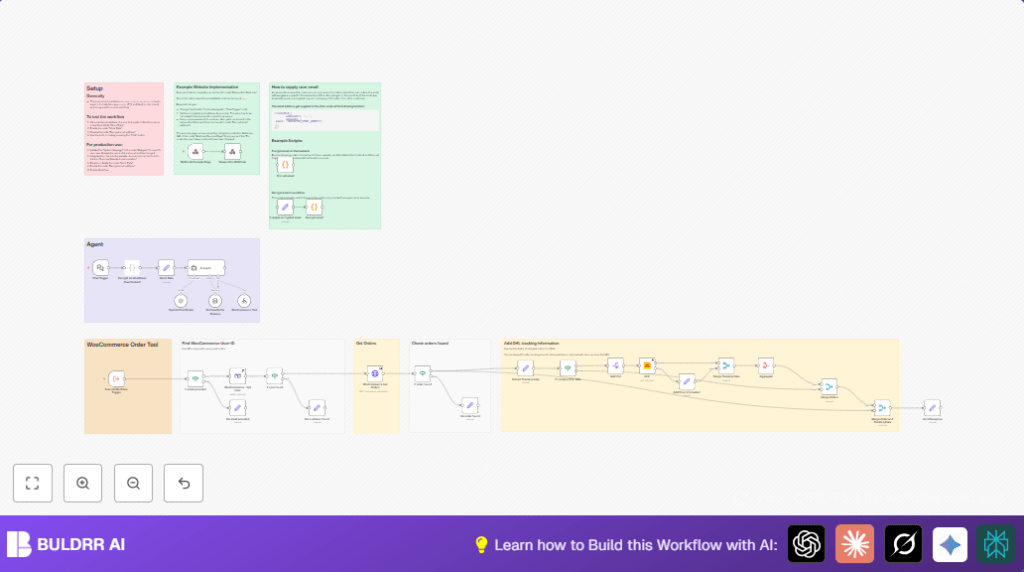
This workflow helps online shop owners answer customer questions about their WooCommerce orders quickly and safely. It checks that customers can only see their own orders by decrypting their email, then finds their orders and tracks shipments using DHL. An AI chat agent gives clear answers to customers, saving time and avoiding errors.
The main problem solved is stopping manual, slow order checking while protecting customer privacy.
Who should use this workflow
This workflow is for small business owners using WooCommerce who want to automate customer support for order tracking. It fits well if shipments use DHL and if owners want to keep customer emails confidential.
Users should have basic n8n skills and API access to WooCommerce, DHL, and OpenAI.
Tools and services used
- WooCommerce REST API: Gets customers and orders securely.
- DHL API: Retrieves real-time shipment tracking information.
- OpenAI GPT-4 via Langchain: Powers the AI chat assistant with memory.
- n8n nodes: Such as Chat Trigger, Code, If, HTTP Request, Set, Split Out, Merge, Aggregate, and Langchain Agent.
- AES-256-CBC encryption: To securely decrypt customer emails.
How this workflow works (Input → Process → Output)
Inputs
Customer starts a chat with encrypted email and order details.
Processing Steps
- The Chat Trigger node receives chat start data.
- The Code node decrypts the customer’s email using AES-256-CBC with a password.
- If email is missing, an If node stops processing and sends a polite error message.
- The WooCommerce node searches for the customer by email.
- If no customer found, an If node sends a friendly error response.
- An HTTP Request node fetches all orders for the customer, or filters by order ID if provided.
- If no orders found, another If node sends a no-order message.
- A Set node extracts DHL tracking info from order metadata keys.
- If tracking info exists, an If node continues to track; else skips DHL tracking.
- Split Out node separates each tracking number.
- The DHL node queries shipment statuses for each tracking number.
- Merge and Aggregate nodes combine DHL data back with order info.
- Another Merge node combines order and tracking data together.
- A Set node formats a clear response for the customer chat frontend.
- The Langchain Agent node uses GPT-4 and Window Buffer Memory to answer customer questions based on the order and tracking data.
Output
The customer gets friendly, accurate replies about their orders and shipment statuses in chat.
Beginner step-by-step: How to use this workflow in n8n production
Step 1: Import the workflow
- Download this workflow file using the Download button on this page.
- Open your n8n editor and select “Import from File” to add the workflow.
Step 2: Configure credentials and settings
- Go to each node that needs credentials and add your API Keys for WooCommerce, DHL, and OpenAI.
- Set the encryption password inside the Decrypt email address Code node. Use the same password as your email encryption backend.
- Update any IDs, emails, or filters in HTTP request nodes if needed to match your shop.
Step 3: Test the workflow
- Run a test by sending a valid encrypted email from your chat frontend or Mock Data node.
- Check if the workflow fetches customer, orders and DHL tracking and returns answers in chat.
Step 4: Activate the workflow
- Enable the workflow to run automatically when customers start chat.
- Embed the chat widget on your website with the webhook URL from Chat Trigger node.
- Make sure emails are encrypted before passing to the chat widget metadata for privacy.
If self hosting n8n is preferred, use self-host n8n for full control.
Customization ideas
- Replace the DHL node with UPS or FedEx API nodes if needed.
- Edit the AI Agent’s system prompt to add your shop name or special instructions.
- Change the encryption password in both encrypt and decrypt code nodes for security.
- Use the Mock Data node for testing with sample emails before going live.
- Add filters like order date or status in the WooCommerce HTTP Request for tighter results.
Handling errors and edge cases
- No email provided: Check backend encrypting is correct. The Decrypt email address code node must use the right password.
- No customer found: Validate the email exists in WooCommerce. Check for typos.
- No DHL tracking data: Confirm orders have DHL tracking metadata and API credentials are valid.
- Chat not remembering context: Verify Window Buffer Memory session key matches chat session.
- Workflow not triggering: Make sure website chat webhook URL matches the Chat Trigger node URL exactly.
Summary and results
✓ Saves hours daily answering customer order questions.
✓ Protects customer privacy by encrypting emails.
✓ Gives fast, accurate order and shipment statuses including DHL tracking.
→ Lets shop owners focus less on support and more on growing store.
