
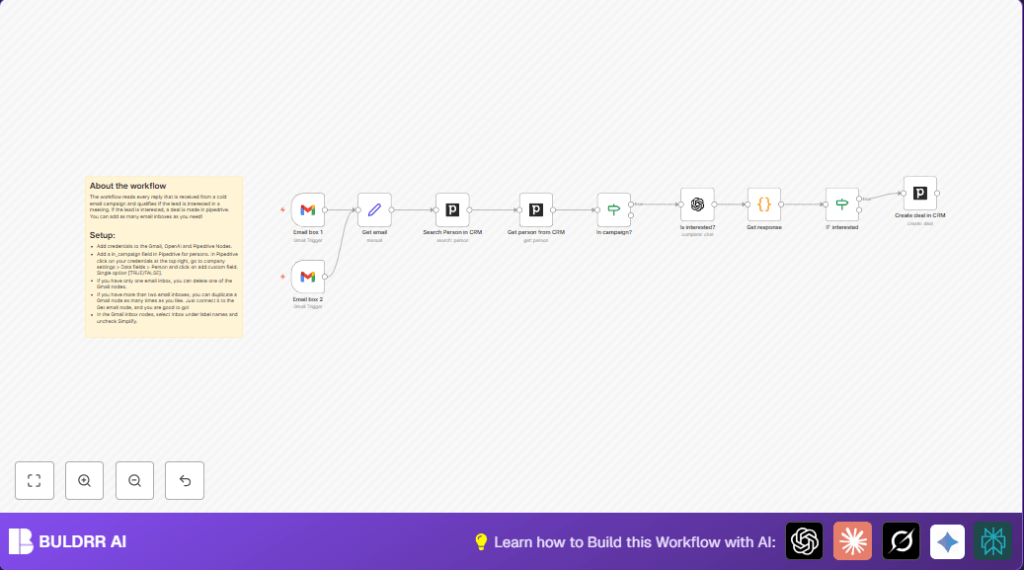

Automate Lead Qualification with Gmail, OpenAI & Pipedrive

Struggling to manually qualify leads from cold email replies? This workflow automatically reads email replies, assesses lead interest using OpenAI, and creates deals in Pipedrive, saving hours of manual work.
gmailTrigger
pipedrive
openAi
+4
Workflow Identifier: 1026
NODES in Use: gmailTrigger, set, pipedrive, if, openAi, code, stickyNote

Press CTRL+F5 if the workflow didn't load.

Learn how to Build this Workflow with AI:

Visit through Desktop for Best experience

Automate Lead Qualification from Cold Email Replies with Gmail, OpenAI, and Pipedrive ⚙️

Meet Sarah, a busy sales development representative at a growing SaaS company. Every day, Sarah sends out dozens of cold emails to CEOs and founders, hoping to schedule calls or meetings. But the real problem begins when the replies start rolling in. She spends hours manually reading through each response, trying to figure out who is actually interested and who is just polite. This tedious process not only eats up her valuable time but also risks missing out on high-potential leads mixed in the noise.

Imagine if Sarah could automate this entire qualification process — reading replies, assessing interest intelligently, and creating sales deals automatically. This exact challenge is precisely what this n8n workflow solves. By integrating Gmail for emails, OpenAI for smart response analysis, and Pipedrive for CRM management, this workflow transforms cold email reply handling from chaotic to seamless.

What This Automation Does

Once set up, when new email replies come into specified Gmail inboxes, this workflow activates automatically and performs the following:

  • Reads incoming email replies from one or multiple Gmail inboxes every minute.
  • Searches for matching contact persons in Pipedrive CRM based on the email content.
  • Checks if the contact is already part of an active campaign by verifying a custom “in_campaign” field.
  • Uses OpenAI GPT-4 to evaluate the reply text and determine if the lead is interested in a meeting or call, extracting reasons in structured JSON format.
  • Creates a new deal in Pipedrive CRM only if the lead is confirmed interested, associating it with the right contact.

This workflow saves Sarah countless hours weekly, eliminates human errors in qualifying cold replies, and accelerates lead nurturing by immediately acting on promising responses. It’s a specific, actionable automation tailored for outbound sales teams handling cold email campaigns.

Prerequisites ⚙️

  • Gmail account(s) to monitor inbound email replies. Supports multiple inboxes.
  • OpenAI account with GPT-4 access for natural language understanding.
  • Pipedrive CRM account with API access and a custom “in_campaign” single option (TRUE/FALSE) field added to the Person data fields.
  • n8n account to set up and run the workflow.
  • Optional self-hosting available for n8n to keep your data under your control.

Step-by-Step Guide to Set Up This Workflow ✏️

1. Add Gmail Trigger Nodes to Monitor Inbox

Navigate in n8n to add a Gmail Trigger node twice — one for each inbox you want to monitor.

Under Settings, select your desired Gmail account credentials. Uncheck “Simplify” to make sure you get the full message detail.

Set the polling interval to “Every Minute” for near real-time processing.

Visual Cue: You’ll see the Gmail nodes listen to new incoming emails automatically.

Common Mistake: Forgetting to uncheck “Simplify” results in missing full email content necessary for processing.

2. Create a Set Node to Extract Email Text

After the Gmail triggers, add a Set node called “Get email”.

Map the incoming email’s text field into a new parameter named email.

Why? This ensures the email content passes cleanly into the next search node.

3. Search for the Person in Pipedrive CRM

Add a Pipedrive node configured for the Search operation on the “person” resource.

Set the search term to {{ $json.from.value[0].address }} — which takes the sender’s email address from the Gmail trigger.

Use your Pipedrive API credentials.

Expected Result: Finds the CRM contact matching the email sender.

4. Fetch Full Person Details from CRM

Insert another Pipedrive node set to Get operation on the “person”.

Pass the person ID returned from the search node to fetch all available person details, including custom fields.

5. Check “In Campaign” Status with an IF Node

Use an IF node named “In campaign?” to check if the linked person has the custom field in_campaign set to “True”.

Only messages connected to persons in a campaign proceed to the next step.

6. Evaluate Interest Using OpenAI GPT-4

Add the OpenAI node titled “Is interested?” configured to use the gpt-4 model.

Use this prompt template:

=You are the best sales development representative in the world. You send cold email messages daily to CEOs and founders of companies. You do this to persuade them to make contact. This could be a phone call or a video meeting.

Your task is to assess whether someone is interested in meeting up or calling sometime. You do this by attentively evaluating their response.

This is the email:
{{ $('Get email').item.json.text }}

The response format should be:
{"interested": [yes/no],
"reason": reason
}

JSON:

This prompt sends the inbound reply for analysis and receives a structured response indicating the lead’s interest and justification.

7. Parse OpenAI Response for Interest and Reason

After the OpenAI node, add a Code node “Get response” with this JavaScript code:

let interested = JSON.parse($json["message"]["content"]).interested;
let reason = JSON.parse($json["message"]["content"]).reason;

return {json: {interested: interested, reason: reason}};

This extracts the relevant fields to use in subsequent conditional checks.

8. Confirm Interest with Another IF Node

Add a second IF node named “IF interested” to compare if interested equals “yes”.

If “yes,” the workflow continues to create a deal; otherwise, it stops.

9. Create a Deal in Pipedrive CRM

Add a final Pipedrive node configured to Create a “deal” in the CRM.

Set the title dynamically using the person’s name like: {{ $('Get person from CRM').item.json.Name }} Deal.

This ensures that hot leads are immediately converted into actionable sales opportunities.

Customizations ✏️

  • Add More Gmail Inboxes: Duplicate the existing Gmail Trigger nodes to monitor additional email accounts. Connect them to the “Get email” node.
    This expands your lead capture footprint seamlessly.
  • Customize Interest Assessment: Modify the OpenAI prompt to include industry-specific jargon or tailor questions to capture more nuanced lead signals.
  • Include Deal Metadata: In the “Create deal in CRM” node, add extra fields like deal value or expected close date to enhance sales tracking accuracy.
  • Filter Unwanted Replies: Add an extra IF node before querying OpenAI to filter out auto-replies or non-business responses based on keywords.
  • Enhanced Error Logging: Integrate additional nodes to log errors or unexpected inputs for better workflow diagnostics.

Troubleshooting 🔧

  • Problem: “No person found in CRM” after search.

    Cause: Email does not match any contact email in Pipedrive.

    Solution: Ensure all campaign contacts have updated email addresses in the CRM and search term uses sender’s correct email.

  • Problem: “OpenAI node returns invalid JSON format.”

    Cause: Model response is not properly structured JSON.

    Solution: Verify the prompt formatting, and consider adding validation or retry logic.

  • Problem: “Workflow triggers but no deal created.”

    Cause: The “IF interested” node blocks due to negative interest detection.

    Solution: Confirm the OpenAI output and the IF node condition correctly match “yes” exactly.

Pre-Production Checklist ✅

  • Verify Pipedrive credentials and API access permissions.
  • Confirm Gmail inboxes are connected and fetching emails.
  • Test the OpenAI node with sample email replies to ensure expected JSON response.
  • Check custom “in_campaign” field exists and populated in Pipedrive contacts.
  • Run test cold email replies through the workflow to confirm deal creation on positive interest.
  • Backup existing CRM data before mass deployment to avoid accidental overwrites.

Deployment Guide

Activate the workflow in n8n and keep it running continuously on your preferred environment.

If self-hosting, ensure your n8n instance has stable internet and API access to Gmail, OpenAI, and Pipedrive.

Monitor workflow executions for any errors or warnings via n8n’s dashboard to maintain smooth operation.

FAQs

  • Can I use other email providers besides Gmail?
    Currently, this workflow uses the Gmail Trigger node. To support other providers, you’d need to replace or add compatible email trigger nodes.
  • Does using OpenAI increase costs?
    Yes, every GPT-4 API call consumes tokens that may incur charges depending on your OpenAI plan.
  • Is my CRM data secure?
    All data transfer is encrypted via APIs. If concerned, consider self-hosting n8n for full control.
  • Can this scale for hundreds of emails per day?
    Yes, but monitor rate limits on Gmail and OpenAI APIs to avoid throttling.

Conclusion

By setting up this tailored n8n workflow, you’ve transformed how you handle cold email replies. The tedious manual screening? Gone. Instead, you get real-time qualified leads, automatically fed into your Pipedrive CRM as deals. You save hours every week, minimize oversight risks, and accelerate your sales pipeline productivity.

Next steps? Consider adding personalized follow-ups triggered directly from this workflow or integrating other messaging platforms like Slack for instant sales team notifications. You’re now equipped to make outbound sales smarter, faster, and more efficient.

Promoted by BULDRR AI

Related Workflows

Automate Viral UGC Video Creation Using n8n + Degaus (Beginner-Friendly Guide)

Learn how to automate viral UGC video creation using n8n, AI prompts, and Degaus. This beginner-friendly guide shows how to import, configure, and run the workflow without technical complexity.
Form Trigger
Google Sheets
Gmail
+37
Free

AI SEO Blog Writer Automation in n8n

A complete beginner guide to building an AI-powered SEO blog writer automation using n8n.
AI Agent
Google Sheets
httpRequest
+5
Free

Automate CrowdStrike Alerts with VirusTotal, Jira & Slack

This workflow automates processing of CrowdStrike detections by enriching threat data via VirusTotal, creating Jira tickets for incident tracking, and notifying teams on Slack for quick response. Save hours daily by transforming complex threat data into actionable alerts effortlessly.
scheduleTrigger
httpRequest
jira
+5
Free

Automate Telegram Invoices to Notion with AI Summaries & Reports

Save hours on financial tracking by automating invoice extraction from Telegram photos to Notion using Google Gemini AI. This workflow extracts data, records transactions, and generates detailed spending reports with charts sent on schedule via Telegram.
lmChatGoogleGemini
telegramTrigger
notion
+9
Free

Automate Email Replies with n8n and AI-Powered Summarization

Save hours managing your inbox with this n8n workflow that uses IMAP email triggers, AI summarization, and vector search to draft concise replies requiring minimal review. Automate business email processing efficiently with AI guidance and Gmail integration.
emailReadImap
vectorStoreQdrant
emailSend
+12
Free

Automate Email Campaigns Using n8n with Gmail & Google Sheets

This n8n workflow automates personalized email outreach campaigns by integrating Gmail and Google Sheets, saving hours of manual follow-up work and reducing errors in email sequences. It ensures timely follow-ups based on previous email interactions, optimizing communication efficiency.
googleSheets
gmail
code
+5
Free