
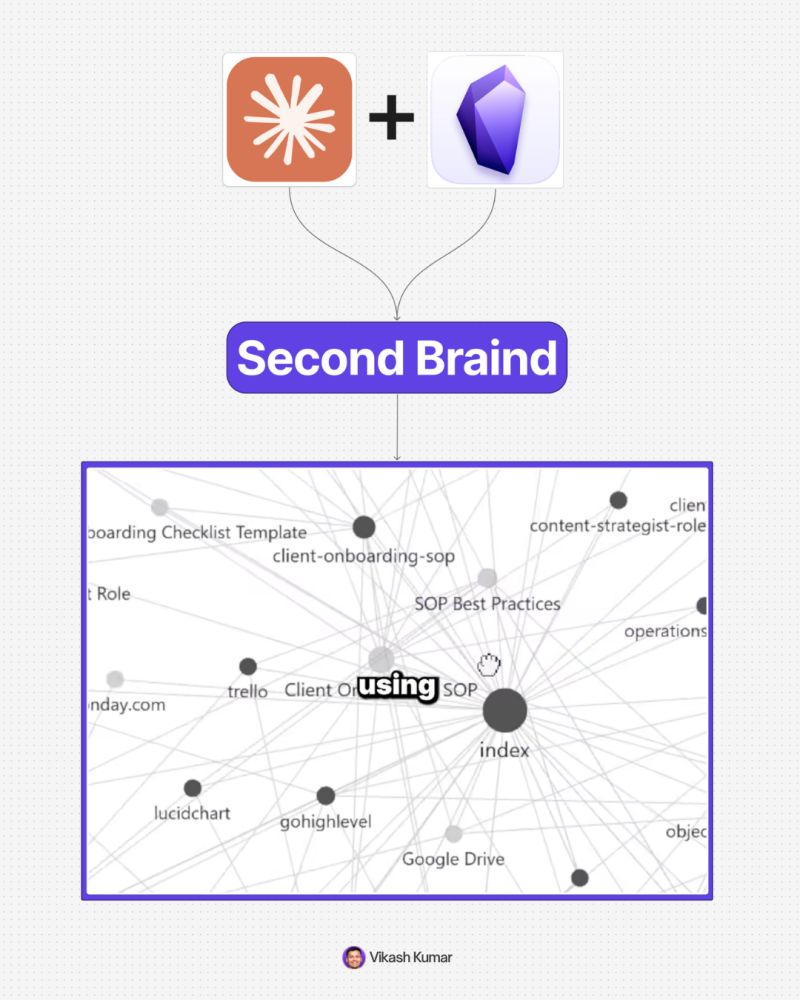
Your SOPs live in a Google Doc nobody opens. Half-finished articles sit in fifteen browser tabs. Somebody on a call last week said something genuinely useful, and it’s already gone.
Sound familiar?
Okay so here’s the fix — one free prompt that builds a system where Claude Code actually reads your business knowledge, connects it, and tells you exactly what needs to change. Setup takes under 10 minutes, and there’s nothing technical to learn.
What Is a “Second Brain” for a Business?
A second brain is a system that stores, connects, and applies everything your business knows — instead of leaving it scattered across docs, tabs, and people’s memories. Think of it like a three-drawer filing cabinet, except this cabinet reads its own contents and tells you when something’s out of date.
Most “second brain” guides online are written for individuals organizing their personal notes and to-do lists — journal entries, book highlights, that kind of thing. This one’s different. It’s built specifically for business knowledge: your SOPs, your team’s day-to-day processes, and the outside research you’re trying to keep up with.
The three drawers work like this:
Drawer 1 — Raw. Your existing SOPs and workflows. What your business does today, written down.
Drawer 2 — Clippings. New knowledge from outside — articles, research, frameworks you’re learning from.
Drawer 3 — Wiki. Claude’s growing notebook. Everything it’s ingested from drawers one and two, cross-referenced into your company’s own encyclopedia.
The Magic Moment — What Makes This Different
Here’s the part that actually matters: once drawer one has your SOPs and drawer two has a new article, you can ask Claude one question — “Does my current workflow actually hold up?”
Claude compares what it just learned from the article against your internal processes and tells you exactly what needs to change. Not a vague summary. A specific list of gaps, conflicts, and fixes.
Before: you read an industry article, nod along, and forget most of it by Friday.
After: you read the same article, ask Claude one question, and get a specific list of what to update in your actual workflow — by Friday afternoon.
That gap — between reading something and actually using it — is the whole point of this system.
Step 1 — Install the Tools
Wait — before you panic about “installing tools,” relax. This is four simple steps, no coding involved, and two of the four are just downloading free apps.
- Create your Second Brain folder. Anywhere on your computer. Call it “second-brain,” or whatever you like — this is the root of your whole system.
- Open Claude Code in that folder. In your terminal:
cd ~/second-brain, then typeclaude. - Install Obsidian — free, from obsidian.md. Once it’s installed, go to Manage Vaults and pick your second brain folder as the vault. Obsidian is just how you’ll view and browse your growing wiki.
- Install the Obsidian Clipper Chrome extension. Search “Obsidian Clipper” in the Chrome Web Store. This is what lets you save any article to your clippings folder with one click, from any browser tab.
💡 Tip: if you’ve never used a terminal before, no worries — cd ~/second-brain just means “go into that folder,” and typing claude opens Claude Code there. That’s genuinely it.
Step 2 — Paste the One Setup Prompt
This is where the magic happens. Paste the prompt below into Claude Code, and it builds your entire folder structure, writes the instructions Claude will follow in every future session, and sets up templates — automatically.
You are building a second brain knowledge management system for a business
inside this folder. Set up the following structure and configure everything
so it is ready to use immediately.

Create this folder structure:
/raw - Business workflows, SOPs, and internal processes
/clippings - External articles and resources (Obsidian Clipper deposits here)
/wiki - Your growing knowledge base (you write and update this)
/inbox - Temporary holding for items not yet processed

Create these files in the wiki folder:
- README.md explaining how the system works
- index.md as the master table of contents
- templates/sop-template.md for standardising process documentation
- templates/article-summary.md for article ingestion

Create a CLAUDE.md in the root with these instructions for all future sessions:

## Second Brain Rules

When I say "ingest [file or folder]":
1. Read the content thoroughly
2. Extract key insights, processes, and decisions
3. Cross-reference with existing wiki content
4. Create or update the relevant wiki entry
5. Update index.md with the new entry

When I say "does my workflow hold up against [topic or article]":
1. Review the relevant wiki entries
2. Review the raw SOPs
3. Compare against the new knowledge
4. List specific gaps, conflicts, or improvements
5. Suggest exact changes to make

When I say "what do I know about [topic]":
1. Search the wiki and raw folders
2. Summarise everything relevant
3. Note where knowledge gaps exist

After creating all of this, confirm each folder and file exists and show me
the complete folder structure. Then tell me exactly what to do next.
✅ Once Claude finishes, you’ll see all four folders, the wiki files, and a CLAUDE.md in your root — and every future Claude Code session in this folder will already know how your second brain works.
Step 3 — The Three Commands You’ll Use Every Day
Ingest your company’s workflow
Drop your SOPs and process documents into the /raw folder first. Then type: “ingest your company’s workflow.” Claude reads every file, pulls out the key decisions and steps, and builds wiki entries for each process. Drawer one is now active.
Ingest a new article
Click the Obsidian Clipper icon on any web page — it drops straight into your /clippings folder. Then go to Claude Code and type: “ingest this article.” Claude reads it, pulls the insights, and adds them to your wiki. Drawer two feeds drawer three.
Does my workflow hold up?
This is the one that does the heavy lifting. Type: “Does my current workflow actually hold up against what I just learned?” Claude compares your raw SOPs against the new knowledge in your wiki and gives you specific gaps, conflicts, and improvements — based on your actual processes, not generic advice.
A few more queries worth knowing, once your system is running:
- Competitive research: “What do I know about [topic] and where are my knowledge gaps?”
- Onboarding: “Write an onboarding document for a new [role] based on our current SOPs and wiki.”
- Weekly digest: “I just clipped 5 articles this week. What should I update in our workflow based on everything I’ve learned?”
By the way, this is where the system starts compounding. Every article you ingest makes the next comparison sharper. Every SOP Claude reads makes the next gap analysis more precise. Most knowledge systems go stale over time — this one gets more useful the more you feed it.
Common Questions People Ask
Do I need to know how to code to set this up?
No. You’re pasting one prompt into Claude Code and typing plain-English commands afterward. There’s no code to write yourself.
Is Obsidian free?
Yes, Obsidian is free to download and use for personal and most business use at obsidian.md. The Obsidian Clipper Chrome extension is free too.
What if I don’t have any SOPs written down yet?
Start anyway — drop whatever notes or partial docs you have into /raw, even if they’re messy, and ask Claude to ingest them. You can also just start clipping articles first and build your raw processes over time.
Does this replace my team’s documentation tools?
Not necessarily. Think of it as the layer that connects your existing docs to outside knowledge and flags what’s outdated — you can still keep SOPs in whatever tool your team already uses and drop copies into /raw.
Quick Recap
- A second brain for business stores your SOPs (Raw), outside knowledge (Clippings), and Claude’s connected notes (Wiki) in one system
- One prompt builds the entire folder structure and teaches Claude the rules for every future session
- Three commands cover almost everything: ingest your workflow, ingest an article, and ask if your workflow holds up
- The system compounds — the more you feed it, the sharper its answers get
What Should You Do Next?
Your one action right now: create an empty folder, open Claude Code inside it, and paste the setup prompt above. That’s it — nothing to buy, nothing that can break, and you’ll have the whole structure built in a couple of minutes.
If you want to pair this with automated workflows instead of manual ingestion, check out BULDRR AI’s beginner’s guide to n8n as a natural next step. And if you’d rather start from a ready-made template than build from scratch, BULDRR AI’s free workflows library has over 10,000 you can just download and use.
