
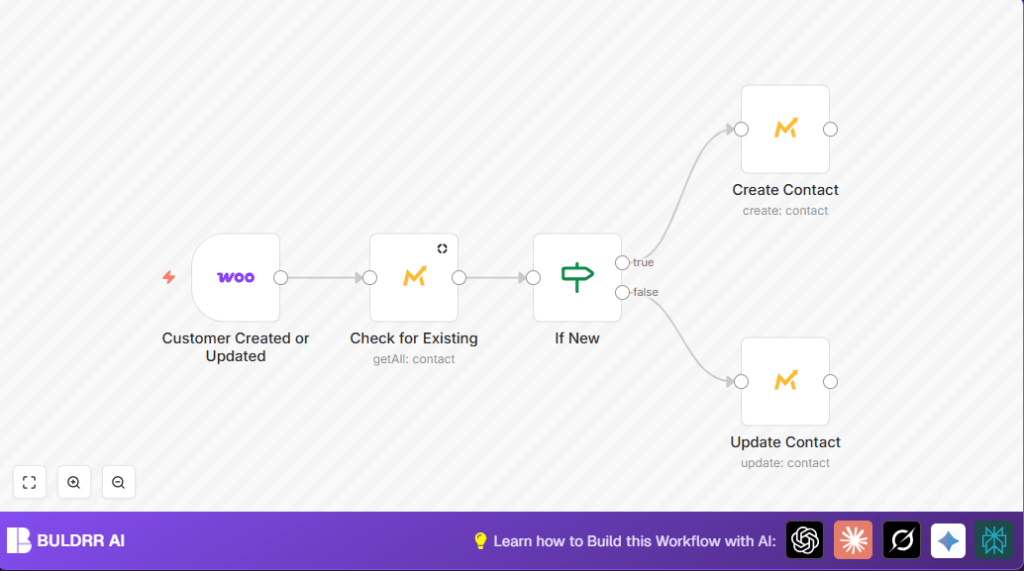

What This Workflow Does
This workflow keeps customer data updated between WooCommerce and Mautic automatically.
It listens when a customer profile in WooCommerce changes.
If a contact with the customer’s email exists in Mautic, it updates their name.
If no contact is found, it creates one.
This stops duplicate contacts and saves time by removing manual work.
Tools and Services Used
- WooCommerce API: Sends customer update events.
- Mautic API with OAuth2: Used to search, create, and update contacts securely.
- n8n Workflow Automation: Connects and manages the whole process.
Input → Process → Output
Input
- Customer profile updates from WooCommerce.
Process
- Trigger listens for WooCommerce customer update events.
- Search Mautic contacts by email.
- Use an If node to check if Mautic contact exists.
- Create new contact in Mautic if not found.
- Update contact’s first and last name if found.
Output
- New or updated contact record in Mautic reflecting WooCommerce customer data.
Beginner Step-by-Step: Using This Workflow in n8n Production
Import Workflow
- Download the workflow file using the Download button on this page.
- Inside the n8n editor, select “Import from File” and choose the downloaded workflow.
Configure Credentials
- Add WooCommerce API credentials in n8n if not present.
- Add Mautic OAuth2 credentials in n8n.
Update Relevant Fields
- Check the WooCommerce Trigger node to confirm event type is set to
customer.updated(or change if needed). - In Check for Existing node, verify search expression uses
{{$json["email"]}}. - In Create Contact and Update Contact nodes, map customer fields as needed.
Test the Workflow
- Run a test by updating a customer profile in WooCommerce.
- Check Mautic for contact creation or update.
Activate for Production
- Turn the workflow toggle switch to “On” inside n8n.
- Monitor initial runs in the Executions tab.
Customization Ideas
- Add more contact fields like phone and address by editing create and update nodes.
- Change trigger event to
customer.createdto sync only new customers. - Add notification nodes (email or Slack) after contact creation to alert the team.
- Map Mautic custom fields for better segmentation.
Troubleshooting
- Issue: Contact not found even if it exists in Mautic.
Cause: Search query may be wrong or email format mismatch.
Fix: Checkoptions.searchuses exact email from WooCommerce. - Issue: Workflow doesn’t trigger on WooCommerce updates.
Cause: WooCommerce webhook or API credentials not correct.
Fix: Confirm API keys and webhook setup in WooCommerce and n8n.
Pre-Production Checklist
- Verify WooCommerce API credentials have proper permissions.
- Confirm Mautic OAuth2 API access is working.
- Test workflow with real WooCommerce customer updates.
- Ensure If New node branches correctly.
- Backup Mautic contacts before bulk syncing.
Deployment Guide
Enable the workflow in n8n by toggling it on.
Watch workflow runs in Executions to catch errors early.
Set error notifications to alert if failures occur.
Review logs regularly to ensure data quality.
If using self-host n8n, make sure the server handles WooCommerce webhooks reliably.
Summary
✓ Automatically syncs WooCommerce customer data to Mautic contacts.
✓ Creates or updates contacts based on email without duplicates.
✓ Saves time by removing manual updates.
✓ Keeps marketing data accurate and current.
✓ Easy to set up and customize inside n8n.
