

What this automation does
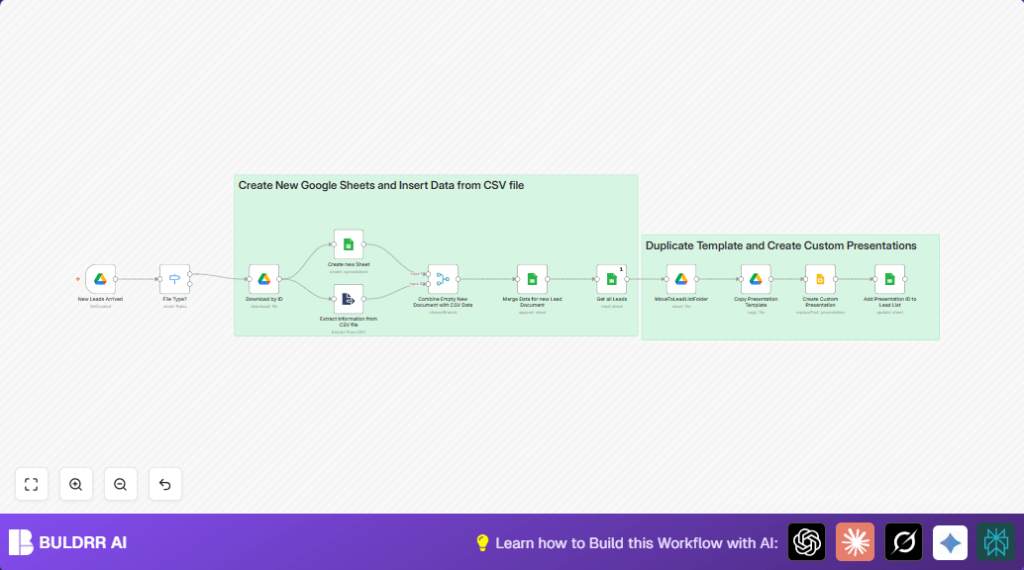
This workflow watches for new lead files in Google Drive and makes custom Google Slides presentations for each lead automatically.
It takes CSV or Excel lead files, extracts the information, and fills it into a copy of a presentation template.
The result is many personalized presentations ready without manual copying or typing.
This saves lots of time and avoids mistakes like wrong info or skipped contacts.
You get ready-made presentations faster for better sales talks.
Tools and services used
- Google Drive API: Detects and downloads new lead files.
- Google Sheets API: Creates sheets and stores lead data.
- Google Slides API: Copies and edits presentation templates.
- n8n Automation Platform: Runs the workflow and connects apps.
Workflow inputs, processing, and outputs
Inputs
- New CSV or XLSX files uploaded to a Google Drive folder.
Processing steps
- Trigger when a new file arrives.
- Check the file type to handle CSV or XLSX properly.
- Download the file contents.
- Parse the CSV or Excel data into structured lead information.
- Create a new Google Sheet for the batch of leads.
- Insert the lead data into the new sheet.
- Read back all leads from the sheet for iteration.
- Move the lead list file to an organized folder.
- Copy the master Google Slides template, renaming for each lead.
- Replace placeholders in the copied presentation with actual lead details.
- Log the new presentation’s ID back into the Google Sheet.
Outputs
- Personalized Google Slides files per lead in Drive.
- Updated Google Sheets listing lead data plus presentation IDs.
Beginner step-by-step: How to use this workflow in n8n
Import and setup
- Download the workflow file using the Download button on this page.
- Open the n8n editor where you want to use this automation.
- Click “Import from File” and select the downloaded workflow file.
- Once imported, add or update the required Google OAuth2 credentials for Drive, Sheets, and Slides nodes.
- Update folder IDs, template IDs, or sheet names as needed to match your Drive setup.
Testing and activation
- Manually upload a test CSV file with lead data into the monitored Google Drive folder.
- Observe the workflow run and check if Google Sheets and Slides files are created and filled correctly.
- If all looks good, activate the workflow by toggling the switch in n8n.
- The workflow will then run automatically whenever new files arrive.
For more control or to host your own n8n instance, consider self-host n8n.
Summary of key workflow parts
The workflow starts with a Google Drive Trigger watching for files.
It uses a Switch node to decide if the file is CSV or XLSX.
The file is downloaded with the Google Drive node.
An Extract from File node parses the CSV data.
A new Google Sheet is created to store leads.
Data is appended into this new sheet.
Leads are read back from the sheet to create presentations.
The master slide template is copied and renamed.
Placeholders in the slide are replaced with lead info.
The workflow logs back the new presentation IDs in the sheet.
What to check if things go wrong
- If no new files trigger the workflow, check the Drive folder ID and OAuth permissions.
- If placeholders do not get replaced, confirm that the placeholder texts exactly match those in the Google Slides template.
- If updating the sheet fails with “Not Found” errors, validate the sheet ID and sheet name used in the nodes.
How to customize the workflow
- Change the master template by updating the template file ID in the “Copy Presentation Template” node.
- Add more placeholder replacements in the “Create Custom Presentation” node to personalize with Email, Title, or Industry.
- Add support for other file types by extending the Switch node’s conditions.
- Organize files by changing folder IDs in the “MoveToLeadListFolder” and presentation copy nodes.
- Adjust the new Google Sheet’s naming pattern by editing the date format expression.
Production deployment advice
After testing, switch on the workflow to run automatically on file arrival.
Monitor executions early to spot errors.
Keep Drive folders tidy for easier management.
Regularly check Google API quota to avoid hitting limits.
Summary
✓ Saves many hours by automating file processing and presentation creation.
✓ Removes manual entry errors through automatic data filling.
✓ Creates customized presentations for each lead fast.
✓ Organizes lead data and presentations efficiently.
✓ Works with Google Drive, Sheets, and Slides APIs inside n8n.
