
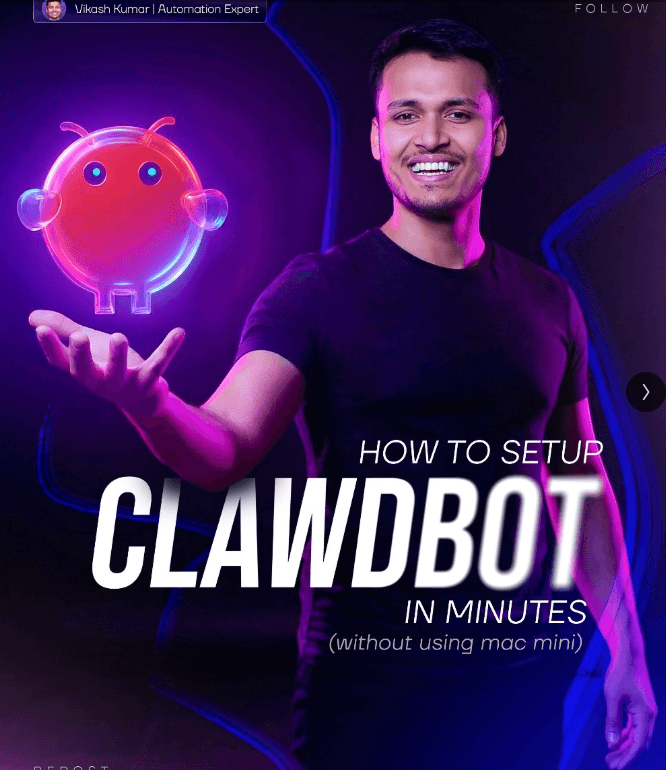
Claudebot VPS Setup Guide 2026: Run Claude AI on Any Server (Mac Mini Not Needed)

This VPS guide picks up where that guide ends — it assumes
you know what ClawdBot does and focuses entirely on how to
deploy it safely on a server so it runs 24/7 without your
laptop being on.

This guide shows how to safely deploy ClawdBot on a Virtual Private Server (VPS) so it runs 24/7 and stays isolated from your personal computer.


Why use a VPS instead of a Mac Mini?

ClawdBot is open source and has full access to its environment.

That means:

  • It can run commands
  • It can read files
  • It can access apps and services

Putting it on your main laptop is risky.

People buy Mac Minis to isolate it.

A VPS does the same thing, for much less money.


VPS Cost Comparison — Hetzner, Hostinger, DigitalOcean

The Mac Mini people buy for ClawdBot isolation costs $599–$799
upfront, plus electricity running 24/7.

A VPS does the same isolation job for a fraction of that.
Here’s how the main providers compare for a ClawdBot-ready spec
(2 vCPU, 8GB RAM, Ubuntu 24.04):

ProviderPlanMonthly CostAnnual CostNotes
HostingerKVM2~$8–12/mo~$96–144Used in this guide, easy UI
HetznerCX22~$4–6/mo~$48–72Cheapest, EU-based servers
DigitalOceanBasic Droplet~$12–18/mo~$144–216Good docs, US/global regions

Which one to choose:

Hetzner — cheapest option, excellent for Europe-based users,
slightly more technical setup. Best value if you’re comfortable
with Linux.

Hostinger — what this guide uses. Best balance of price and
beginner-friendliness. VPS dashboard is cleaner to navigate.

DigitalOcean — slightly more expensive but the best
documentation and support ecosystem. Good if you plan to scale.

All three run Ubuntu 24.04 LTS and support the exact same
ClawdBot setup steps in this guide — only Step 1 differs
(choosing your provider).


What you need before starting

  • A VPS account (Hostinger used in this guide)
  • A computer with a terminal (Mac, Windows, or Linux)
  • A Telegram account
  • An Anthropic API key

→ Recommended: read the ClawdBot Practical Usage Guide
before starting this setup.


Step 1. Create a VPS

  1. Go to Hostinger VPS hosting
  2. Choose a VPS plan

Recommended plan used here:

  • KVM2
  • 2 vCPU
  • 8 GB RAM
  • 100 GB storage
  • 8 TB bandwidth

This is more than enough for ClawdBot.

  1. Choose a billing period
    • 12 or 24 months gives the best price
    • Optional discount code can reduce cost further
  2. Choose server location
  3. Choose operating system
    • Ubuntu 24.04 LTS
  4. Confirm and pay

Step 2. Set your root password

After payment:

  • Create a strong root password
  • Save it safely

You will need this password multiple times.

SSH keys are optional and can be added later.


Step 3. Open the VPS dashboard

  1. Click “Manage VPS”
  2. Skip onboarding questions
  3. You should now see:
    • IP address
    • System status
    • VPS metrics

Step 4. Connect to the VPS using SSH

Open your terminal or command prompt.

In the Hostinger dashboard, copy the SSH command:

ssh root@YOUR_VPS_IP

Paste it into your terminal and press Enter.

When asked:

  • Type yes
  • Enter the root password

You are now inside the VPS.


Step 5. Create a dedicated user for ClawdBot

Never run ClawdBot as root.

Create a new user:

adduser claude

Set a password when prompted.

Skip optional profile details.

Give admin permissions:

usermod -aG sudo claude

Switch to the new user:

su – claude

Your prompt should change, confirming you are now logged in as this user.


Step 6. Install ClawdBot

Use the official one-line installer provided by ClawdBot.

Paste the installer command and press Enter.

What happens next:

  • OS is detected
  • Node.js is installed
  • Dependencies are installed
  • ClawdBot is installed

This can take 2 to 10 minutes.

Do not interrupt the process.


Step 7. Start the onboarding flow

After installation, onboarding starts automatically.

  1. Read the security warning
  2. Confirm that you understand the risks
  3. Choose Quick Start

Step 8. Configure the AI model

  1. Select Anthropic as the provider
  2. Enter your Anthropic API key
  3. Choose default model
    • Opus 4.5

Step 9. Choose a messaging channel

When prompted, select:

  • Telegram Bot API

Step 10. Create a Telegram bot

Open Telegram.

  1. Search for BotFather
  2. Send the command: /newbot
  3. Choose:
    • Bot name
    • Bot username (must end with “bot”)
  4. BotFather gives you a bot token

Copy this token and paste it into the terminal when ClawdBot asks for it.


Step 11. Select skills

When asked to install skills:

  1. Choose npm
  2. Select optional skills using Space
    • Claude Hub
    • Google tools if needed

You can add more skills later.

If a skill fails to install, continue.

It can be fixed later.


Step 12. Finish onboarding

When onboarding completes:

  • ClawdBot is installed
  • A local dashboard URL is shown

If you open it in your browser, it will not work yet.

This is expected.


Step 13. Start the ClawdBot gateway

Make sure you are logged in as the correct user:

whoami

Start the gateway:

ClawdBot gateway start

You should see a message confirming:

  • Gateway is listening on a port

Step 14. Create an SSH tunnel

Open a new terminal window on your computer.

Run:

ssh -N -L 18789:localhost:18789 claude@YOUR_VPS_IP

Enter the claude user password.


Step 15. Open the web dashboard

In your browser, open:

http://localhost:18789

You should now see:

  • ClawdBot web dashboard
  • Health status showing OK

Step 16. Pair Telegram with ClawdBot

  1. Open your Telegram bot
  2. Press Start
  3. Telegram provides a pairing code

Send this pairing code inside the ClawdBot web chat.

ClawdBot confirms the pairing.


Step 17. Test Telegram control

Send a message to the Telegram bot:

Hello

ClawdBot should reply.

This confirms:

  • Telegram integration works
  • ClawdBot is live

Step 18. Enable auto-start on reboot

This ensures ClawdBot runs 24/7.

Enable the service:

ClawdBot service enable

Start it:

ClawdBot service start

Check status:

ClawdBot service status

You should see the service running.


Step 19. Verify remote access

Close your SSH tunnel and terminal.

Send a message from Telegram again.

If ClawdBot responds:

  • Your setup is complete
  • ClawdBot is running independently

Security warnings you must understand

Treat ClawdBot like a human assistant with admin access.

Key risks:

  • It can run system commands
  • It can read files
  • It can access services you connect

Best practices:

  • Use separate email accounts
  • Avoid personal calendars and vaults
  • Prefer read-only permissions
  • Never expose secrets casually

A VPS isolates damage if something goes wrong.


Finally

You now have:

  • ClawdBot running on a VPS
  • Telegram control from anywhere
  • No Mac Mini required
  • Reduced security risk

📖 New to ClawdBot? Read the complete ClawdBot setup and
usage guide first:
ClawdBot Complete Guide — What It Is, How It Works, and What You Can Build With It

This VPS guide picks up where that guide ends — it assumes
you know what ClawdBot does and focuses entirely on how to
deploy it safely on a server so it runs 24/7 without your
laptop being on.

This guide shows how to safely deploy ClawdBot on a Virtual Private Server (VPS) so it runs 24/7 and stays isolated from your personal computer.


Why use a VPS instead of a Mac Mini?

ClawdBot is open source and has full access to its environment.

That means:

  • It can run commands
  • It can read files
  • It can access apps and services

Putting it on your main laptop is risky.

People buy Mac Minis to isolate it.

A VPS does the same thing, for much less money.


VPS Cost Comparison — Hetzner, Hostinger, DigitalOcean

The Mac Mini people buy for ClawdBot isolation costs $599–$799
upfront, plus electricity running 24/7.

A VPS does the same isolation job for a fraction of that.
Here’s how the main providers compare for a ClawdBot-ready spec
(2 vCPU, 8GB RAM, Ubuntu 24.04):

ProviderPlanMonthly CostAnnual CostNotes
HostingerKVM2~$8–12/mo~$96–144Used in this guide, easy UI
HetznerCX22~$4–6/mo~$48–72Cheapest, EU-based servers
DigitalOceanBasic Droplet~$12–18/mo~$144–216Good docs, US/global regions

Which one to choose:

Hetzner — cheapest option, excellent for Europe-based users,
slightly more technical setup. Best value if you’re comfortable
with Linux.

Hostinger — what this guide uses. Best balance of price and
beginner-friendliness. VPS dashboard is cleaner to navigate.

DigitalOcean — slightly more expensive but the best
documentation and support ecosystem. Good if you plan to scale.

All three run Ubuntu 24.04 LTS and support the exact same
ClawdBot setup steps in this guide — only Step 1 differs
(choosing your provider).


What you need before starting

  • A VPS account (Hostinger used in this guide)
  • A computer with a terminal (Mac, Windows, or Linux)
  • A Telegram account
  • An Anthropic API key

→ Recommended: read the ClawdBot Practical Usage Guide
before starting this setup.


Step 1. Create a VPS

  1. Go to Hostinger VPS hosting
  2. Choose a VPS plan

Recommended plan used here:

  • KVM2
  • 2 vCPU
  • 8 GB RAM
  • 100 GB storage
  • 8 TB bandwidth

This is more than enough for ClawdBot.

  1. Choose a billing period
    • 12 or 24 months gives the best price
    • Optional discount code can reduce cost further
  2. Choose server location
  3. Choose operating system
    • Ubuntu 24.04 LTS
  4. Confirm and pay

Step 2. Set your root password

After payment:

  • Create a strong root password
  • Save it safely

You will need this password multiple times.

SSH keys are optional and can be added later.


Step 3. Open the VPS dashboard

  1. Click “Manage VPS”
  2. Skip onboarding questions
  3. You should now see:
    • IP address
    • System status
    • VPS metrics

Step 4. Connect to the VPS using SSH

Open your terminal or command prompt.

In the Hostinger dashboard, copy the SSH command:

ssh root@YOUR_VPS_IP

Paste it into your terminal and press Enter.

When asked:

  • Type yes
  • Enter the root password

You are now inside the VPS.


Step 5. Create a dedicated user for ClawdBot

Never run ClawdBot as root.

Create a new user:

adduser claude

Set a password when prompted.

Skip optional profile details.

Give admin permissions:

usermod -aG sudo claude

Switch to the new user:

su – claude

Your prompt should change, confirming you are now logged in as this user.


Step 6. Install ClawdBot

Use the official one-line installer provided by ClawdBot.

Paste the installer command and press Enter.

What happens next:

  • OS is detected
  • Node.js is installed
  • Dependencies are installed
  • ClawdBot is installed

This can take 2 to 10 minutes.

Do not interrupt the process.


Step 7. Start the onboarding flow

After installation, onboarding starts automatically.

  1. Read the security warning
  2. Confirm that you understand the risks
  3. Choose Quick Start

Step 8. Configure the AI model

  1. Select Anthropic as the provider
  2. Enter your Anthropic API key
  3. Choose default model
    • Opus 4.5

Step 9. Choose a messaging channel

When prompted, select:

  • Telegram Bot API

Step 10. Create a Telegram bot

Open Telegram.

  1. Search for BotFather
  2. Send the command: /newbot
  3. Choose:
    • Bot name
    • Bot username (must end with “bot”)
  4. BotFather gives you a bot token

Copy this token and paste it into the terminal when ClawdBot asks for it.


Step 11. Select skills

When asked to install skills:

  1. Choose npm
  2. Select optional skills using Space
    • Claude Hub
    • Google tools if needed

You can add more skills later.

If a skill fails to install, continue.

It can be fixed later.


Step 12. Finish onboarding

When onboarding completes:

  • ClawdBot is installed
  • A local dashboard URL is shown

If you open it in your browser, it will not work yet.

This is expected.


Step 13. Start the ClawdBot gateway

Make sure you are logged in as the correct user:

whoami

Start the gateway:

ClawdBot gateway start

You should see a message confirming:

  • Gateway is listening on a port

Step 14. Create an SSH tunnel

Open a new terminal window on your computer.

Run:

ssh -N -L 18789:localhost:18789 claude@YOUR_VPS_IP

Enter the claude user password.


Step 15. Open the web dashboard

In your browser, open:

http://localhost:18789

You should now see:

  • ClawdBot web dashboard
  • Health status showing OK

Step 16. Pair Telegram with ClawdBot

  1. Open your Telegram bot
  2. Press Start
  3. Telegram provides a pairing code

Send this pairing code inside the ClawdBot web chat.

ClawdBot confirms the pairing.


Step 17. Test Telegram control

Send a message to the Telegram bot:

Hello

ClawdBot should reply.

This confirms:

  • Telegram integration works
  • ClawdBot is live

Step 18. Enable auto-start on reboot

This ensures ClawdBot runs 24/7.

Enable the service:

ClawdBot service enable

Start it:

ClawdBot service start

Check status:

ClawdBot service status

You should see the service running.


Step 19. Verify remote access

Close your SSH tunnel and terminal.

Send a message from Telegram again.

If ClawdBot responds:

  • Your setup is complete
  • ClawdBot is running independently

Security warnings you must understand

Treat ClawdBot like a human assistant with admin access.

Key risks:

  • It can run system commands
  • It can read files
  • It can access services you connect

Best practices:

  • Use separate email accounts
  • Avoid personal calendars and vaults
  • Prefer read-only permissions
  • Never expose secrets casually

A VPS isolates damage if something goes wrong.


Finally

You now have:

  • ClawdBot running on a VPS
  • Telegram control from anywhere
  • No Mac Mini required
  • Reduced security risk

📖 New to ClawdBot? Read the complete ClawdBot setup and
usage guide first:
ClawdBot Complete Guide — What It Is, How It Works, and What You Can Build With It

Author

Written By

Vikash Kumar

Building AI agents, n8n workflows and end-to-end automation for 30+ Brands across India, the US, Europe, Dubai & Australia. 7+ years of Experience saving founders real hours every week - no code required.

Ask more Questions about this Blog with AI:

Our AI Articles

Learn from our AI Articles to excel in your profession ;)

Complete Guide To Claude Code Agent Teams

Agent Teams are one of the most advanced features inside Claude Code. Instead of using one AI agent to complete...

How To Build Realistic AI Voice Agents With 11Labs + Make.com

How Agent Teams turn Claude Code into a collaborative AI workforce for building complex systems....

100 SECRET CLAUDE PROMPT CODES

Practical Claude prompt systems that improve writing, research, strategy, automation, and workflows....

The Real Claude AI Business Guide for 2026

5 Claude AI business models solving expensive problems businesses already pay for in 2026....

Complete Guide: How To Build A Claude Skill For SEO Content Writing

Reusable Claude workflows that turn generic AI writing into personalized, scalable SEO systems....

Complete Breakdown: How To Build AI Backlink Systems Using Claude Skills + Automation

Complete Breakdown: How To Build AI Backlink Systems Using Claude Skills + Automation...

Claude AI SEO Automation Guide

This AI SEO workflow automates content creation, optimization, publishing, and indexing at scale....

Complete AI Lead Generation Workflow Using Claude AI + ChatGPT

AI workflow to automate lead generation, outreach emails, and scalable client acquisition....

Use Amazon Bedrock To Try Claude, OpenAI, DeepSeek, And More

Beginner guide to using Amazon Bedrock with Claude, OpenAI, DeepSeek, APIs, and AI workflows....

Build n8n Automations With Claude Code

This guide shows how to build AI automation systems using Cursor, Claude Code, n8n, MCP, and agents....
1:1 Free Strategy Session
Your competitors are already automating. Are you still paying for it manually?

Do you want to adopt AI Automation?

Every hour your team does repetitive work, you're burning real money.
While you wait, faster businesses are cutting costs and moving quicker.
AI and automations aren't the future anymore — they're the present.

Book a live 1-on-1 session where we show you exactly which of your daily tasks can be automated — and what it’s costing you not to.