 Schedule a Call

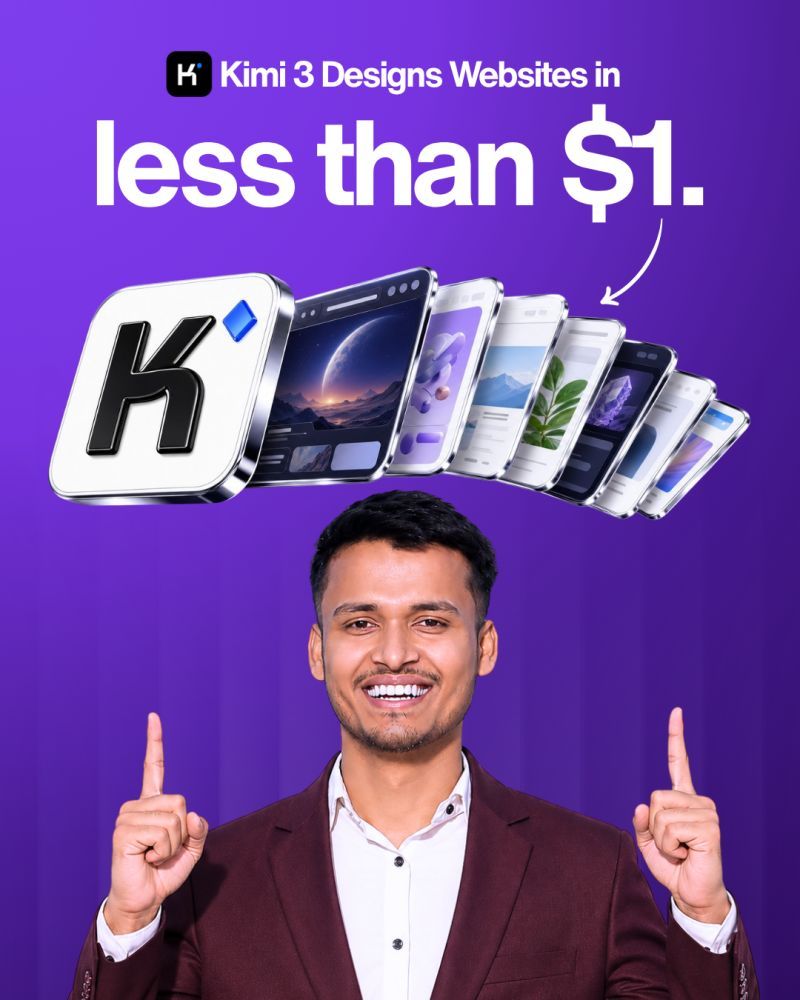
Build scroll-driven cinematic websites with Kimi K3 for under $2.
Every prompt you need to run the full pipeline — concept, video, frame interpolation, website, deployment.
- 3 Core Prompts
- Full Pipeline
- Kimi Code Setup
- Higgsfield Settings
THE PIPELINE
How the whole thing works
This is what happens when Kimi K3 runs the full cinematic website pipeline. Every step is either automated or a copy-paste. The three prompts in this pack handle all of it.
Kimi K3
Concept
Higgsfield
Video Gen
ByteDance AIGC
Frame Interp.
Kimi Code
Website
Netlify
Deploy
STEP 1
Kimi K3 / Kimi Code
Concept generation, video prompt writing, website building, deployment. Runs the whole pipeline.
STEP 2
Higgsfield Cinema Studio 3.0
Generates the macro cinematic video.
Settings:
- 1080p
- 16:9
- 8 seconds
- ~80 credits per video
STEP 3
ByteDance AIGC
Frame interpolation from 30fps to 60fps.
Makes the scroll silky smooth instead of choppy.
STEP 4
Netlify / Vercel
Static hosting.
Kimi deploys automatically with your API token.
The site goes live in seconds.
THE SECRET THAT MOST PEOPLE SKIP
The frame interpolation step (30fps → 60fps) is what separates a janky scrolling experience from a smooth one.
If you skip it, users will see every individual frame as they scroll.
ByteDance AIGC generates the in-between frames automatically.
Do not skip this step.
PROMPT 1 OF 3
Concept Generation Prompt
Feed this to Kimi K3 to generate 10 creative scroll-driven website concepts.
Each concept is a single continuous macro journey that works as the background video.
Run this first and pick the ideas you like.
Concept Generation — paste into Kimi K3 or Kimi Code
Copy this exactly
You are the sole creative director and senior front-end author for a premium interactive portfolio.
Give me creative video ideas for 10 radically different scroll-driven commercial landing pages.
Key requirements:
Each experience must be scroll-driven
The video must involve a single continuous 8-second extreme macro journey
The journey is what we will use as the main captivating feature of each website
Make each concept as visually interesting and commercially relevant as possible
For each concept, provide:
Industry or product category
The macro journey description (what the camera does, what it moves through)
The emotional tone and target audience
One example tagline that could accompany the experience
Make these as diverse as possible across industries, visual styles, and emotional registers.
Think luxury, medical, tech, nature, architecture, food, fashion.
How to use it
Run this once.
You will get 10 concepts.
Pick your 2 to 3 favorites.
Copy each one into a Google Doc or note.
You will use them in Prompt 2 to transform them into video generation prompts.
PROMPT 2 OF 3
Video Prompt Transformation Template
This transforms a concept from Prompt 1 into a high-quality video generation prompt ready to paste directly into Higgsfield Cinema Studio 3.0.
The example in the template trains Kimi on the level of cinematic detail required.
Video Prompt Transformer — paste into Kimi K3 Copy this exactly
Use the concept below to generate a high-quality macro video prompt for an advanced cinematic video model.
Here is an example of the level of detail and specificity I need:
“A single continuous 8-second cinematic engineering shot moving forward from above a stormy, cold North Atlantic ocean. The camera begins at wave height, inches above the surface, and pushes steadily forward through salt spray and foam. The horizon is dark steel and grey, the water texture hyper-detailed and photorealistic. Natural light only. No cuts. Forward motion throughout.”
Your prompt must include:
Single continuous shot (no cuts)
8 seconds duration
Extreme macro detail — every texture visible
The specific journey the camera takes from start to finish
Lighting conditions
Emotional atmosphere
Now generate a video prompt for this concept:
[PASTE YOUR CONCEPT HERE FROM PROMPT 1]
HIGGSFIELD SETTINGS TO USE
Cinema Studio 3.0
- Resolution: 1080p
- Aspect ratio: 16:9 (desktop) or 9:16 (mobile/Instagram)
- Duration: 8 seconds
- Smart mode
- Click Generate
Each video costs approximately 80 credits.
PROMPT 3 OF 3
Mega Site-Building Prompt
This is the main event.
Paste this entire prompt into Kimi Code once you have your video file downloaded and frame-interpolated.
Kimi will ask you for the video filename and the original concept, then build and deploy the entire website automatically.
Mega Site-Building Prompt — paste into Kimi Code
Copy this exactly
You are a senior creative technologist and front-end architect building premium scroll-driven cinematic websites.
Your task is to build a complete scroll-driven cinematic website using the video file and concept I will provide.
The website must include:
SCROLL ANIMATION
Bind every frame of the provided video to the browser scroll position
When the user scrolls forward the video advances frame by frame
When the user scrolls backward the video reverses
The scroll must be silky smooth with no jank or stutter
Use requestAnimationFrame for optimal performance
TOUR MODE
A floating button that autoplays through the video continuously
The user can click to pause or skip to any section
Progress indicator showing position in the journey
CONTENT OVERLAY
Section headlines and copy that fade in and out as the user scrolls
Based on the concept provided, write compelling commercial copy for 3 to 5 sections that appear throughout the scroll journey
Typography must be bold, premium, minimal
HEADER AND FOOTER
Minimal sticky header with logo placeholder and one CTA button
Clean footer with tagline and contact placeholder
DEPLOYMENT
Once the site is built and working locally, ask me for my Netlify or Vercel API token and deploy it automatically
When you are ready, ask me for:
The video filename (the interpolated 60fps version)
The original concept description so you can write the copy
Then build everything end to end without stopping for confirmation unless you hit a blocking error.
To run this fully automated
Start Kimi Code with --yolo (short form -y) and routine edits and commands run without asking. For a completely hands-off run, start it with --auto instead.
--auto is Never Ask mode: it executes every step without asking for confirmation, so only use it in a project folder you trust. The two flags cannot be combined.
Example: `kimi --yolo` or `kimi --auto`
SETUP
Getting Kimi Code running
INSTALL KIMI CODE
Terminal command
On macOS or Linux, open a terminal and paste:
curl -fsSL https://code.kimi.com/kimi-code/install.sh | bashOn Windows, open PowerShell and paste this instead (Git for Windows needs to be installed first):
irm https://code.kimi.com/kimi-code/install.ps1 | iexOnce installed, type kimi to open.
Type /login to sign in with your Kimi account or a Kimi Platform API key.
CONNECT HIGGSFIELD VIA MCP (OPTIONAL — AUTOMATES VIDEO GEN)
Inside Kimi Code
Go to higgsfield.ai → MCP and CLI → copy the MCP command → paste into Kimi Code and say:
Install this MCP.This lets Kimi generate and download Higgsfield videos directly without you going to the website manually.
FRAME INTERPOLATION (30FPS → 60FPS)
ByteDance AIGC via Higgsfield
Inside Kimi Code (with Higgsfield MCP installed), say:
Interpolate [filename] with ByteDance AIGC from 30fps to 60fps.Kimi will call the right model and return the smooth version.
DEPLOY TO NETLIFY
One command after the site is built
Go to:
netlify.com → User Settings → Applications → New Access Token → Copy it → Paste it to Kimi Code when it asks.
It will deploy automatically.
Build your first cinematic website today.
Three prompts. One pipeline. Under $2.
The result looks like a $10,000 agency build.
Step 1
Run Prompt 1 in Kimi K3 — pick your two favourite concepts.
Step 2
Run Prompt 2 — transform each concept into a Higgsfield video prompt.
Step 3
Generate videos in Higgsfield, interpolate with ByteDance AIGC.
Step 4
Run Prompt 3 in Kimi Code — it builds and deploys everything.
Each button opens the assistant with the prompt already written, asking it to teach this article step by step, in simple words.
 ChatGPT
 Claude
 Grok
Grok Perplexity
 Add as a preferred source