
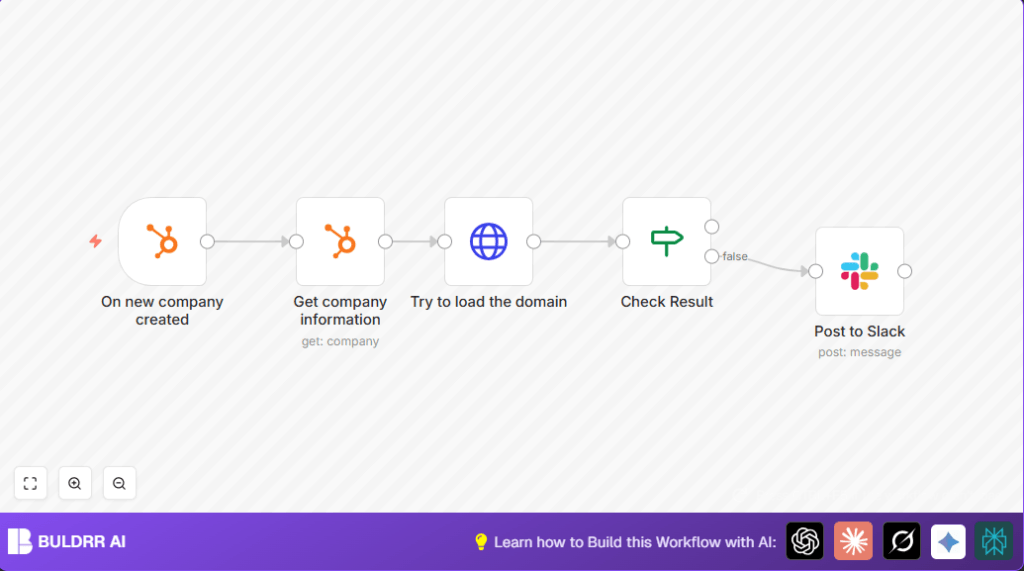

What This Automation Does
This workflow starts when a new company is added in HubSpot. It gets the full company info, tries to open the company’s website, and checks if the site works fine. If the website is broken or suspicious, it sends a message to a Slack channel with details about the company. This helps the team find bad domains fast without checking manually.
The workflow saves time by running automatically and stops bad leads from wasting effort. It connects HubSpot and Slack through n8n and uses the website response to decide if a domain is good or not.
Tools and Services Used
- HubSpot CRM: Sends new company creation events and holds company info.
- Slack workspace: Receives alert messages about suspicious domains.
- n8n automation platform: Runs the workflow to connect services and check domains.
Inputs, Processing, and Outputs
Inputs
- New company creation event from HubSpot with company ID.
- Company website domain from HubSpot company details.
Processing Steps
- Get detailed company information using the company ID.
- Make an HTTP GET request to the company website URL.
- Check the HTTP status code of the website response (expect 200 for OK).
- If response is not OK, prepare an alert message.
- Send alert message to Slack channel with company name, domain, and ID.
Outputs
- Slack alert message when domain is suspicious or site is unreachable.
Beginner step-by-step: How to use this workflow in n8n
Import Workflow
- Download the workflow using the Download button on this page.
- In the n8n editor, click “Import from File” and upload the downloaded workflow.
Configure Credentials
- Add HubSpot API Key credentials in the HubSpot nodes.
- Add Slack Bot API credentials in the Slack node.
Update Settings
- Check and update Slack channel if needed (default is #hubspot-alerts).
- Verify expressions in nodes match correct property names:
{{$json["companyId"]}{{$node["Get company information"].json["properties"]["domain"]["value"]}
Test Workflow
- Add a test company in HubSpot with a valid domain.
- Watch the Slack channel for alert messages.
Activate Workflow
- After testing, activate the workflow in n8n so it runs automatically.
- Monitor execution to ensure alerts work correctly.
This method lets beginners quickly run the workflow without building from scratch. The workflow can run on cloud or self-host n8n.
Step-by-Step Guide
Step 1: Set up the HubSpot Trigger node
Choose the “On new company created” trigger event.
Connect the HubSpot Developer API credentials.
Step 2: Add the Get company HubSpot node
Use operation “Get company”.
Enter company ID using {{$json["companyId"]}}.
Step 3: Insert HTTP Request node to load domain
Set method to GET.
Use URL from {{$json["properties"]["domain"]["value"]}}.
Enable full response to get status code.
Step 4: Add IF node to check HTTP status
Check if {{$json["statusCode"]}} equals 200.
Step 5: Add Slack node to post messages
Choose “Post Message”.
Set channel (default #hubspot-alerts).
Use this message template:
=:warning: New Company with suspicious domain :warning:
*Name: * {{$node["Get company information"].json["properties"]["name"]["value"]}}
*Domain: * {{$node["Get company information"].json["properties"]["website"]["value"]}}
*ID: * {{$node["Get company information"].json["companyId"]}}
Step 6: Connect nodes in order and activate
Link nodes as: HubSpot Trigger → Get company → HTTP Request → IF → Slack.
Save the workflow and activate it.
Customizations ✏️
- Add HTTP status codes like 400, 404, 500 in the IF node to catch more bad domains.
- Add more company info in Slack alert like industry or location for context.
- Use external APIs or code nodes to check desktop email domain lists before alerting.
Troubleshooting ????
Problem: “No data from HubSpot node”
Cause: Company ID not passed correctly.
Fix: Check expression {{$json["companyId"]}} and debug input.
Problem: “Slack messages not posting”
Cause: Wrong Slack API Key or channel.
Fix: Re-authenticate Slack node and confirm channel name.
Problem: “HTTP request status code missing or wrong”
Cause: HTTP Request node missing full response setting.
Fix: Set “Full response” option true in the HTTP Request node.
Pre-Production Checklist ✅
- Test HubSpot Developer API credentials and webhook triggers.
- Try HTTP Request node with good and bad URLs.
- Send a test Slack message to validate connection.
- Check all node connections and expressions.
- Backup workflows before turning on.
Deployment Guide
Activate the workflow after testing.
Watch logs for errors and success.
Check Slack alerts to notify team.
Adjust conditions based on alert accuracy.
Summary
✓ Saves at least 3-4 hours weekly by automating domain checks.
✓ Stops bad leads with suspicious domains from wasting time.
→ Sends Slack alerts when domain checks fail.
→ Works with HubSpot’s new company creation event to run automatically.
