

1. Opening Problem Statement
Meet Sarah, an HR analyst working in a fast-paced recruitment firm. Every day, Sarah needs to gather extensive company profiles from Indeed to assess potential employers for her candidates. This involves manually opening multiple Indeed pages, copying company information, and summarizing data points, a task that often eats up over 5 hours weekly. Errors creep in due to copy-paste fatigue, and valuable insights get lost in the chaos, causing delays and suboptimal candidate matches. What Sarah needs is a reliable automated system that can extract, summarize, and organize Indeed company data swiftly and accurately.
2. What This Automation Does
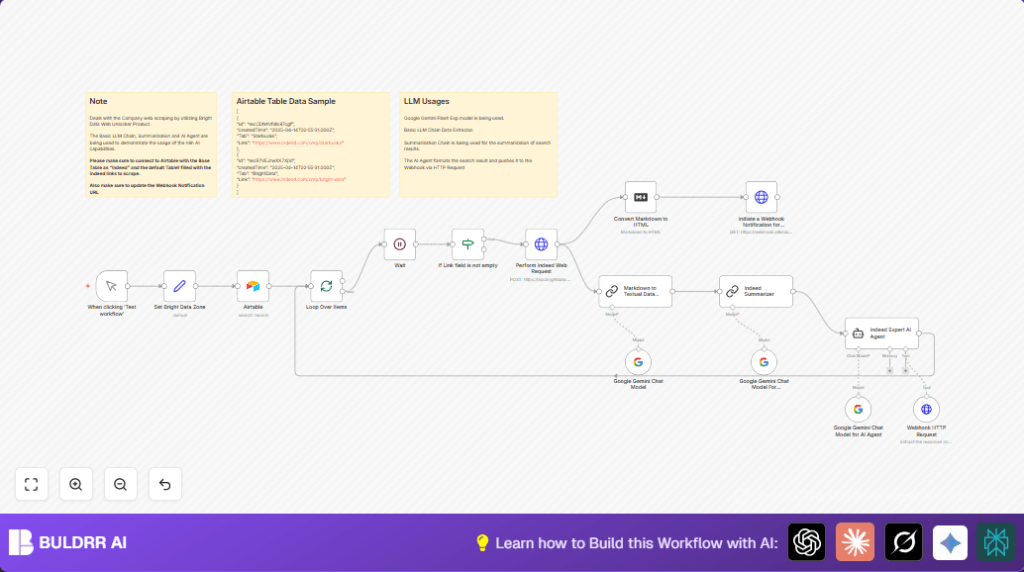
This specialized n8n workflow streamlines Sarah’s tedious process by automating Indeed company data scraping and synthesizing critical information through AI summarization. When triggered, it performs the following tasks:
- Fetches company URLs from an Airtable base where Indeed links are maintained
- Uses Bright Data’s Web Unlocker to scrape raw company data from Indeed programmatically
- Converts the scraped markdown content into plain textual data using an AI-powered markdown extractor
- Summarizes the extracted data via Google Gemini Chat Model’s advanced large language model (LLM)
- Formats the summary through an expert AI agent specialized in Indeed data to maintain clarity and relevance
- Pushes formatted data to a configured webhook URL for notifications or further processing
By automating these events, Sarah saves an estimated 4+ hours weekly, avoids manual errors, and gains consistent, structured insights for better HR decision-making.
3. Prerequisites ⚙️
- n8n account for workflow automation setup 🔌
- Airtable account with a base named “Indeed” where company URLs are stored 📊
- Bright Data account with access to the Web Unlocker Zone “web_unlocker1” for scraping access 🔐
- Google Gemini (PaLM API) credentials for AI-based summarization and chat tasks 🔑
- Configured HTTP Header Authentication credentials for Bright Data API requests ⏱️
- A webhook service (e.g., webhook.site) to receive notifications 📧
4. Step-by-Step Guide
Step 1: Start with Manual Trigger
Navigate to the n8n editor. Add the Manual Trigger node called “When clicking ‘Test workflow’”. This allows you to start the workflow manually for testing and debugging.
After adding, click the node and hit “Execute Node” to confirm manual triggering works. You should see the execution flow start from this node.
Common mistake: Forgetting to activate or save the workflow before testing.
Step 2: Set Bright Data Zone
Add a Set node named “Set Bright Data Zone” to assign the string value “web_unlocker1” to variable zone. This configures which Bright Data zone will run the scraping tasks.
In the node parameters, add an assignment with name “zone” and value “web_unlocker1”. This will be referenced later in the HTTP Request node.
You should see this variable available in the workflow data output.
Step 3: Pull Company URLs from Airtable
Add the Airtable node configured with your Airtable Personal Access Token. Select the base “Indeed” and the table listing company URLs (eg. “Table 1”).
Make sure your Airtable table has a field with Indeed company URLs under the field name “Link”.
Execute this node to confirm it pulls your records. You should see JSON outputs matching your Airtable data.
Common mistake: Not setting the Airtable API credentials correctly or using an empty base/table reference.
Step 4: Loop Through Each Company Record
Connect a SplitInBatches node labeled “Loop Over Items” to handle each company URL one at a time. This controls load and limits over请求 to Bright Data.
Verify batching limits; by default, it processes one record per batch.
You should see each company processed sequentially when running the workflow.
Step 5: Add Wait Time Between Requests
Add a Wait node after looping to pause for 10 seconds between each HTTP request. This prevents API rate limits or bans from Bright Data or Indeed.
Configure a 10-second wait to allow a smooth request cadence.
Step 6: Verify Non-empty Links
Use the If node titled “If Link field is not empty” to validate that the scraped record contains a valid URL.
Set the condition to check if the field “Link” is not empty before continuing to the scraping step.
Step 7: Perform Indeed Web Scraping HTTP Request
Add an HTTP Request node named “Perform Indeed Web Request” configured with:
- Method: POST
- URL: https://api.brightdata.com/request
- Body parameters: zone, url (compose URL to Indeed with product=unlocker & method=api), format (raw), and data_format (markdown)
- Authentication: HTTP Header Auth with Bright Data credentials
This node fetches raw company data via Bright Data’s Web Unlocker from Indeed.
Common mistake: Incorrect URL or body parameters causing request failure.
Step 8: Convert Markdown Data to Text
Use the Chain LLM node “Markdown to Textual Data Extractor” powered by an AI markdown expert prompt. It takes the raw markdown text from scraping and outputs clean textual data.
This NLP step prepares the data for summarization.
Step 9: Summarize Company Data with Google Gemini
Add the Chain Summarization node “Indeed Summarizer” using the Google Gemini Chat Model to condense large textual data into concise summaries.
You will need to link credentials for Google Gemini PaLM API here.
Step 10: Format and Push Summary via AI Agent
Connect the Langchain Agent node titled “Indeed Expert AI Agent” to frame the summarization results specific to Indeed company data and push a structured JSON summary to the final webhook.
This agent implements a customized prompt directing the AI to prepare the output for downstream systems.
Step 11: Send Formatted Data to Webhook
Finally, use an HTTP Request node “Webhook HTTP Request” to POST the formatted summary to a provided webhook URL (eg. webhook.site).
This enables real-time notification or integration with other tools.
5. Customizations ✏️
- Change scraping zone: In the “Set Bright Data Zone” node, change the
zonevalue to another Bright Data zone if you want to target different regions or unlocker types. - Adjust wait duration: Modify the “Wait” node timing from 10 seconds to any preferred interval to manage API rate limits or speed.
- Target different Airtable base/table: Change the Airtable node settings to pull from any other base or table that stores URLs for different job boards or data sources.
- Switch AI models: Substitute Google Gemini with other supported AI chat models in Langchain nodes for different summarization tones or languages.
- Update webhook endpoint: Change the URL in the “Webhook HTTP Request” node to integrate with your CRM, Slack, or custom dashboards.
6. Troubleshooting 🔧
Problem: HTTP Request returns 403 Forbidden from Bright Data API
Cause: Incorrect or expired HTTP header authentication credentials or zone misconfiguration.
Solution: Verify header auth credentials in the node settings. Confirm the “zone” field matches an active Bright Data zone in your account. Re-authenticate if needed.
Problem: Google Gemini API call fails or returns empty summary
Cause: Invalid or missing PaLM API credentials or exceeding rate limits.
Solution: Double-check the Google Gemini credentials linked in Langchain nodes. Monitor API usage limits and renew API keys as necessary.
Problem: Airtable node returns empty data
Cause: Wrong base ID, table ID, or lack of records with valid “Link” fields.
Solution: Confirm Airtable API credentials, base, and table configuration. Make sure the “Link” column is populated.
7. Pre-Production Checklist ✅
- Verify Airtable connection by successfully pulling company records.
- Test Bright Data HTTP requests with one sample URL to ensure scraping functionality.
- Validate Google Gemini summarization returns meaningful content.
- Ensure the webhook URL correctly receives POST requests.
- Run the workflow manually and monitor logs for sequential processing.
- Backup your Airtable data and test on a small record set before full deployment.
8. Deployment Guide
Activate the n8n workflow and schedule a trigger if needed for regular company data updates.
Monitor executions from the n8n dashboard, particularly API responses from Bright Data and Google Gemini for errors or quota issues.
Integrate the webhook receiver with your CRM, HR analytics tool, or notification system to utilize the company summaries effectively.
9. FAQs
- Can I replace Bright Data with another web scraping service? Yes, but you need to adjust HTTP request parameters accordingly to their API format.
- Does summarization consume a lot of API credits? It depends on your Google Gemini PaLM quota, but summarized requests reduce overall token usage compared to raw data processing.
- Is this workflow secure for proprietary company data? The data flows through authenticated API calls; however, always review your API key management and webhook privacy.
- Can it handle hundreds of company URLs? Yes, but consider batching and wait nodes to respect API limits and avoid bans.
10. Conclusion
By finishing this tutorial, you’ve built an advanced n8n workflow that automates Indeed company data scraping, leverages Bright Data’s unlocker technology, and applies Google Gemini AI for summarization. Sarah’s struggle with hours of manual research is replaced by efficient data extraction and well-organized summaries delivered directly through webhooks.
This automation reliably saves significant time, eliminates errors, and empowers HR professionals and recruiters to make better hires faster.
Next steps? Consider extending the workflow to integrate Slack notifications for immediate alerts or add Google Sheets export for record keeping and analytics!