

Automate Gong Call Processing with n8n for Salesforce Insights

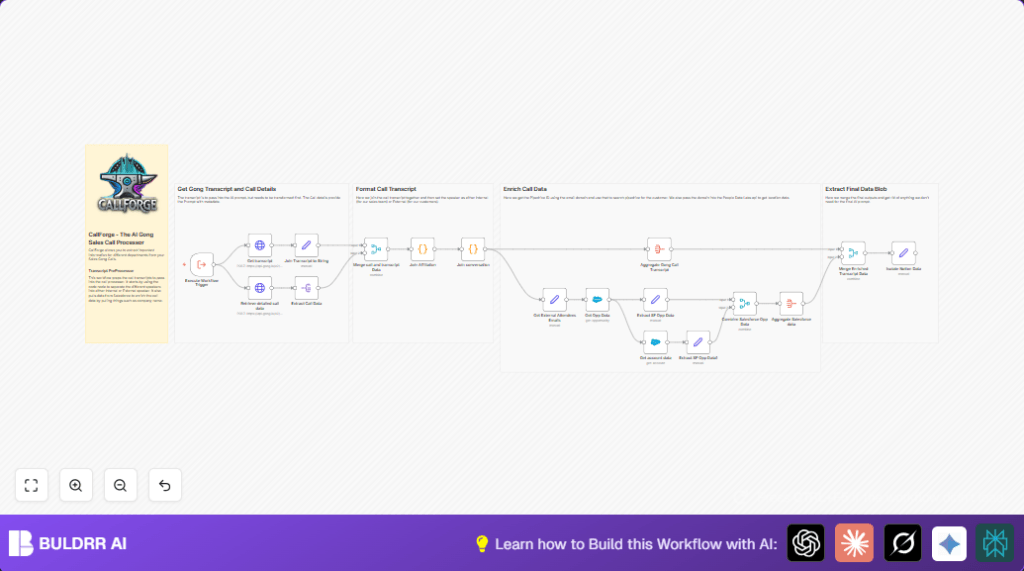
This n8n workflow automates extracting detailed Gong call transcripts and Salesforce opportunity data to provide enriched sales call insights. Save hours on manual data prep and boost CRM accuracy with precise call metadata integration.
executeWorkflowTrigger
httpRequest
code
+6
Workflow Identifier: 2309
NODES in Use: Execute Workflow Trigger, HTTP Request, Set, Code, Merge, SplitOut, Salesforce, Aggregate, Sticky Note

Press CTRL+F5 if the workflow didn't load.

Learn how to Build this Workflow with AI:

Visit through Desktop for Best experience

Streamlining Gong Call Processing for Sales Teams with n8n Automation ⚙️

Meet Angel, a sales operations manager who spends hours manually extracting and compiling data from Gong sales calls to update Salesforce opportunities and prepare insights for her team. Angel often faces frustrations with inconsistent transcript formats, lost attendee details, and missing metadata that slow down accurate sales analysis and follow-ups. These manual tasks can consume upwards of 4 hours per week and sometimes lead to lost revenue opportunities due to delayed insights.

In this blog post, we’ll walk through an n8n workflow that automates this entire process seamlessly — extracting detailed Gong call data, joining transcripts, enriching call metadata with Salesforce opportunity details, and preparing a clean, structured data set ready for downstream use.

What This Gong Call Processing Automation Does

When this workflow runs, here’s what happens:

  • The workflow is triggered programmatically when a Gong call event occurs (Execute Workflow Trigger node).
  • It calls Gong’s API to retrieve comprehensive call details and the call transcript via HTTP Request nodes.
  • Merges and transforms the transcript data to associate speaker IDs with internal or external affiliations using Code nodes for better context.
  • Pulls Salesforce opportunity and account data related to the call, enriching the capture with precise deal information.
  • Compiles all extracted and enriched data into a structured format that can be forwarded to tools such as Notion or CRM systems for sales insights.
  • Reduces manual work dramatically, saving Angel roughly 3-5 hours per week and improving data accuracy for sales forecasting and analytics.

Prerequisites ⚙️

  • n8n account (self-hosting recommended for enterprise control, see self-hosting options).
  • Gong API access with valid authentication credentials.
  • Salesforce account with OAuth2 credentials (for opportunity and account data retrieval).
  • Basic knowledge of n8n nodes: Execute Workflow Trigger, HTTP Request, Code, Salesforce nodes.

Step-by-Step Guide to Set Up the Gong Call Processor

1. Configure the Workflow Trigger Node

Navigate to your n8n editor. Add the Execute Workflow Trigger node to start your workflow. This node listens for Gong-related triggers—such as completed calls or transcript availability. No parameters need setting here; it acts as the entry point for all following actions.

Why this is important: It ensures the workflow automatically starts without manual intervention when there’s a new Gong call event.

2. Retrieve the Gong Call Transcript & Details via HTTP

Add two HTTP Request nodes named Get transcript and Retrieve detailed call data respectively.

Configure both nodes to POST JSON requests to Gong API endpoints:
– Transcript endpoint: https://api.gong.io/v2/calls/transcript?callIds=[callId]
– Call details endpoint: https://api.gong.io/v2/calls/extensive

Include authentication via your Gong API credentials using HTTP Header Auth.
Make sure the body JSON includes the call ID provided by the trigger, dynamic like {{ $json['calldata[0].calls'].id }}.

Expected outcome: These nodes return detailed call metadata and transcript arrays to your workflow.

Common mistake: Incorrect call ID path in JSON will cause API errors or empty results. Verify with sample call data.

3. Extract and Join Transcript Text

Use a Set node named Join Transcript to String to transform transcript arrays into a cleaner format. Apply a JMESPath expression to select speaker IDs and sentences text arrays from the API response for further processing.

4. Merge Call and Transcript Data

Add a Merge node to combine your call details and transcript data by position. This creates a unified object with all call information in one flow.

5. Annotate Speaker Affiliations

Add a Code node called Join Affiliation. Paste this JavaScript snippet to replace speaker IDs with affiliations (Internal or External) based on the call parties:

// Retrieve input data from all items
const inputData = $input.all();
const originalJson = inputData[0].json; // Get the original JSON data
const conversation = originalJson.Conversation;
const parties = originalJson.parties;

// Create a mapping of speakerId to affiliation
const affiliationMap = {};
parties.forEach(party => {
  affiliationMap[party.speakerId] = party.affiliation;
});

// Replace speakerId with affiliation in the conversation data
const updatedConversation = conversation.map(entry => {
  const affiliation = affiliationMap[entry.speaker] || 'Unknown'; // Fallback to 'Unknown' if not found
  return {
    ...entry,
    speaker: affiliation, // Replace speakerId with affiliation
  };
});

// Return the updated conversation along with the original JSON data
return [{ json: { ...originalJson, updatedConversation } }];

This step provides clear context in your transcript, helping distinguish internal sales talk from client conversations.

6. Format Transcript Output

Follow up with another Code node called Join conversation to format the updated conversation array into a readable multiline string, where each line follows "Speaker: Text" format.

7. Retrieve Salesforce Opportunity Data

Use the Salesforce node configured with OAuth2 credentials to GET the Opportunity data by ID referenced in the call data. This adds deal stage, lead source, forecast, and other critical sales metadata.

8. Extract and Refine Opportunity and Account Fields

Add Set nodes (Extract SF Opp Data and Extract SF Opp Data1) to pick relevant fields like Name, IsWon, StageName, and Employees_Bucket__c. These slimmed data objects are easier to merge later.

9. Aggregate Salesforce Data

Use Aggregate node to combine all Salesforce outputs into a clean array ready for merging with transcript data.

10. Final Data Merge and Extraction

Merge all enriched data (call, transcript, Salesforce) in a combined Merge node, then pass into a final Set node (Isolate Notion Data) to produce the exact data structure needed for Notion or other sales tools.

Customizations ✏️

  • Include More Gong Metadata: Adjust the Retrieve detailed call data HTTP Request’s contentSelector JSON to pull additional fields like sentiment scoring or competitor mentions.
  • Modify Speaker Affiliation Logic: In the Join Affiliation Code node, tweak the mapping rules to add a custom speaker category or alias for more nuanced transcript analysis.
  • Add CRM Data Sources: Extend the workflow by adding nodes for Pipedrive or HubSpot to enrich contact and account information further before final merging.

Troubleshooting 🔧

  • Problem: “HTTP Request node returns 401 Unauthorized”
    Cause: Gong or Salesforce API tokens expired or misconfigured.
    Solution: Refresh API credentials in n8n and verify header authentication setup.
  • Problem: “Transcript code node error or empty Conversation array”
    Cause: Incorrect JMESPath query or Gong API response structure changed.
    Solution: Test API response in Postman, update JMESPath or parsing logic accordingly.

Pre-Production Checklist ✅

  • Confirm API access to Gong and Salesforce is authorized and working via test calls.
  • Validate that the correct call IDs are dynamically passed from the trigger node to HTTP nodes.
  • Run test executions to ensure transcript joins and affiliation replacements work as intended.
  • Check merged data output for completeness and accuracy before deployment.

Deployment Guide

Activate your workflow by enabling it in n8n. Connect this workflow trigger node to your Gong event source (webhook or inside an app). Monitor executions in the n8n dashboard and periodically check for API credential expirations to prevent downtime.

Conclusion

By following this guide, Angel and sales teams can automate extracting and enriching Gong call data, syncing valuable insights effortlessly into Salesforce and Notion. This cuts down data prep time by hours weekly and enhances sales forecasting reliability.

Next, consider automations like real-time call sentiment analysis, personalized email follow-ups post call, or integrating with customer support platforms for holistic client management.

Ready to save time and empower your sales data processing? Let’s build it now with n8n!

Promoted by BULDRR AI

Related Workflows

Automate Viral UGC Video Creation Using n8n + Degaus (Beginner-Friendly Guide)

Learn how to automate viral UGC video creation using n8n, AI prompts, and Degaus. This beginner-friendly guide shows how to import, configure, and run the workflow without technical complexity.
Form Trigger
Google Sheets
Gmail
+37
Free

AI SEO Blog Writer Automation in n8n

A complete beginner guide to building an AI-powered SEO blog writer automation using n8n.
AI Agent
Google Sheets
httpRequest
+5
Free

Automate CrowdStrike Alerts with VirusTotal, Jira & Slack

This workflow automates processing of CrowdStrike detections by enriching threat data via VirusTotal, creating Jira tickets for incident tracking, and notifying teams on Slack for quick response. Save hours daily by transforming complex threat data into actionable alerts effortlessly.
scheduleTrigger
httpRequest
jira
+5
Free

Automate Telegram Invoices to Notion with AI Summaries & Reports

Save hours on financial tracking by automating invoice extraction from Telegram photos to Notion using Google Gemini AI. This workflow extracts data, records transactions, and generates detailed spending reports with charts sent on schedule via Telegram.
lmChatGoogleGemini
telegramTrigger
notion
+9
Free

Automate Email Replies with n8n and AI-Powered Summarization

Save hours managing your inbox with this n8n workflow that uses IMAP email triggers, AI summarization, and vector search to draft concise replies requiring minimal review. Automate business email processing efficiently with AI guidance and Gmail integration.
emailReadImap
vectorStoreQdrant
emailSend
+12
Free

Automate Email Campaigns Using n8n with Gmail & Google Sheets

This n8n workflow automates personalized email outreach campaigns by integrating Gmail and Google Sheets, saving hours of manual follow-up work and reducing errors in email sequences. It ensures timely follow-ups based on previous email interactions, optimizing communication efficiency.
googleSheets
gmail
code
+5
Free