

Automate YouTube Transcripts to Airtable with n8n

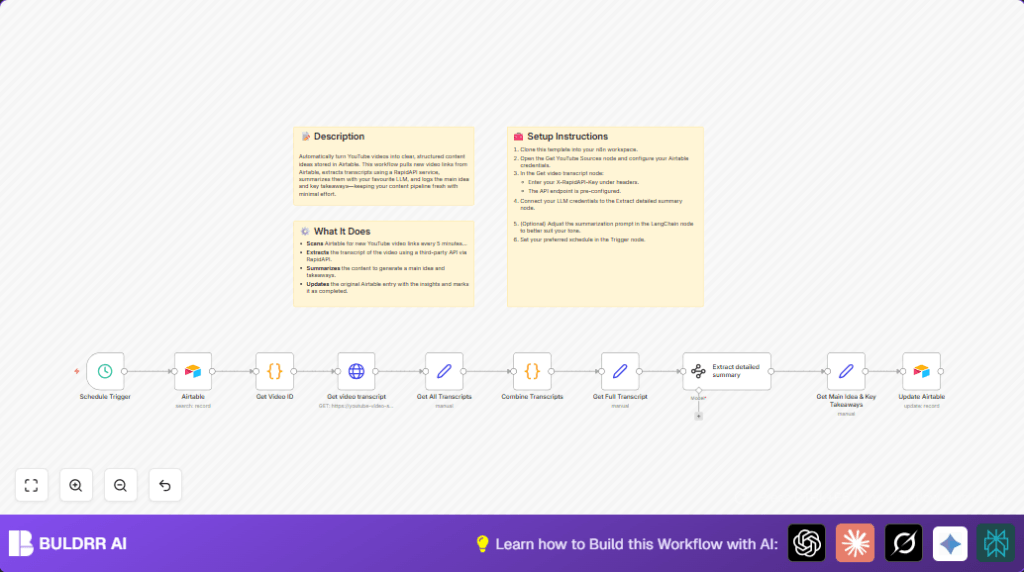
This n8n workflow automates the process of extracting YouTube video transcripts and summarizing them directly into Airtable. Save hours of manual content curation by automatically pulling video data, generating summaries, and updating your Airtable database seamlessly.
scheduleTrigger
airtable
code
+3
Workflow Identifier: 2154
NODES in Use: Schedule Trigger, Airtable, Code, HTTP Request, Set, LangChain Information Extractor

Press CTRL+F5 if the workflow didn't load.

Learn how to Build this Workflow with AI:

Visit through Desktop for Best experience

Opening Problem Statement

Meet Sarah, a digital content manager who curates content ideas for her marketing team. Every day, Sarah spends over two hours manually extracting and summarizing YouTube video content into an Airtable database for her team to review. This repetitive manual work not only wastes precious time but also increases the chance of errors and delayed publishing schedules.

Imagine the frustration of juggling multiple tabs, copying transcripts, and writing summaries while having a growing backlog of video links to process. Sarah often misses timely content opportunities due to inefficient workflows, delaying campaigns and impacting her team’s productivity.

What This Automation Does

This n8n workflow offers a complete solution to Sarah’s problem by automating the entire process from fetching video links in Airtable to updating summarized content back into it. Here’s what happens when you run this automation:

  • Fetch YouTube Video Links: Automatically query Airtable every few minutes to find new YouTube video URLs tagged as “Youtube Video” with an empty status.
  • Extract Video IDs: Use a Code node to parse out YouTube video IDs from the URLs for API queries.
  • Retrieve Transcripts: Call a third-party API via HTTP Request node to get the full transcript of the video using the video ID.
  • Compile Transcripts: Code nodes combine multiple transcript parts into one continuous transcript string.
  • Summarize Content: Use an AI-powered information extraction node to create a clear, detailed summary including the main idea and key takeaways.
  • Update Airtable Records: Finally, update the original Airtable entries with the summarized main idea, takeaways, and change the status to complete.

The key benefits include saving at least 2 hours of manual work per day, eliminating human transcription errors, and maintaining an always-up-to-date content idea repository without lifting a finger.

Prerequisites ⚙️

  • n8n Account: Access to n8n for workflow automation.
  • Airtable Account: Airtable base and table with YouTube video URLs and credentials (Personal Access Token) 🔑📊
  • RapidAPI Key: For accessing the YouTube transcript API through RapidAPI 🔌
  • AI Integration: LLM support within n8n, connected to the LangChain information extractor node to generate summaries 💬

Pro tip: You can self-host n8n for full control and privacy—check out Hostinger’s guide for easy self-hosting.

Step-by-Step Guide

Step 1: Set Up Schedule Trigger Node

Start by clicking to add a new node → select Schedule Trigger. Set it to run every 5 minutes (or your preferred interval). This node initiates the workflow by periodically checking Airtable for new entries.

When done, you should see the trigger firing at the set interval without errors. Common mistake: Forgetting to activate the workflow after setup means it won’t run automatically.

Step 2: Connect Airtable Node to Fetch Video Links

Add an Airtable node next and configure it to:

  • Use your Airtable Personal Access Token 🔑
  • Select your base and table containing video links (Example base: “Content Hub”, table: “Ideas”)
  • Set operation to “search” with filter formula: AND({Status} = "", {Type} = "Youtube Video")
  • Limit results to 1 (you can increase later)

This ensures you pull only pending YouTube video entries needing processing. You should see data items coming through when you execute this node individually.

Common mistake: Incorrect API Token or base/table ids will result in no data fetched.

Step 3: Extract Video ID with Code Node

Add a Code node named “Get Video ID.” Copy this JavaScript code exactly:

// Loop over input items
for (const item of $input.all()) {
    const Source = item.json.Source;
    const videoIdMatch = Source.match(/(?:v=|/)([a-zA-Z0-9_-]{11})/);
    const videoId = videoIdMatch ? videoIdMatch[1] : null;
    item.json.videoId = videoId;
}
return $input.all();

This extracts the YouTube video ID from the full URL. Expect a new field videoId in the output JSON. Common mistake: Passing malformed URLs without “v=” parameters will cause videoId to be null.

Step 4: Fetch Transcript via HTTP Request Node

Add an HTTP Request node labeled “Get video transcript.” Configure it as follows:

  • Method: GET
  • URL: https://youtube-video-summarizer-gpt-ai.p.rapidapi.com/api/v1/get-transcript-v2
  • Headers: Add X-Rapidapi-Key with your RapidAPI key, X-Rapidapi-Host as youtube-video-summarizer-gpt-ai.p.rapidapi.com
  • Query Parameters: Pass video_id={{ $json.videoId }}, platform=youtube

Run this node to get the transcript JSON in response. Common mistake: Missing or invalid API keys result in authorization errors.

Step 5: Set Node to Extract Transcripts Array

Use a Set node named “Get All Transcripts” to map data.transcripts from the HTTP response into the node’s JSON for easier access down the line. This step preps the data structure.

Verify the transcripts object is accessible by inspecting the node output.

Step 6: Combine Transcript Texts with Code Node

Add another Code node called “Combine Transcripts” and paste this JavaScript:

let Transcript = "";
if ($json.data && $json.data.transcripts) {
    for (const key in $json.data.transcripts) {
        if ($json.data.transcripts[key].custom) {
            for (const item of $json.data.transcripts[key].custom) {
                if (item.text) {
                    Transcript += item.text + " ";
                }
            }
        }
    }
}
return [
    {
        json: {
            Transcript: Transcript.trim(),
        },
    },
];

This code concatenates all pieces of transcript text into a single string. Expect a clean field Transcript. Common mistakes: Data structure changes in the API may cause undefined errors.

Step 7: Prepare Transcript for Summary

Add a Set node named “Get Full Transcript” to pass the combined transcript text into a Transcript field explicitly.

This makes the transcript text ready for your AI summary node.

Step 8: Summarize Using LangChain Information Extractor Node

Connect the new LangChain Information Extractor node. Enter the prompt as:

Your job is to generate detailed summary of "{{ $json.Transcript }}".

Always output your answer in the following format:

- Main Idea
- Takeaways

Also, provide an example JSON schema for predictable results. Run this node to produce summarized main idea and key takeaways.

Common mistake: Forgetting to link your LLM credentials will cause failures.

Step 9: Extract Main Idea & Takeaways with Set Node

Add a Set node named “Get Main Idea & Key Takeaways” to extract Main Idea and Key Takeaways from the LangChain output into separate fields for Airtable.

Step 10: Update Airtable with Summarized Content

Finally, connect an Airtable node to update the original record using the id passed from the initial Airtable record. Map the fields Main Idea, Takeaways, and set Status to true (marks as completed).

Your Airtable database now holds neatly summarized YouTube video content automatically refreshed every few minutes.

Customizations ✏️

  • Adjust Summary Format: In the Extract detailed summary LangChain node, tweak the prompt text to change tone or add more bullet points for richer summaries.
  • Process Multiple Videos Per Run: Increase the Airtable node limit from 1 to a higher number to batch process several new videos at once.
  • Integrate More APIs: Modify the HTTP Request node to use other transcript services or add sentiment analysis nodes after summary generation.
  • Change Airtable Status Logic: Instead of a boolean, use multiple status values (e.g., “In Progress”, “Done”) by adjusting the update formula in the Airtable update node.
  • Add Video Metadata: Extend the Code nodes to also extract and store video title or publish date if available from Airtable, enriching the record.

Troubleshooting 🔧

  • Problem: “No data fetched from Airtable.”
    Cause: Incorrect API token, wrong base ID, or filter formula mismatch.
    Solution: Recheck API credentials, ensure the base and table IDs are correct, and test the formula in Airtable itself.
  • Problem: “videoId is null in Code node.”
    Cause: The YouTube URLs are malformed or missing expected “v=” parameter.
    Solution: Verify URLs in Airtable have standard YouTube formats, adjust code regex if needed.
  • Problem: “API key transmission error in HTTP Request.”
    Cause: Missing or wrong RapidAPI key in headers.
    Solution: Paste your valid API key exactly in the HTTP node header and test connectivity.
  • Problem: “LangChain node fails to generate summary.”
    Cause: Missing or invalid LLM credentials.
    Solution: Ensure your AI provider credentials are configured and linked to the LangChain node.

Pre-Production Checklist ✅

  • Confirm Airtable API token validity and access rights to your base and table.
  • Verify your RapidAPI subscription and API key are active for the YouTube transcript service.
  • Test the Schedule Trigger and manual execution of the workflow to confirm proper data flow.
  • Inspect Code node outputs for correct video ID extraction.
  • Check HTTP Request node returns valid transcript JSON data.
  • Ensure LangChain outputs the summary as per JSON schema.
  • Backup Airtable data before first automated updates as a precaution.

Deployment Guide

Activate your n8n workflow by toggling it live after testing. Monitor the executions through n8n’s built-in execution logs for any errors or delays. Schedule Trigger ensures new videos are processed automatically without manual intervention, keeping your Airtable content fresh and actionable.

Regularly review Airtable updates to ensure summaries are accurate. Adjust the workflow interval based on volume and API rate limits.

FAQs

  • Q: Can I use other video platforms besides YouTube?
    A: This specific workflow calls a YouTube transcript API, so it’s designed for YouTube videos. Modify the HTTP Request node and Code node if you want to add other platforms.
  • Q: Does this use a paid API service?
    A: Yes, RapidAPI calls may incur costs depending on usage. Check their pricing.
  • Q: Is my data secure?
    A: Your data stays within your n8n and Airtable environment. Secure your API credentials and consider self-hosting n8n for additional privacy.
  • Q: Can this handle bulk processing?
    A: You can increase batch size in Airtable query, but watch out for API rate limits.

Conclusion

By setting up this n8n workflow, you’ve automated the time-intensive process of extracting and summarizing YouTube transcripts directly into your Airtable workspace. This saves hours daily, reduces human error, and ensures your content pipeline stays refreshed with insightful takeaways.

Try extending this automation to include video metadata or integrate sentiment analysis. Next steps could be building a similar workflow for web articles or Twitter content sourcing to enrich your ideas hub.

Remember, every minute saved here is a minute gained for creative and impactful marketing work!

Promoted by BULDRR AI

Related Workflows

Automate Viral UGC Video Creation Using n8n + Degaus (Beginner-Friendly Guide)

Learn how to automate viral UGC video creation using n8n, AI prompts, and Degaus. This beginner-friendly guide shows how to import, configure, and run the workflow without technical complexity.
Form Trigger
Google Sheets
Gmail
+37
Free

AI SEO Blog Writer Automation in n8n

A complete beginner guide to building an AI-powered SEO blog writer automation using n8n.
AI Agent
Google Sheets
httpRequest
+5
Free

Automate CrowdStrike Alerts with VirusTotal, Jira & Slack

This workflow automates processing of CrowdStrike detections by enriching threat data via VirusTotal, creating Jira tickets for incident tracking, and notifying teams on Slack for quick response. Save hours daily by transforming complex threat data into actionable alerts effortlessly.
scheduleTrigger
httpRequest
jira
+5
Free

Automate Telegram Invoices to Notion with AI Summaries & Reports

Save hours on financial tracking by automating invoice extraction from Telegram photos to Notion using Google Gemini AI. This workflow extracts data, records transactions, and generates detailed spending reports with charts sent on schedule via Telegram.
lmChatGoogleGemini
telegramTrigger
notion
+9
Free

Automate Email Replies with n8n and AI-Powered Summarization

Save hours managing your inbox with this n8n workflow that uses IMAP email triggers, AI summarization, and vector search to draft concise replies requiring minimal review. Automate business email processing efficiently with AI guidance and Gmail integration.
emailReadImap
vectorStoreQdrant
emailSend
+12
Free

Automate Email Campaigns Using n8n with Gmail & Google Sheets

This n8n workflow automates personalized email outreach campaigns by integrating Gmail and Google Sheets, saving hours of manual follow-up work and reducing errors in email sequences. It ensures timely follow-ups based on previous email interactions, optimizing communication efficiency.
googleSheets
gmail
code
+5
Free