
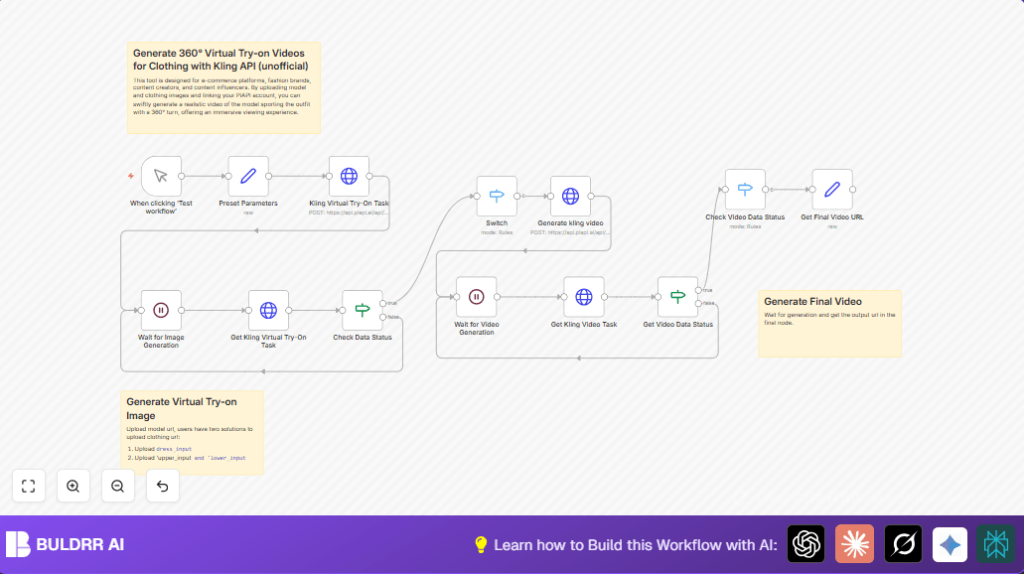

Automate 360° Virtual Try-On Video Creation with Kling API in n8n

Save hours in fashion e-commerce by automating 360° virtual try-on video generation using Kling API and n8n. This guide walks through each step to effortlessly create immersive model-clothing videos, eliminating tedious manual editing.
httpRequest
manualTrigger
set
+4
Workflow Identifier: 1961
NODES in Use: Manual Trigger, Set, HTTP Request, Switch, If, Wait, Sticky Note

Press CTRL+F5 if the workflow didn't load.

Learn how to Build this Workflow with AI:

Visit through Desktop for Best experience

Opening Problem Statement

Meet Anna, an e-commerce marketing manager for a mid-sized fashion brand struggling to provide immersive online shopping experiences. Every season, Anna’s team spends countless hours manually creating 360° videos showcasing models wearing their latest clothing lines. The process involves coordinating photoshoots, hiring editors, and waiting days for final videos, often with errors or delays. This bottleneck not only drains the teams resources but also limits customer engagement and sales conversion in a highly competitive market.

Imagine losing 20+ hours weekly to manual video creation, slowing product launches and risking falling behind competitors offering interactive previews. Anna needs a faster, automated way to generate realistic virtual try-on videos without compromising quality.

What This Automation Does

This n8n workflow integrates the powerful Kling API to automate the entire 360° virtual try-on video generation process for fashion e-commerce. Heres what happens when you trigger the workflow:

  • Upload model and clothing images: Users provide URLs for model and outfit images (including options for full dress or separate upper and lower clothing parts).
  • Initiate virtual try-on task: Sends data to Klings AI to generate realistic model try-on images.
  • Wait and check status automatically: Uses smart waiting and checking nodes to poll Kling API for completion status, handling asynchronous video generation workflows.
  • Generate 360° turn video: Upon image generation completion, triggers video generation with a customizable prompt describing desired video movements (e.g., walking the catwalk and posing).
  • Retrieve final video URL: Fetches and outputs the accessible video URL for embedding or further use.
  • Handles errors gracefully: Logic nodes ensure the workflow pauses or retries appropriately when tasks fail or are incomplete.

This automation can save Annas team over 15 hours weekly, eliminating manual video editing and accelerating product launches with higher quality previews.

Prerequisites ⚙️

  • n8n account: To design and run the workflow.
  • Kling API Key🔑: Access to the Kling API through PiAPI for AI-based try-on and video generation.
  • Model and clothing image URLs 📁: URLs for the model image and either a dress image or separate upper and lower clothing images.
  • Internet connection🔌: To communicate with the API endpoints.
  • Optional self-hosting: You can self-host n8n for better privacy and control. Visit this guide for hosting options.

Step-by-Step Guide

Step 1: Set up the Manual Trigger Node

Navigate to the n8n editor. Click + Add Node → Core Nodes → Manual Trigger to create a manual start point. This node allows you to test the workflow on demand.

Expected outcome: Ready trigger to start the workflow manually.

Common mistake: Forgetting to connect this node to the next step.

Step 2: Add the Preset Parameters Node

Add a Set node named “Preset Parameters”. Here, you will define the inputs such as your Kling API key and URLs for model and clothing images.

Example JSON fields to add (replace with actual values):

{
  "x-api-key": "your-kling-api-key-here",
  "model_input": "https://example.com/model.png",
  "dress_input": "https://example.com/dress.png",
  "upper_input": "",
  "lower_input": "",
  "generate_video_prompt": "Walk on the catwalk, turn around, and finally stand still and pose"
}

Expected outcome: These parameters will be passed to the HTTP request nodes.

Common mistake: Not filling out the API key or image URLs, which causes calls to fail.

Step 3: Trigger the Kling Virtual Try-On Task HTTP Request

Add an HTTP Request node named “Kling Virtual Try-On Task”.

Configure it to send a POST request to https://api.piapi.ai/api/v1/task with a JSON body containing the inputs:

{
  "model": "kling",
  "task_type": "ai_try_on",
  "input": {
    "model_input": "{{ $json.model_input }}",
    "dress_input": "{{ $json.dress_input }}",
    "upper_input": "{{ $json.upper_input }}",
    "lower_input": "{{ $json.lower_input }}",
    "batch_size": 1
  }
}

Add the x-api-key header with value from your parameters: {{ $json['x-api-key'] }}.

Expected outcome: Kling API starts processing the virtual try-on image task.

Common mistake: Misconfiguring the body or headers causes API authentication errors.

Step 4: Wait for Image Generation Completion

Add a Wait node that gives the API time to process image generation. It uses webhookId for polling.

Expected outcome: Workflow pauses while Kling API generates images.

Common mistake: Not specifying the webhook ID causes the wait to never complete.

Step 5: Poll for Try-On Image Task Status

Add an HTTP Request node “Get Kling Virtual Try-On Task” to GET the task status using:

https://api.piapi.ai/api/v1/task/{{ $json.data.task_id }}

Add your API key header from Preset Parameters.

Expected outcome: Receive status like “completed” or “failed”.

Common mistake: Not mapping the task ID correctly will cause errors.

Step 6: Use If and Switch Nodes to Handle Task Completion

Add an If node “Check Data Status” to check if status is “completed” or “failed”. If completed, pass to a Switch node that specifically checks if the try-on task is “completed”.

Expected outcome: Workflow routes based on API task completion, supporting retries if not done.

Common mistake: Incorrect conditionals may cause infinite loops or skips.

Step 7: Trigger Video Generation Task

Add another HTTP Request node “Generate kling video” to POST a video generation request with input:

{
  "model": "kling",
  "task_type": "video_generation",
  "input": {
    "version": "1.6",
    "image_url": "{{ $json.data.output.works[0].image.resource }}",
    "prompt": "{{ $('Preset Parameters').item.json.generate_video_prompt }}"
  }
}

Expected outcome: Kling API begins creating a 360° video from the virtual try-on image.

Common mistake: Forgetting to use correct dynamic fields from prior responses can break flow.

Step 8: Wait and Poll for Video Generation Completion

Similar to image generation, add a Wait node “Wait for Video Generation” and a “Get Kling Video Task” HTTP Request node to poll status:

https://api.piapi.ai/api/v1/task/{{ $json.data.task_id }}

Use an If node “Get Video Data Status” and Switch node “Check Video Data Status” to confirm completion.

Expected outcome: Workflow waits for and captures completion status of video task.

Common mistake: Not handling failure statuses can cause workflow to hang.

Step 9: Extract Final Video URL

Add a Set node “Get Final Video URL” to extract and output the final video URL from the API response JSON:

{
  "video_url": "{{ $json.data.output.video_url }}"
}

Expected outcome: Final usable video link is ready for embedding or sharing.

Common mistake: Not mapping JSON path correctly results in missing URL.

Customizations ✏️

  • Modify video prompt: Change the “generate_video_prompt” field in the Preset Parameters node to customize the model’s movements in the final video (e.g., “Walk, wave, stop and smile”).
  • Use separate upper and lower clothing images: Instead of the full dress input, provide URLs for “upper_input” and “lower_input” to personalize outfit combinations.
  • Increase batch size: Adjust the “batch_size” parameter in the Kling Virtual Try-On Task node JSON body to generate multiple images per request if your use case demands.
  • Error handling enhancement: Extend the If and Switch nodes to add retry logic or send notifications on failures.
  • Integrate with external storage: Add a node to save the final video URL or download the video automatically for archival or further processing.

Troubleshooting 🔧

  • Problem: “Authentication failed with status code 401”
    Cause: Incorrect or missing Kling API key in the HTTP Request node headers.
    Solution: Recheck and input the correct API key in the Preset Parameters node, ensure it is referenced properly in header configuration.
  • Problem: “Task status stuck and never completes”
    Cause: Missing or incorrect webhook IDs in Wait nodes causing them to never resume.
    Solution: Verify webhook IDs in Wait nodes are correct and that the API supports webhook callbacks; if not, poll status periodically.
  • Problem: “Video generation fails or returns error status”
    Cause: Incorrect video generation prompt or malformed JSON body.
    Solution: Double-check the video prompt text and JSON structure in the “Generate kling video” HTTP Request node.
  • Problem: Final video URL not extracted correctly
    Cause: Incorrect JSON path in the “Get Final Video URL” Set node.
    Solution: Inspect API response structure and adjust expressions accordingly.

Pre-Production Checklist ✅

  • Verify your Kling API Key is active and has appropriate permissions.
  • Make sure model and clothing image URLs are accessible publicly via HTTPS.
  • Test manual trigger execution and ensure each HTTP Request node returns expected status.
  • Confirm the Wait nodes resume properly after task completions.
  • Backup your workflow before major edits for rollback safety.

Deployment Guide

Activate the workflow by toggling the “Active” switch in the n8n editor once testing is complete. Use the manual trigger to start video generation on demand.

Monitor executions in n8n’s workflow run history to catch any failures early. Logs will show detailed API responses for debugging.

If scaling is required, consider automating image and clothing URL input via other integrated tools or databases.

FAQs

  • Can I use other AI try-on APIs instead of Kling? Yes, although this workflow is specifically tailored to Kling API endpoints and response formats, with adjustments it can be adapted.
  • Does this consume API credits? Yes, each try-on and video generation request uses your Kling API quota.
  • Is my data safe during video generation? Yes, Kling uses secure HTTPS endpoints but consider data permissions and privacy policy compliance.
  • Can this handle multiple requests simultaneously? The workflow is designed for single manual executions but can be extended to batch processing with modifications.

Conclusion

By following this comprehensive guide, you’ve automated the creation of 360° virtual try-on videos using Kling API and n8n, saving significant manual effort and accelerating your fashion e-commerce workflows.

You now have a repeatable, customizable system to generate immersive product videos enhancing customer engagement and boosting sales.

Next, consider automating outfit catalog updates with Google Sheets integration or adding social media posting for newly created videos.

Keep experimenting, and enjoy the power of automated virtual try-on video creation!

Promoted by BULDRR AI

Related Workflows

Automate Viral UGC Video Creation Using n8n + Degaus (Beginner-Friendly Guide)

Learn how to automate viral UGC video creation using n8n, AI prompts, and Degaus. This beginner-friendly guide shows how to import, configure, and run the workflow without technical complexity.
Form Trigger
Google Sheets
Gmail
+37
Free

AI SEO Blog Writer Automation in n8n (Beginner Guide)

A complete beginner guide to building an AI-powered SEO blog writer automation using n8n.
AI Agent
Google Sheets
httpRequest
+5
Free

Automate CrowdStrike Alerts with VirusTotal, Jira & Slack

This workflow automates processing of CrowdStrike detections by enriching threat data via VirusTotal, creating Jira tickets for incident tracking, and notifying teams on Slack for quick response. Save hours daily by transforming complex threat data into actionable alerts effortlessly.
scheduleTrigger
httpRequest
jira
+5
Free

Automate Telegram Invoices to Notion with AI Summaries & Reports

Save hours on financial tracking by automating invoice extraction from Telegram photos to Notion using Google Gemini AI. This workflow extracts data, records transactions, and generates detailed spending reports with charts sent on schedule via Telegram.
lmChatGoogleGemini
telegramTrigger
notion
+9
Free

Automate Email Replies with n8n and AI-Powered Summarization

Save hours managing your inbox with this n8n workflow that uses IMAP email triggers, AI summarization, and vector search to draft concise replies requiring minimal review. Automate business email processing efficiently with AI guidance and Gmail integration.
emailReadImap
vectorStoreQdrant
emailSend
+12
Free

Automate Email Campaigns Using n8n with Gmail & Google Sheets

This n8n workflow automates personalized email outreach campaigns by integrating Gmail and Google Sheets, saving hours of manual follow-up work and reducing errors in email sequences. It ensures timely follow-ups based on previous email interactions, optimizing communication efficiency.
googleSheets
gmail
code
+5
Free