

1. Opening Problem Statement
Meet Sarah, a project manager juggling between Notion and ClickUp to track her team’s tasks. Every time her team updates task statuses or deadlines in Notion, she has to manually update the respective tasks in ClickUp, and vice versa. This back-and-forth leads to frequent discrepancies, missed deadlines, and wasted hours—sometimes up to 3 hours a week just on syncing information manually. This scenario is not just tiring but risks critical project delays as the two systems don’t talk to each other automatically.
Have you ever experienced your task management apps being out of sync causing confusion? What if updates in one tool instantly appeared in the other without any extra work from you? That’s exactly what this automation with n8n solves — it eliminates tedious manual updates between Notion and ClickUp, ensuring your team’s task data is always consistent and accurate.
2. What This Automation Does
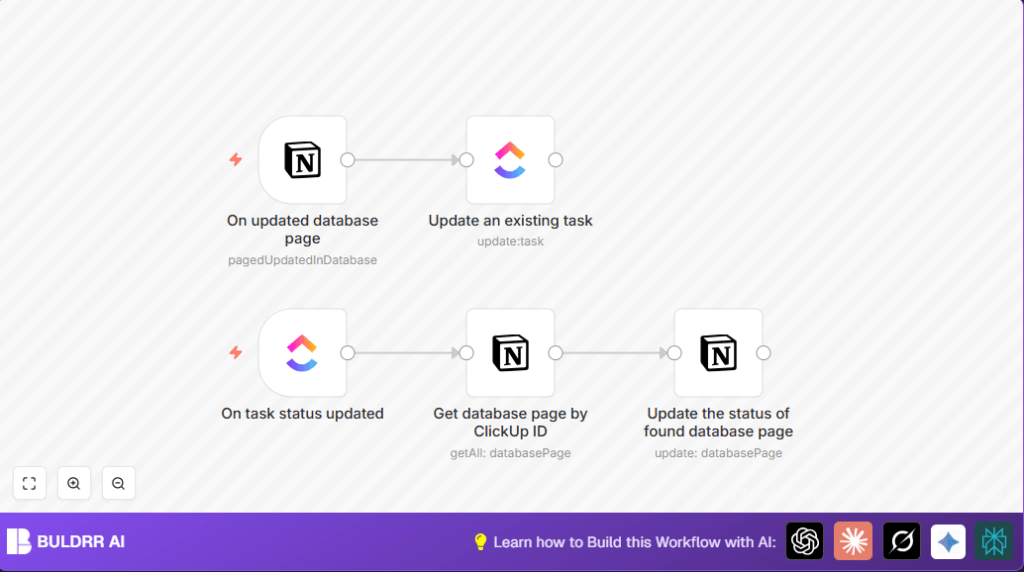
This specific n8n workflow acts as a real-time bi-directional bridge between Notion and ClickUp. Here’s exactly what happens when it runs:
- When a task page in a Notion database is updated, the workflow detects changes and automatically updates the matching task in ClickUp, including the task name, status, and deadline.
- When a task’s status is updated in ClickUp, the workflow finds the related Notion page and updates its status field to match ClickUp’s current status.
- It ensures data consistency between Notion and ClickUp with zero manual intervention, reducing human error and missed updates.
- It maintains accurate associations by using the ClickUp Task ID stored in Notion for reliable cross-reference.
- It runs on triggers: a Notion database page update trigger and a ClickUp task status update trigger, providing near real-time synchronization.
- Saves Sarah and her team approximately 3 hours per week previously spent on manual sync, improving project reliability.
3. Prerequisites ⚙️
- n8n Account — To build and run the automation workflow.
- Notion Account with Database — The workflow listens to updates in a specific task-tracking database.
- ClickUp Account — Tasks in ClickUp will be updated or trigger syncs.
- API Credentials for Notion and ClickUp — For secure access and integration.
4. Step-by-Step Guide
Step 1: Set Up the “On updated database page” Notion Trigger Node
Navigate to n8n canvas → Click + Add Node → Select Notion Trigger.
Configure:
- Event: pagedUpdatedInDatabase (this triggers every time a page in your Notion database updates)
- Database ID: Use your task tracking database’s unique ID in Notion (found in the URL of your database or via API).
- Poll Rate: Set to run every minute for near real-time updates.
- Name:
{{$node["On updated database page"].json["Task name"]}} - Status:
{{$node["On updated database page"].json["Status"]}} - Due Date:
{{$node["On updated database page"].json["Deadline"]["start"]}} - Team: Select your ClickUp team ID.
- Events: Choose taskStatusUpdated.
- Filters: Leave empty unless you want to restrict which tasks trigger updates.
- Operation: Get All database pages
- Database ID: Same Notion database as the trigger node
- Filters: Add a condition to find a page where the “ClickUp ID” property matches the task ID from ClickUp trigger:
{{$node["On task status updated"].json["task_id"]}}. - Return All: True (to get any page that matches)
- Page ID: Use expression to get the Notion page ID from previous node:
{{$node["Get database page by ClickUp ID"].json["id"]}} - Properties: Set the “Status” Select property to the new status value from ClickUp:
- Expand to Other Properties: Add fields like priority or tags in the “Update an existing task” ClickUp node by including them in the updateFields configuration.
- Change Polling Frequency: In the Notion trigger, adjust the pollTimes setting from every minute to every 5 minutes to reduce API calls.
- Add Error Handling: Use the Error Trigger node in n8n to catch errors from API failures and notify your team on Slack or email.
- Confirm API credentials valid and have necessary permissions.
- Test updating a Notion page and verify automatic ClickUp task update.
- Change status in ClickUp task and verify Notion page updates.
- Backup your Notion database before heavy testing.
Credential: Select your configured Notion API credential.
After setting this up, you should see the node trigger when you update a page in the connected database.
Common Mistake: Forgetting to set the correct database ID will cause no triggers to fire.
Step 2: Configure the “Update an existing task” ClickUp Node
Add a new node → choose ClickUp → Operation: Update.
Set the Task ID field dynamically with expression: {{$node["On updated database page"].json["ClickUp ID"]}}.
Update fields include:
Use credentials for ClickUp API.
After running, the matching ClickUp task should reflect the new details from Notion.
Common Mistake: Incorrect expression syntax can prevent updates.
Step 3: Set Up the “On task status updated” ClickUp Trigger
Add node → select ClickUp Trigger.
Configure:
Credential: Use your ClickUp API credential.
This node fires whenever any task’s status changes in ClickUp.
Common Mistake: Not assigning the correct team ID may disable triggers.
Step 4: Configure the “Get database page by ClickUp ID” Notion Node
Add node → select Notion.
Set:
After this runs, it retrieves the matching Notion page that links to the clicked ClickUp task.
Common Mistake: Incorrect filter key or misspelling property names.
Step 5: Update the Notion page’s status property
Add node → Notion → Operation: Update database page.
Set:
{{$node["On task status updated"].json["history_items"][0]["after"]["status"]}}
Run the workflow and observe that Notion page status updates when ClickUp status changes.
Common Mistake: Forgetting to update the correct property key results in no changes.
5. Customizations ✏️
>
6. Troubleshooting 🔧
Problem: “No data returned on Notion trigger”
Cause: The database ID or API credentials are incorrect or lack permission to access the database.
Solution: Double-check the database ID in Notion and ensure the API key credentials have correct access rights.
Problem: “ClickUp update fails with 400 Bad Request”
Cause: The task ID or update fields contain invalid data or malformed JSON.
Solution: Inspect the expressions used to populate the fields and ensure they match ClickUp’s expected format and the task ID is valid.
7. Pre-Production Checklist ✅
8. Deployment Guide
Activate the workflow in n8n by turning it on.
Monitor executions in the n8n execution logs to catch failures.
Adjust polling intervals based on your needs and API rate limits.
9. FAQs
Can I use Trello instead of ClickUp?
This workflow relies on the ClickUp API and webhook triggers, so it’s not directly compatible without modifications.
Does this workflow consume many API credits?
Polling every minute may use several API calls, so adjust frequency based on your quota.
10. Conclusion
By setting up this n8n workflow, you’ve automated syncing between Notion and ClickUp task data, eliminating manual double updates. Your project management becomes significantly more reliable and less error-prone, saving you hours every week.
Next up, consider automating new task creation between tools or adding notification workflows when tasks change status to enhance team communication even further.
Keep exploring and optimizing your automation for maximum productivity!