

Automate Threads Post Archiving with n8n and Notion

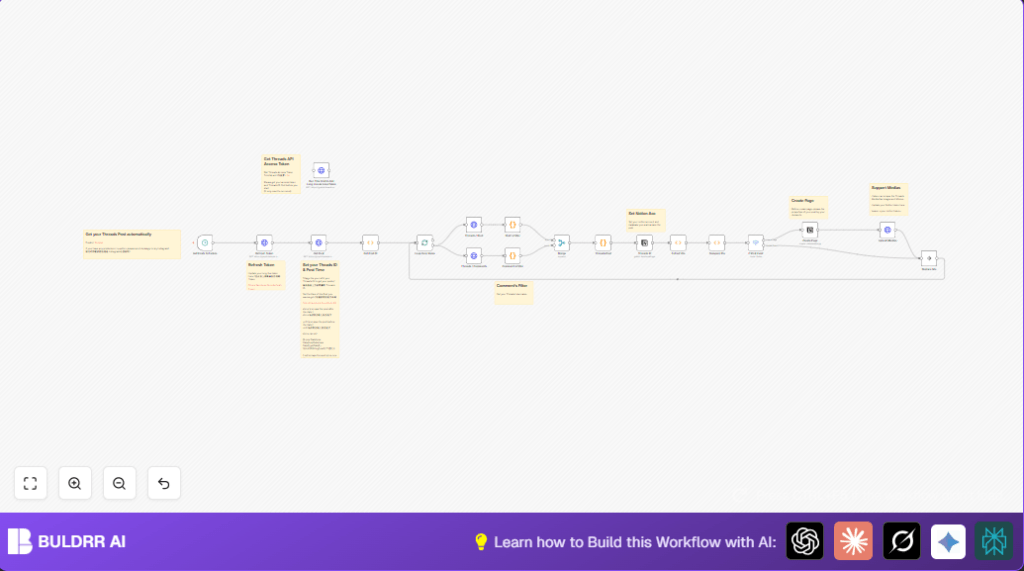
Automate saving your Threads posts and media to Notion with this n8n workflow. It tackles manual data entry by syncing and filtering posts and comments, saving you hours each week.
httpRequest
function
notion
+4
Workflow Identifier: 1857
NODES in Use: HTTP Request, Function, SplitInBatches, Code, NoOp, Switch, Notion

Press CTRL+F5 if the workflow didn't load.

Learn how to Build this Workflow with AI:

Visit through Desktop for Best experience

Opening Problem Statement

Meet Andy, a content creator who actively posts on Threads to engage with his audience. Andy wants to archive his posts and associated media—including images, videos, and audio—into Notion for easy retrieval and content planning. However, manually copying posts from Threads and uploading media to Notion drains hours weekly. Mistakes happen, posts are missed, and media files get lost in the shuffle, leading to frustration and lost productivity.

This is where the power of automation steps in. By leveraging n8n—a powerful automation tool—Andy can create a workflow that automatically fetches his latest posts from Threads, filters relevant media and comments, checks if the post already exists in Notion, and creates or updates pages with embedded media. This saves him countless hours on repetitive data transfer, reduces errors, and offers a centralized content archive.

What This Automation Does

This n8n workflow is designed to fully automate the retrieval and archiving of Threads posts into Notion. Each time it runs, it:

  • Refreshes access tokens to maintain secure API communication with Threads.
  • Fetches recent Threads posts filtered by media type (text, image, video, carousel, or audio) since a specified date.
  • Retrieves post details and conversations, including comments, to capture full context.
  • Filters and organizes media URLs from both root posts and comments for embedding in Notion.
  • Checks for duplicate entries by comparing with existing post IDs in a Notion database.
  • Creates or updates Notion pages with post metadata, text content, and media embeds automatically.

With this process, Andy eliminates the need for manual copy-pasting, ensures a comprehensive archive with media intact, and gains a searchable, well-organized content repository. What once took hours now runs effortlessly in minutes.

Prerequisites ⚙️

  • n8n account for building and running workflows.
  • Threads API credentials including Long-Lived Access Token and Threads ID for your account.
  • Notion API credentials and a Notion database set up to receive posts.
  • Basic familiarity with JSON data and API concepts helps but not mandatory.

Step-by-Step Guide

1. Schedule Trigger to Start Workflow

Inside n8n, create a new workflow and add a Schedule Trigger node. Configure it to run at your preferred interval (e.g., daily at midnight). This starts the automation to fetch new Threads posts regularly.

2. Refresh Access Token

Add an HTTP Request node named “Refresh Token”. Set method to GET and URL to https://graph.threads.net/refresh_access_token. Pass query parameters including grant_type=th_refresh_token and your Long-Lived Token as access_token. This ensures your token stays valid.

3. Fetch Recent Threads Posts

Link the “Refresh Token” node to another HTTP Request node “Get Post”. Set URL to your Threads ID endpoint, e.g., https://graph.threads.net/v1.0//threads, and include query parameters:
fields=id,media_product_type,media_type,media_url,permalink,owner,username,text,timestamp,shortcode,thumbnail_url,children,is_quote_post,
plus since to last 1 day and refreshed access_token.

4. Filter and Extract Post IDs Function

Add a Function node “Get Post ID” to filter the posts received. The script extracts posts by media types (TEXT_POST, IMAGE, VIDEO, CAROUSEL_ALBUM, AUDIO), omits quoted posts, and returns clean JSON with id, permalink, timestamp.

This is the filter code snippet to copy:

const allData = items[0].json.data;
const filteredPosts = allData.filter(post => {
  return (
    post.media_type === "TEXT_POST" || 
    post.media_type === "IMAGE" || 
    post.media_type === "VIDEO" || 
    post.media_type === "CAROUSEL_ALBUM" || 
    post.media_type === "AUDIO"
  );
});
const extractedData = filteredPosts.map(post => ({
  id: post.id,
  type: post.media_type,
  permalink: post.permalink,
  timestamp: post.timestamp,
}));
return extractedData.map(post => ({ json: post }));

5. Batch Processing of Posts

Connect the function node to a SplitInBatches node “Loop Over Items” to handle posts one by one or in small batches, allowing stepwise processing downstream.

6. Retrieve Full Post and Comments

From the batch node, link to these two HTTP Request nodes “Threads / Root” and “Threads / Comments”. They pull detailed information for each post and its comment threads using the post ID and fresh access token.

7. Filter Post and Comment Data with Code Nodes

Use two Code nodes “Root’s Filter” and “Comment’s Filter” to transform raw data, extract media URLs recursively from children objects, and filter to only your specified Threads username (change “geekaz” to your own).

8. Merge and Combine Post Data

Merge the filtered root and comment data with a Merge node, consolidating the content for final processing.

9. Format Post Blocks for Notion

Add another Function node “Threads Post” that builds Notion-compatible blocks: paragraphs for text and embed blocks for media URLs. This JavaScript combines all filtered posts into a single data structure to send to Notion.

10. Get Existing Notion Pages and Extract IDs

Add a Notion node “Threads ID” to retrieve all existing database pages, followed by a Function node “Extract IDs” that extracts saved Threads post IDs from your Notion pages for duplication check.

11. Compare New Posts vs Existing

Add a Function node “Compare IDs” to verify if the new post’s ID is already present in Notion.

12. Conditional Logic to Create or Skip

Insert a Switch node “If Post Exist” that routes the workflow to either “Create Page” if post is new, or “Replace Me” (no operation) if existing.

13. Create Notion Page for New Post

Use the Notion node “Create Page” to add a new page in your database with fields mapped to permalink, post ID, timestamp, source, username etc. Customize properties as needed.

14. Upload Media Blocks to Notion

Finally, an HTTP Request node “Upload Medias” sends the composed media blocks as children of the newly created Notion page via Notion’s Blocks API with Bearer token authentication.

Customizations ✏️

  • Change Threads Username for Comments Filter: In the “Comment’s Filter” code node, update the username check line (post.username === 'geekaz') to your Threads username to filter comments accurately for your account.
  • Adjust Date Range: Modify the since query parameter in the “Get Post” HTTP Request node to fetch posts from different timeframes, such as one week or one month.
  • Add Additional Notion Properties: In the “Create Page” node, add or map more database fields such as tags, categories, or status to better organize your posts.
  • Handle Quote Posts: Modify the filtering function node “Get Post ID” to include or exclude quote posts (is_quote_post) depending on your archiving preferences.

Troubleshooting 🔧

Problem: “No items found” in Function nodes

Cause: API returned empty data or the query parameters are incorrect.

Solution: Verify your Threads ID and access tokens are valid and that the since query parameter is correctly set to a recent date. Test API separately if needed.

Problem: Notion API returns 401 Unauthorized

Cause: Invalid or expired Notion API token.

Solution: Regenerate your integration token in Notion, update credentials in n8n, and test connectivity.

Problem: Media blocks not appearing in Notion pages

Cause: Incorrect JSON structure in “Upload Medias” request or improper token headers.

Solution: Confirm the “children” JSON array is properly constructed in the body of the PATCH request. Check Notion Version header and authorization format.

Pre-Production Checklist ✅

  • Verify Threads API credentials and Long-Lived Token are up to date.
  • Confirm Notion database schema matches expected properties (e.g., “Threads ID”, “Name”, “Post Date”).
  • Run the workflow on a small batch (e.g., past 1 day) to test duplicates and media embedding.
  • Backup Notion data periodically before large imports.

Deployment Guide

Activate your workflow by enabling it in n8n. Monitor the initial runs via workflow UI to confirm posts are fetched and pages created correctly. Check the “Replace Me” no-op node for any skipped duplicates. Schedule the trigger for your preferred frequency (daily, hourly).

For self-hosting n8n, consider providers like Hostinger for streamlined setup https://buldrr.com/hostinger.

Conclusion

By following this guide, you’ve built a robust n8n workflow that automatically archives your Threads posts and their media content into Notion. This setup saves potentially hours every week managing posts manually, preserves your media intact, and organizes your content history efficiently.

Next automation ideas could include auto-tagging posts based on keywords, scheduling social media reposts, or integrating with Slack for post notifications. Keep exploring and automating!

Promoted by BULDRR AI

Related Workflows

Automate Viral UGC Video Creation Using n8n + Degaus (Beginner-Friendly Guide)

Learn how to automate viral UGC video creation using n8n, AI prompts, and Degaus. This beginner-friendly guide shows how to import, configure, and run the workflow without technical complexity.
Form Trigger
Google Sheets
Gmail
+37
Free

AI SEO Blog Writer Automation in n8n

A complete beginner guide to building an AI-powered SEO blog writer automation using n8n.
AI Agent
Google Sheets
httpRequest
+5
Free

Automate CrowdStrike Alerts with VirusTotal, Jira & Slack

This workflow automates processing of CrowdStrike detections by enriching threat data via VirusTotal, creating Jira tickets for incident tracking, and notifying teams on Slack for quick response. Save hours daily by transforming complex threat data into actionable alerts effortlessly.
scheduleTrigger
httpRequest
jira
+5
Free

Automate Telegram Invoices to Notion with AI Summaries & Reports

Save hours on financial tracking by automating invoice extraction from Telegram photos to Notion using Google Gemini AI. This workflow extracts data, records transactions, and generates detailed spending reports with charts sent on schedule via Telegram.
lmChatGoogleGemini
telegramTrigger
notion
+9
Free

Automate Email Replies with n8n and AI-Powered Summarization

Save hours managing your inbox with this n8n workflow that uses IMAP email triggers, AI summarization, and vector search to draft concise replies requiring minimal review. Automate business email processing efficiently with AI guidance and Gmail integration.
emailReadImap
vectorStoreQdrant
emailSend
+12
Free

Automate Email Campaigns Using n8n with Gmail & Google Sheets

This n8n workflow automates personalized email outreach campaigns by integrating Gmail and Google Sheets, saving hours of manual follow-up work and reducing errors in email sequences. It ensures timely follow-ups based on previous email interactions, optimizing communication efficiency.
googleSheets
gmail
code
+5
Free