

1. Opening Problem Statement
Meet Sarah, an ecommerce manager running a successful Shopify store. Every day, she spends hours manually updating HubSpot CRM with new and updated orders from Shopify to keep her sales and marketing teams aligned. This tedious task consumes over 3 hours per week and is prone to human errors—missed deals, out-of-date contact information, and payment amounts lead to lost sales opportunities and fractured communication across departments.
Sarah needs a reliable, automated way to synchronize order and customer data from Shopify into HubSpot as deals and contacts without hiring extra staff or relying on complicated, expensive integrations.
2. What This Automation Does
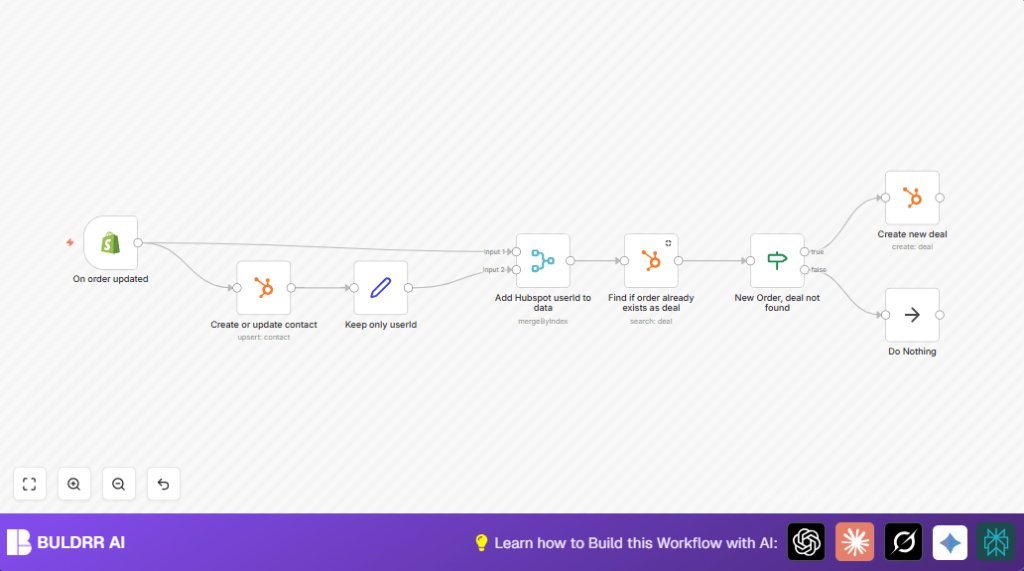
This workflow, built with n8n, listens for order updates from Shopify and automates the entire process of creating or updating HubSpot contacts and deals. When an order updates, it:
- Identifies the customer linked to the Shopify order.
- Creates or updates the customer’s contact in HubSpot, syncing relevant details like name, email, city, and country.
- Checks if the order already exists in HubSpot as a deal to avoid duplicates.
- If no deal exists, it creates a new deal with amount, close date, and associates it to the right contact in HubSpot.
- If the deal exists, it does nothing to prevent redundant records.
- Saves Sarah around 3-4 hours weekly and reduces errors in the sales pipeline.
3. Prerequisites ⚙️
- n8n account (cloud or self-hosted) 🔑
- Shopify store with API access, OAuth credentials for n8n Shopify Trigger node 📧
- HubSpot CRM account with OAuth credentials for API access 🔐
- Basic knowledge of n8n workflow editor
4. Step-by-Step Guide
Step 1: Setup Shopify Trigger for Order Updates
In your n8n editor, create a new workflow and add the Shopify Trigger node.
- Click Add Node → Search for Shopify Trigger.
- Set the Topic parameter to
orders/updated. - Connect your Shopify account by adding OAuth credentials if not done yet.
- You’ll see a webhook URL generated—copy it and add it to Shopify Admin under Settings → Notifications → Webhooks for orders updated (this triggers the flow).
Expected outcome: The workflow triggers whenever an order is updated in Shopify.
Common mistake: Forgetting to save the webhook URL in Shopify will prevent the workflow from triggering.
Step 2: Create or Update HubSpot Contact
Add the HubSpot node configured for the contact resource with operation create or update.
- Set the email field to
{{$json["contact_email"]}}to identify the contact. - Map customer fields from Shopify JSON to HubSpot contact fields:
- First Name:
{{$json["customer"]["default_address"]["first_name"]}} - Last Name:
{{$json["customer"]["default_address"]["last_name"]}} - City:
{{$json["customer"]["default_address"]["city"]}} - Country:
{{$json["customer"]["default_address"]["country"]}} - Connect your HubSpot OAuth credentials.
Expected outcome: Contact will be created or updated in HubSpot for the order’s customer.
Common mistake: Incorrect JSON paths when mapping fields may result in empty or incorrect contact records.
Step 3: Extract Customer User ID
Use the Set node to keep only the userId from the Shopify data.
- Add a Set node named “Keep only userId”.
- Configure the node to set the field
userIdwith value{{$json["vid"]}}(Shopify’s unique visitor ID). - Enable Keep Only Set option to remove other data.
Expected outcome: The workflow outputs only the userId data for easier merging later.
Common mistake: Forgetting to enable “Keep Only Set” will pass unnecessary data downstream.
Step 4: Merge UserID with Order Data
Add a Merge node to combine the userId with the main Shopify order JSON data.
- Name this node “Add Hubspot userId to data”.
- Select mode as Merge By Index.
- Connect it to both the Shopify Trigger and the Set node so it merges outputs aligned by their index.
Expected outcome: Order data now includes userId, needed for associating deals in HubSpot.
Common mistake: Wrong merge configuration can cause missing or mismatched data.
Step 5: Check if Deal Already Exists in HubSpot
Add a HubSpot node configured to search deals by the order name.
- Operation:
search - Query:
{{$json["name"]}}(order name from Shopify) - Connect HubSpot OAuth credentials.
Expected outcome: The node returns existing deals matching the order name.
Common mistake: Using incorrect query terms may lead to false negatives (missed existing deals).
Step 6: Evaluate Deal Search Result
Add an If node called “New Order, deal not found” to test if the search result is empty.
- Condition: Check if the incoming JSON is empty (
={{$json}} isEmpty). - True path: No existing deal found — proceed to create a new deal.
- False path: Existing deal found — do nothing.
Expected outcome: Controls workflow branch to prevent duplicate deals.
Common mistake: Incorrectly set condition can cause creating duplicates or skipping new deals.
Step 7: Create a New Deal in HubSpot
If the If node outputs “True”, add a HubSpot node configured to create a deal.
- Set properties:
- Stage:
closedwon(won deals) - Amount:
{{$node["Add Hubspot userId to data"].json["current_total_price"]}} - Deal Name:
{{$node["Add Hubspot userId to data"].json["name"]}} - Close Date:
{{$node["Add Hubspot userId to data"].json["created_at"]}} - Associated Contacts by user ID:
{{$node["Add Hubspot userId to data"].json["userId"]}} - Use OAuth credentials to authenticate.
Expected outcome: A new deal is created in HubSpot linked to the relevant contact.
Common mistake: Forgetting to map userId correctly can cause orphaned deals.
Step 8: No Operation on Existing Deal
If the deal exists, the workflow passes control to a NoOp node that does nothing, preventing duplicates.
This is a placeholder node ensuring smooth workflow completion.
5. Customizations ✏️
- Change Deal Stage: In the “Create new deal” HubSpot node, update the
stageproperty to reflect your sales pipeline stages (e.g., “appointmentscheduled” or “presentation”). - Add More Contact Fields: In the “Create or update contact” node, include additional fields like phone number or job title by mapping them from Shopify JSON.
- Trigger on New Orders: Adjust the Shopify Trigger node’s topic from
orders/updatedtoorders/createto process only new orders. - Log Deals Created: Add a Slack or Email node to notify your sales team each time a new deal is created.
6. Troubleshooting 🔧
Problem: “Webhook not triggering on order updates”
Cause: Shopify webhook not registered correctly or URL not saved.
Solution: Verify webhook URL copied from Shopify Trigger node, ensure it is added correctly in Shopify admin under webhook settings for order updates, and that the Shopify Trigger node in n8n is active.
Problem: “HubSpot contact not created or updated”
Cause: Incorrect field mapping or missing OAuth credentials.
Solution: Double-check JSON field paths in the HubSpot contact node and confirm your OAuth credentials are valid and authorized.
Problem: “Duplicate deals created”
Cause: The deal search node may not correctly identify existing deals due to query or condition errors.
Solution: Confirm the search query field matches the order naming convention exactly and that the If node condition is correctly set to check for empty results.
7. Pre-Production Checklist ✅
- Confirm Shopify webhook URL is active and receiving order update events.
- Test HubSpot OAuth credentials with a simple create contact operation.
- Run a few orders manually updated in Shopify to ensure contacts and deals sync correctly.
- Validate JSON paths used to map fields precisely match Shopify order data.
- Backup existing HubSpot data if planning to run on production environment.
8. Deployment Guide
Activate your n8n workflow by toggling the Active switch at the top right.
Monitor the workflow executions via the Executions tab for errors or missed triggers.
Set up alerting via email or Slack using additional nodes to notify you promptly if automation fails.
Consider self-hosting n8n for higher security and control by exploring hosting options such as Hostinger-powered self-hosting.
9. FAQs
Q: Can this workflow handle order cancellations?
A: This specific workflow listens to order updates and creates deals for updated or new orders. To handle cancellations, you’d need to add additional logic detecting those statuses.
Q: Can I use a different CRM instead of HubSpot?
A: Yes, but you would need to replace HubSpot nodes with corresponding nodes for your CRM, and adjust the data mapping accordingly.
Q: Does this consume API credits?
A: Each API call counts towards your Shopify and HubSpot limits; monitor usage accordingly.
10. Conclusion
By following this guide, you’ve built a robust n8n workflow that automatically syncs your Shopify order updates into HubSpot deals and contacts. This automation saves hours every week, eliminates manual data entry errors, and ensures your sales team always works with accurate, up-to-date customer information.
Next steps? Consider expanding the flow to handle order cancellations, add multi-channel notifications, or integrate with your marketing automation for personalized sales outreach. Keep automating and scaling your ecommerce operations with n8n!