

Backup and Sync n8n Workflows with GitHub Automation

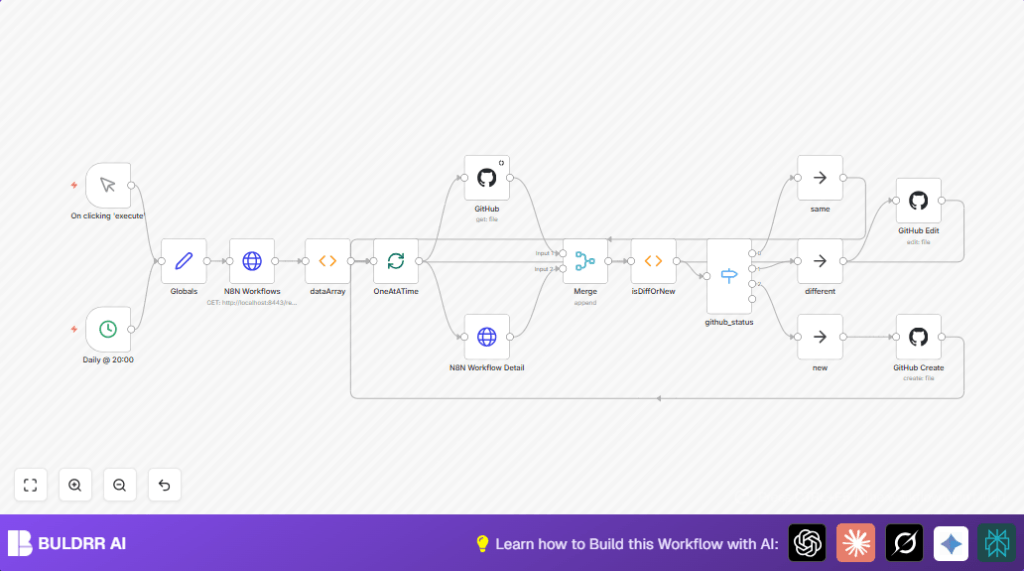
This n8n workflow automates backing up and syncing your n8n workflows to GitHub, ensuring you always have versioned copies and real-time updates. It compares workflows for changes, creates new backups, and edits existing GitHub files to keep your automation safe and organized.
github
httpRequest
function
+7
Workflow Identifier: 1617
NODES in Use: Manual Trigger, HTTP Request, Function, GitHub, Merge, Switch, NoOp, SplitInBatches, Set, Cron

Press CTRL+F5 if the workflow didn't load.

Learn how to Build this Workflow with AI:

Visit through Desktop for Best experience

1. Opening Problem Statement

Meet Alex, an automation engineer managing dozens of complex n8n workflows that power critical business processes. Alex often spends hours manually exporting workflows and backing them up to GitHub repositories. Sometimes, he misses updating the changes, resulting in outdated backups and confusion during troubleshooting. This tedious process not only wastes time but also risks loss of valuable workflow versions, complicating recovery and collaboration efforts.

For Alex, every minute spent manually synchronizing workflows is a minute lost in innovating or optimizing processes. Errors in backup can cause deployment delays and potential downtime, which could translate to thousands of dollars lost for the business.

2. What This Automation Does

This n8n workflow automates backup and synchronization of n8n workflows to GitHub repositories. When triggered, it performs these key actions:

  • Fetches all current n8n workflows from the local n8n instance.
  • Transforms the workflows data into individual items for processing.
  • Fetches the corresponding workflow JSON files from GitHub to check against local versions.
  • Compares local workflows with GitHub backups to identify new, changed, or unchanged workflows.
  • Automatically creates new GitHub files for workflows not yet backed up.
  • Updates existing GitHub files for workflows that have changed.
  • Leaves identical workflows alone to save API calls and processing time.
  • Processes one workflow at a time to ensure orderly, reliable updates.

Thanks to this automation, Alex can save hours each week, eliminating manual syncing errors and ensuring safe version-controlled backups for all workflows.

3. Prerequisites ⚙️

  • n8n account with access to your n8n instance (self-hosting supported)
  • GitHub account with repository access where workflow backups will be stored 🔐
  • GitHub API credentials set up and configured in n8n for authentication 🔑
  • Basic understanding of n8n nodes: HTTP Request, Function, GitHub, Merge, Switch, Manual Trigger

4. Step-by-Step Guide to Build This Workflow

Step 1: Start with a Manual Trigger

Navigate to Nodes > Trigger > Manual Trigger. Name it On clicking ‘execute’. This node allows manual initiation for testing or on-demand backups.

Once triggered, it starts the chain of actions to fetch and sync workflows.

Step 2: Set Repository Details with the Set Node

Add a Set node and name it Globals. Configure it to store your GitHub repository details:

repo.owner = octocat
repo.name = Hello-World
repo.path = my-team/n8n/workflows/

This step centralizes the repo info needed by later GitHub nodes.

Step 3: Fetch All Workflows via HTTP Request

Add an HTTP Request node, name it N8N Workflows, and configure it as follows:

  • Method: GET
  • URL: http://localhost:8443/rest/workflows
  • No authentication needed for local instance

This node pulls all the current workflows from your local n8n instance into the workflow.

Step 4: Transform Workflows into Individual Items

Add a Function node called dataArray with this code to split the workflows array into separate messages for processing one by one:

const newItems = [];
for (item of items[0].json.data) {
  newItems.push({json: item});
}
return newItems;

This ensures downstream nodes handle each workflow individually.

Step 5: Batch Processing with SplitInBatches

Drag a SplitInBatches node named OneAtATime. Set the batch size to 1 to process workflows sequentially, avoiding race conditions.

Step 6: Retrieve Each Workflow Backup from GitHub

Configure a GitHub node named GitHub with:

  • Resource: File
  • Operation: Get
  • Owner, Repository, File Path all dynamically set using expressions from the Globals node and current workflow’s name

This node fetches the JSON file of each workflow from GitHub, if it exists.

Step 7: Fetch Detailed Workflow from n8n

Use another HTTP Request node named N8N Workflow Detail to get the full JSON of each workflow by its ID:

  • Method: GET
  • URL: http://localhost:8443/rest/workflows/{{$json["id"]}} (dynamic)

This refines the data we will compare against GitHub snapshots.

Step 8: Merge GitHub and n8n Data

Add a Merge node configured in ‘Merge By Index’ mode to combine the GitHub file data and n8n workflow response.

Step 9: Compare Workflows in a Function Node

Add a Function node named isDiffOrNew with this JavaScript code:

// File Returned with Content
if (Object.keys(items[0].json).includes("content")) {
  var origWorkflow = eval("("+Buffer.from(items[0].json.content, 'base64').toString()+")");
  var n8nWorkflow = (items[1].json.data);
  
  var orderedOriginal = {}
  var orderedActual = {}
  
  Object.keys(origWorkflow).sort().forEach(function(key) {
    orderedOriginal[key] = origWorkflow[key];
  });
  
  Object.keys(n8nWorkflow).sort().forEach(function(key) {
    orderedActual[key] = n8nWorkflow[key];
  });
  
  if ( JSON.stringify(orderedOriginal) === JSON.stringify(orderedActual) ) {
    items[0].json.github_status = "same";
    items[0].json.content_decoded = orderedOriginal;
  } else {
    items[0].json.github_status = "different";
    items[0].json.content_decoded = orderedOriginal;
    items[0].json.n8n_data_stringy = JSON.stringify(orderedActual, null, 2);
  }
} else {
  var n8nWorkflow = (items[1].json.data);
  var orderedActual = {}
  Object.keys(n8nWorkflow).sort().forEach(function(key) {
    orderedActual[key] = n8nWorkflow[key];
  });
  
  items[0].json.github_status = "new";
  items[0].json.n8n_data_stringy = JSON.stringify(orderedActual, null, 2);
}
return items;

This code compares the local workflow JSON against the GitHub backup to detect status: same, different, or new.

Step 10: Decide Status with Switch Node

Add a Switch node named github_status that routes the workflow based on the string value “same”, “different”, or “new” from the previous function’s output.

Step 11: Handling Identical Workflows

Connect the “same” output to a NoOp node (named same) to end the branch without action.

Step 12: Editing Existing Files on GitHub for Changed Workflows

Connect the “different” output to a GitHub node named GitHub Edit configured to:

  • Owner, Repo Info from Globals
  • File Path points to corresponding workflow JSON file
  • Operation: Edit
  • Content: The updated workflow JSON string from the isDiffOrNew node
  • Commit message includes workflow name and status

Step 13: Creating New Files on GitHub for Unbacked Workflows

Connect the “new” output to a separate GitHub node named GitHub Create with similar config but operation set to Create.

Step 14: Loop Back for Continuous Processing

For changed and newly created files, reconnect outputs back to OneAtATime node for continuing sequential processing until all workflows are handled.

Step 15: Scheduling the Backup

You can replace the manual trigger with a Cron node (named Daily @ 20:00) configured to run daily at 20:11 to automate this fully.

5. Customizations ✏️

  • Change Repository Path: In the Globals Set node, update repo.path to backup workflows in a different GitHub folder.
  • Adjust Batch Size: Modify the OneAtATime SplitInBatches node to process multiple workflows simultaneously if speed is critical, noting GitHub rate limits.
  • Commit Messages Format: Edit the commit message fields in GitHub nodes to include timestamps or branch names for richer version history.
  • Add Email Notification: Integrate a Gmail or SMTP node after changes to notify the team of updated backups.
  • Extend to Other Repos: Duplicate the workflow and adjust Globals node to back up workflows to multiple repositories.

6. Troubleshooting 🔧

  • Problem: “404 Not Found” error when GitHub node tries to get a file.

    Cause: The file does not yet exist in the GitHub repo.

    Solution: This is expected for new workflows — ensure the “new” path is configured with the GitHub Create node to add files.
  • Problem: “Rate limit exceeded” from GitHub API.

    Cause: Too many calls in a short time.

    Solution: Set batch size to 1 and use delays between requests or upgrade GitHub API plan.
  • Problem: Workflow comparison always shows different even with no changes.

    Cause: JSON formatting or order differs.

    Solution: The function node orders JSON keys to avoid this; make sure this logic is intact and prevent other nodes from altering JSON order.

7. Pre-Production Checklist ✅

  • Verify GitHub API credentials are correct and test connection in n8n.
  • Test manual trigger to initiate the workflow and observe the fetched workflow data.
  • Check GitHub repo path and folder permissions for file create/edit.
  • Ensure the local n8n REST API is reachable and accessible from n8n workflow.
  • Test processing a few workflows to confirm correct new/edit/same detection.

8. Deployment Guide

Once tested, activate your workflow by toggling it ON in n8n.

For automated backups, replace the manual trigger with the provided Cron node Daily @ 20:00 to run nightly. Monitor workflow runs in n8n’s execution UI for any errors or stalls.

9. FAQs

  • Q: Can I use this with cloud-hosted n8n instead of localhost?

    A: Yes, adjust the HTTP Request URLs accordingly to match your cloud instance’s API endpoint.
  • Q: Does this use many GitHub API calls?

    A: It processes workflows one at a time and avoids updating unchanged files, reducing API calls significantly.
  • Q: Is my data safe in GitHub?

    A: Yes, GitHub uses strong security protocols. Use private repos and API token scopes wisely for security.
  • Q: Can I backup workflows to multiple GitHub repos?

    A: Yes, by duplicating this workflow and adjusting the repo info in the Globals node.

10. Conclusion

By following this guide, you built a robust n8n automation that ensures your workflows are regularly backed up and synchronized to GitHub. This reduces manual effort, mitigates risk of data loss, and provides a version history for your automations.

Alex can now focus on enhancing workflows instead of worrying about backup errors, saving several hours weekly and avoiding costly mistakes.

Looking ahead, you can expand this setup to notify your team of backup statuses, integrate with other version control systems, or even automate workflow deployments from GitHub. Happy automating!

Promoted by BULDRR AI

Related Workflows

Automate Viral UGC Video Creation Using n8n + Degaus (Beginner-Friendly Guide)

Learn how to automate viral UGC video creation using n8n, AI prompts, and Degaus. This beginner-friendly guide shows how to import, configure, and run the workflow without technical complexity.
Form Trigger
Google Sheets
Gmail
+37
Free

AI SEO Blog Writer Automation in n8n

A complete beginner guide to building an AI-powered SEO blog writer automation using n8n.
AI Agent
Google Sheets
httpRequest
+5
Free

Automate CrowdStrike Alerts with VirusTotal, Jira & Slack

This workflow automates processing of CrowdStrike detections by enriching threat data via VirusTotal, creating Jira tickets for incident tracking, and notifying teams on Slack for quick response. Save hours daily by transforming complex threat data into actionable alerts effortlessly.
scheduleTrigger
httpRequest
jira
+5
Free

Automate Telegram Invoices to Notion with AI Summaries & Reports

Save hours on financial tracking by automating invoice extraction from Telegram photos to Notion using Google Gemini AI. This workflow extracts data, records transactions, and generates detailed spending reports with charts sent on schedule via Telegram.
lmChatGoogleGemini
telegramTrigger
notion
+9
Free

Automate Email Replies with n8n and AI-Powered Summarization

Save hours managing your inbox with this n8n workflow that uses IMAP email triggers, AI summarization, and vector search to draft concise replies requiring minimal review. Automate business email processing efficiently with AI guidance and Gmail integration.
emailReadImap
vectorStoreQdrant
emailSend
+12
Free

Automate Email Campaigns Using n8n with Gmail & Google Sheets

This n8n workflow automates personalized email outreach campaigns by integrating Gmail and Google Sheets, saving hours of manual follow-up work and reducing errors in email sequences. It ensures timely follow-ups based on previous email interactions, optimizing communication efficiency.
googleSheets
gmail
code
+5
Free