
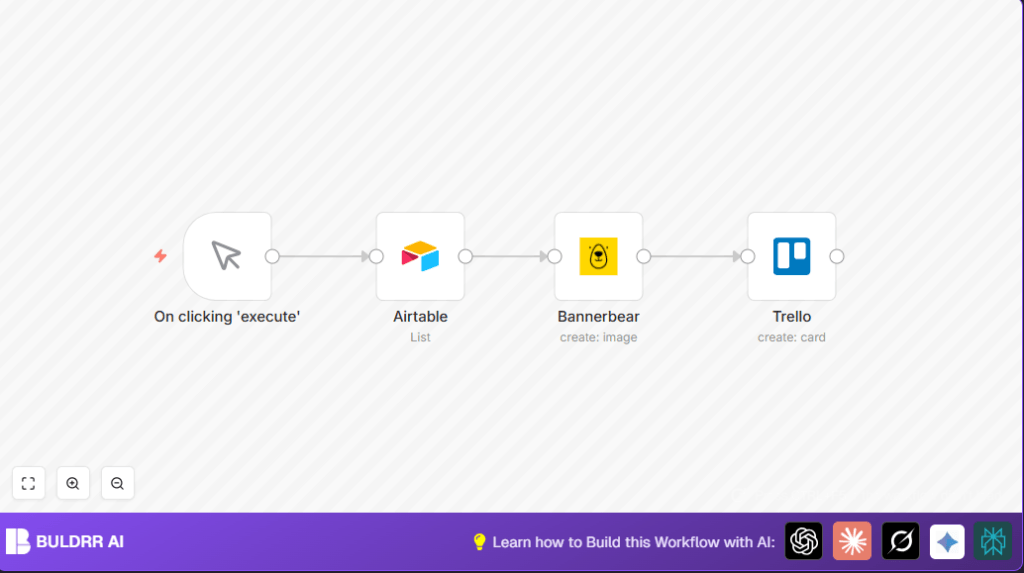

Automate CFP Selection with Airtable, Bannerbear & Trello

Struggling to manage CFP submissions manually? This workflow automates CFP selection by filtering top scorer proposals in Airtable, generating customized visuals with Bannerbear, and organizing them in Trello. Save hours and reduce errors with automation.
manualTrigger
airtable
bannerbear
+1
Workflow Identifier: 1597
NODES in Use: Manual Trigger, Airtable, Bannerbear, Trello

Press CTRL+F5 if the workflow didn't load.

Learn how to Build this Workflow with AI:

Visit through Desktop for Best experience

Opening Problem Statement

Meet Sarah, the event coordinator for a major tech conference. Every year, she receives hundreds of Call for Proposal (CFP) submissions for speaker sessions. Sorting through them manually is a nightmare. She spends endless hours filtering proposals by score, designing announcement graphics, and organizing accepted talks in Trello. This manual process not only wastes Sarah’s time but leads to mistakes — misfiled entries, missing profiles, and delays in publishing approved speakers. How can Sarah automate this tedious workflow to save time, reduce errors, and keep everything organized?

What This Automation Does

This n8n workflow streamlines the CFP selection and management process by:

  • Automatically fetching CFP submissions from Airtable where the total score is above 15, focusing only on top-ranked proposals.
  • Generating customized speaker announcement images using Bannerbear, pulling live data like talk title, abstract, profile picture, Twitter handle, and full name.
  • Creating Trello cards per accepted proposal, embedding both the generated banner image and relevant speaker details in the card description.
  • Eliminating manual copying and pasting between tools, saving Sarah multiple hours per week during CFP review cycles.
  • Ensuring consistent formatting and branding with automated graphic generation, avoiding design errors.
  • Providing a single automated flow that triggers on demand, giving Sarah full control and instant updates.

Prerequisites ⚙️

  • Airtable account with CFP submissions database configured (including fields like Total Score, Talk Title, Abstract, Profile Picture URL, Twitter Handle, Full Name, Email, Bio).
  • Bannerbear account with a pre-made template set up that maps the input fields: talk title, abstract, profile image, username, full name.
  • Trello account with board and list ready where accepted CFP cards will be created.
  • n8n automation platform access (cloud or self-hosted). You must have API credentials set up for Airtable, Bannerbear, and Trello within n8n.

Step-by-Step Guide

Step 1: Trigger the Workflow Manually

Navigate to your n8n editor. Click the Execute button on the Manual Trigger node labeled “On clicking ‘execute'” to start the flow.

You should see the workflow begin, activating subsequent nodes.

Common mistake: Forgetting to save credentials or permissions for all services before running.

Step 2: Configure Airtable Node to Fetch Filtered Proposals

Click on the Airtable node. Set the Operation to List. Choose your Airtable application linked to your CFP base.

Be sure to fill in the Table name that contains your CFP submissions.

Under Additional Options, add the filter formula: {Total Score} > 15. This fetches only top-rated talks.

Common mistake: Not using correct Airtable field names exactly, leading to zero results.

Step 3: Generate Dynamic Speaker Graphics in Bannerbear

Select the Bannerbear node. Enter your prepared Template ID to define the design.

Use the interface to map these fields to your Airtable data:

  • talk title: map to “What’s the title of your talk?” field from Airtable
  • abstract: map to “Please share the abstract of your talk.” field
  • profile image: use URL from “Please share a URL of your profile picture.”
  • username: map to “Your twitter handle”
  • full name: map to “Great, can we get your full name?”

Enable Wait For Image option to ensure the image is ready before proceeding.

Common mistake: Using incorrect template IDs or forgetting to wait for the image generation, causing broken links.

Step 4: Create Trello Cards with CFP Details and Banner Images

Open the Trello node configuration. Select the target List ID where cards will be added.

Set the card Name dynamically from the talk title field.

Write the card Description using template text combined with fields:

Abstract: {{$node["Airtable"].json["fields"]["Please share the abstract of your talk."]}}

Name: {{$node["Airtable"].json["fields"]["Great, can we get your full name?"]}}
Bio: {{$node["Airtable"].json["fields"]["Please share a bit of information about you."]}}
Email: {{$node["Airtable"].json["fields"]["And what's your email address?"]}}
Twitter: {{$node["Airtable"].json["fields"]["Your twitter handle"]}}

Under additional fields, use the URL source field to attach the image generated by Bannerbear dynamically.

Common mistake: Not mapping the image URL correctly leads to cards without images.

Customizations ✏️

  • Adjust Score Filter: In the Airtable node, change the filterByFormula to a different threshold, e.g. {Total Score} > 20, to tighten speaker selection.
  • Update Banner Template: In Bannerbear, switch to a different template ID or add new fields like event date or location for richer speaker images.
  • Add More Details to Trello: Modify the Trello Description to include extra CFP fields such as session length or track to better organize cards.
  • Scheduling the Workflow: Replace the Manual Trigger with a Cron node to run this workflow weekly or monthly automatically.
  • Tag Trello Cards: Use Trello’s label options in the additionalFields parameter to categorize speakers by track or session type.

Troubleshooting 🔧

Problem: “No records fetched from Airtable.”
Cause: The filter formula is incorrect or table name is wrong.
Solution: Double-check the exact spelling of the table and fields in Airtable. Test queries within Airtable UI before in n8n.

Problem: “Bannerbear image URL is empty or broken.”
Cause: Template ID not set or waitForImage option disabled.
Solution: Ensure correct template ID and enable the wait option in Bannerbear node.

Problem: “Trello card creation fails or missing data.”
Cause: Invalid list ID or incorrect field mappings.
Solution: Verify Trello board/list ID and confirm dynamic field syntax carefully.

Pre-Production Checklist ✅

  • Verify all API credentials are active and connected in n8n.
  • Test Airtable query manually to ensure it returns expected filtered records.
  • Confirm Bannerbear template renders correctly with example data.
  • Validate Trello list ID and test card creation manually.
  • Run the workflow on sample data first to verify the output correctness.

Deployment Guide

Once testing is complete, activate the workflow in n8n by toggling the Active switch.

If you want this automation to run on a schedule, replace the Manual Trigger node with a Cron node configured for your preferred frequency.

Track runs in the Executions panel to monitor success and failures.

FAQs

  • Q: Can I use Google Sheets instead of Airtable?
    A: Yes, but you will need to adjust the data-fetching node to Google Sheets and re-map fields accordingly.
  • Q: Does Bannerbear generate images quickly?
    A: Typically yes, but enabling the “waitForImage” option ensures images are fully ready before moving on.
  • Q: Is my CFP data secure?
    A: n8n uses your API keys and connections securely on your server. Always follow best security practices.
  • Q: Can this handle hundreds of CFP submissions?
    A: Yes, but performance depends on your n8n hosting and API rate limits.

Conclusion

By following this guide, you’ve automated Sarah’s CFP selection process. You’ve empowered yourself to handle speaker submissions effortlessly, saved potentially dozens of hours each CFP season, and minimized errors. Next, consider automating post-event feedback collection or social media announcements for accepted speakers using similar n8n flows. Keep building smarter workflows and enjoy your reclaimed time!

Promoted by BULDRR AI

Related Workflows

Automate Viral UGC Video Creation Using n8n + Degaus (Beginner-Friendly Guide)

Learn how to automate viral UGC video creation using n8n, AI prompts, and Degaus. This beginner-friendly guide shows how to import, configure, and run the workflow without technical complexity.
Form Trigger
Google Sheets
Gmail
+37
Free

AI SEO Blog Writer Automation in n8n

A complete beginner guide to building an AI-powered SEO blog writer automation using n8n.
AI Agent
Google Sheets
httpRequest
+5
Free

Automate CrowdStrike Alerts with VirusTotal, Jira & Slack

This workflow automates processing of CrowdStrike detections by enriching threat data via VirusTotal, creating Jira tickets for incident tracking, and notifying teams on Slack for quick response. Save hours daily by transforming complex threat data into actionable alerts effortlessly.
scheduleTrigger
httpRequest
jira
+5
Free

Automate Telegram Invoices to Notion with AI Summaries & Reports

Save hours on financial tracking by automating invoice extraction from Telegram photos to Notion using Google Gemini AI. This workflow extracts data, records transactions, and generates detailed spending reports with charts sent on schedule via Telegram.
lmChatGoogleGemini
telegramTrigger
notion
+9
Free

Automate Email Replies with n8n and AI-Powered Summarization

Save hours managing your inbox with this n8n workflow that uses IMAP email triggers, AI summarization, and vector search to draft concise replies requiring minimal review. Automate business email processing efficiently with AI guidance and Gmail integration.
emailReadImap
vectorStoreQdrant
emailSend
+12
Free

Automate Email Campaigns Using n8n with Gmail & Google Sheets

This n8n workflow automates personalized email outreach campaigns by integrating Gmail and Google Sheets, saving hours of manual follow-up work and reducing errors in email sequences. It ensures timely follow-ups based on previous email interactions, optimizing communication efficiency.
googleSheets
gmail
code
+5
Free