

Opening Problem Statement
Meet Julia, a dedicated community manager at n8n, who spends hours answering repetitive questions about n8n functionalities across multiple channels. Each day, she faces the daunting task of providing accurate, up-to-date responses to users’ queries. The manual process not only drains her energy but also leaves room for inconsistent answers and delayed responses. Julia needs a solution that automates this process effectively, ensuring each user receives tailored answers promptly without sacrificing accuracy.
The challenge here is clear: How can Julia deliver personalized, context-aware n8n support instantly, without manually scouring documentation, forums, and example workflows every time a question pops up? Time wasted on repetitive queries accumulates to several hours weekly, compromising her ability to focus on strategic initiatives.
What This Automation Does
This workflow transforms Julia’s manual support struggle into a streamlined, AI-powered assistant. When a chat message with an n8n-related question arrives, the workflow kicks in to:
- Trigger instantly on incoming chat questions about n8n features.
- Leverage a specialized AI agent trained to understand n8n-specific content and fetch relevant tools and documentation effortlessly via the Multi-Channel Platform (MCP).
- Query the MCP for available tools and content relevant to the user’s question to extract precise knowledge sources.
- Generate a clear, actionable response tailored to the user’s query, drawing from the MCP data and AI analysis.
- Execute specific tools within the MCP dynamically based on the user’s exact needs.
- Ensure smooth integration with OpenAI GPT-4o-mini model and n8n’s LangChain nodes to maintain high-quality conversational intelligence.
This automation slashes support time, eliminates repetitive research tasks, and enhances user satisfaction by delivering immediate, contextual help.
Prerequisites ⚙️
- n8n account with LangChain nodes enabled.
- OpenAI API key with access to the GPT-4o-mini model.
- Multi-Channel Platform (MCP) API credentials—specifically an MCP Client API credential to interact with tools and execute actions.
- Chat interface linked to the “When chat message received” trigger node to capture user messages.
Step-by-Step Guide
1. Set Up Chat Message Trigger
Navigate in n8n to add a new node: Add Node → LangChain → Chat Trigger. This node listens for incoming chat messages related to n8n queries.
Configure the node with the webhook ID provided or generate a new one if necessary. You should see it listen on the webhook URL for chat inputs.
Common mistake: Forgetting to set up the external chat interface to correctly send messages to this webhook URL.
2. Add the LangChain AI Agent Node
Next, add LangChain → Agent node. This acts as the brain, interpreting chat inputs and deciding the next actions. Paste the system message exactly:
You are an assistant integrated with the n8n Multi-Channel Platform (MCP). Your primary role is to interact with the MCP to retrieve available tools and content based on user queries about n8n. When a user asks for information or assistance regarding n8n, first send a request to the MCP to fetch the relevant tools and content. Analyze the retrieved data to understand the available options, then create a tailored response that addresses their specific needs regarding n8n functionalities, documentation, forum posts, or example workflows. Ensure that your responses are clear, actionable, and directly related to the user's queries about n8n.
Verify the node is linked to the chat trigger to receive messages and output answers.
Common mistake: Leaving the system message vague or unrelated to n8n context.
3. Integrate MCP Client Tool for Lookup
Add n8n-assistant Tool Lookup using the n8n-nodes-mcp.mcpClientTool node type. This node queries the MCP API to retrieve a list of tools and content relevant to the AI agent.
Assign your MCP API credential here to authorize requests.
Common mistake: Using incorrect MCP credentials or forgetting to link this node in the AI workflow.
4. Add MCP Client Tool Node to Execute Tool
Drag another n8n-nodes-mcp.mcpClientTool node called n8n-assistant Execute Tool. This node receives dynamic instructions from the AI agent about which tool to execute. It uses expressions like:
{{ $fromAI("tool", "Set this specific tool name") }}
For tool parameters, include the following expression:
{{ /*n8n-auto-generated-fromAI-override*/ $fromAI('Tool_Parameters', ``, 'json') }}
Make sure your credentials for MCP Client API are attached here.
Common mistake: Misconfiguring the tool name or parameters format, causing runtime errors.
5. Connect the OpenAI GPT Model Node
Insert the OpenAI Chat Model2 node (@n8n/n8n-nodes-langchain.lmChatOpenAi) configured to use the GPT-4o-mini model.
Link this node to the AI Agent node so the agent utilizes advanced language understanding.
You must provide your OpenAI API key credentials.
Common mistake: Using a wrong model name or invalid API credentials.
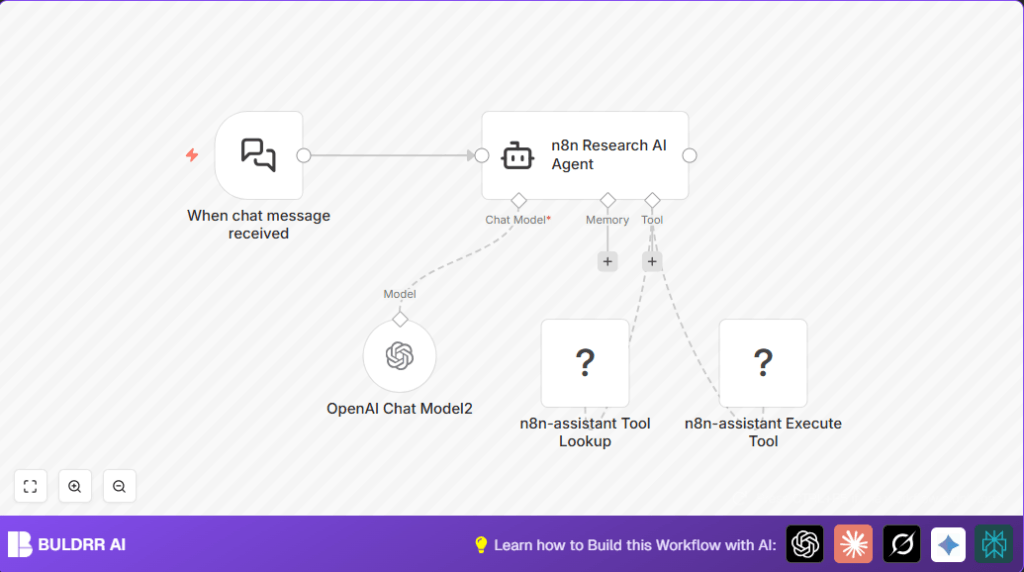
6. Link Nodes Properly
Ensure all nodes are connected as follows:
- When chat message received → n8n Research AI Agent
- OpenAI Chat Model2 → n8n Research AI Agent (ai_languageModel input)
- n8n-assistant Tool Lookup → n8n Research AI Agent (ai_tool input)
- n8n-assistant Execute Tool → n8n Research AI Agent (ai_tool input)
This structure ensures the AI Agent receives user messages, analyzes them with GPT-4o-mini, fetches relevant MCP tools, and executes actions.
7. Test Your Workflow
Send sample chat messages with n8n-related questions to the webhook URL for “When chat message received.” Watch how the AI agent responds with context-aware, tool-backed answers.
Verify that the MCP Tool Lookup fetches the right tools and the Execute Tool runs as expected.
Customizations ✏️
- Adjust system message for AI agent: Modify the “systemMessage” parameter in the “n8n Research AI Agent” node to include or exclude specific documentation sources or prioritize certain types of responses to tailor the assistant’s knowledge focus.
- Change GPT model: In the “OpenAI Chat Model2” node, swap out “gpt-4o-mini” for another supported model (e.g., “gpt-4” or “gpt-3.5-turbo”) to enhance or reduce response complexity and speed.
- Restrict accessible MCP tools: Use the “n8n-assistant Tool Lookup” node to limit queries to only certain categories or tags by adjusting request parameters (if supported by MCP API) to fine-tune tool relevance.
- Customize response formatting: Add a final Code node after the AI Agent to format the AI response output in a preferred style, like markdown or rich text, before sending back to the chat.
Troubleshooting 🔧
Problem: “MCP client API authorization failed”
Cause: Invalid or expired API credentials for MCP Client Tool nodes.
Solution: Go to the Credentials tab in n8n, re-enter your MCP Client API keys, and save. Test connection with a manual request in the “n8n-assistant Tool Lookup” node before running the workflow.
Problem: “AI agent returns empty or irrelevant answers”
Cause: System message in the “n8n Research AI Agent” might be unclear or not specific enough to n8n context.
Solution: Revise the system message to clearly instruct the agent about MCP relevance and exact use cases. Retest until answers improve.
Problem: “Webhook trigger not firing on incoming chat messages”
Cause: Misconfiguration of external chat service or webhook URL.
Solution: Verify the webhook URL is properly set and the external chat interface is sending requests to it. Use the webhook URL displayed in the “When chat message received” node and test with tools like Postman.
Pre-Production Checklist ✅
- Confirm that the “When chat message received” webhook is publicly accessible and correctly receives chat inputs.
- Verify OpenAI API credentials and test the GPT-4o-mini model node for responses.
- Ensure MCP Client API credentials are valid and can fetch tools via “n8n-assistant Tool Lookup”.
- Test dynamic tool execution parameters in the “n8n-assistant Execute Tool” node with sample inputs.
- Perform end-to-end testing with real chat questions to ensure the AI agent processes and responds accurately.
Deployment Guide
Once tested, activate the workflow in n8n using the toggle switch in the top right corner. Regularly monitor live chats to ensure responses are timely and relevant. Enable logging for both AI interactions and API calls to troubleshoot any future issues.
Optionally, consider self-hosting n8n for enhanced control over data privacy and workflow performance. Resources such as Hostinger’s n8n Hosting can help you get started.
FAQs
Can I use a different AI model than GPT-4o-mini?
Yes, you can swap the model in the “OpenAI Chat Model2” node to alternatives like GPT-4 or GPT-3.5-turbo depending on your balance between speed, cost, and response quality.
Does this workflow consume many API credits?
Since it queries OpenAI and MCP APIs per chat message, usage depends on chat volume. Monitor your API limits to avoid unexpected costs.
Is my data safe when using MCP and OpenAI?
All API communications are secured via HTTPS. Using your own API keys helps maintain control. For sensitive data, review compliance policies of each provider.
Can this handle high volumes of simultaneous chat queries?
n8n is scalable and can handle multiple parallel executions, but monitoring and possibly load balancing may be needed for very high traffic.
Conclusion
By building this workflow, Julia has moved from manually searching and responding to n8n questions to providing instant, accurate, AI-powered assistance. This not only saves hours weekly but also improves user satisfaction and reduces errors in responses.
You’ve now learned how to integrate LangChain’s chat triggers with n8n’s Multi-Channel Platform, openAI GPT-4o-mini, and dynamic tool execution to create a powerful n8n support assistant. Next steps include customizing your agent’s knowledge base or expanding to support other platforms and languages.
With this foundation, you’re set to enhance your n8n community or team support like never before.