

1. Real-World Problem: Meet Sarah, the Data Manager Wasting Hours on Manual Data Entry
Sarah works as a customer success manager at a mid-sized SaaS company. Every week, she spends several hours manually extracting customer data from various sources and entering it into a Google Sheet to maintain an up-to-date customer database. This repetitive task is not only time-consuming but also prone to errors like missing fields or wrong formats, leading to discrepancies in reports. These inefficiencies sometimes delay reporting and frustrate the team, costing the company both time and money.
Sarah’s specific challenge is ensuring that each customer’s record in Google Sheets is accurate and reflects the latest data, including their ID, full name, email, and time of record creation. Doing this manually with frequent updates is draining her productivity.
2. What This Automation Does
This n8n workflow automates Sarah’s manual data entry by connecting directly to a customer data store, formatting the data appropriately, and upserting the records into Google Sheets efficiently.
- Fetches all customer data automatically from the Customer Datastore node.
- Transforms the data fields to match Google Sheets requirements using the Set node, including renaming fields and adding a timestamp.
- Updates or inserts records in a specific Google Sheet via the Google Sheets node with OAuth2 authentication.
- Eliminates manual formatting errors and missing data issues.
- Saves Sarah at least 3 hours every week previously spent on manual updates.
- Enables quick verification of data through intermediate sticky notes explaining data flow.
3. Prerequisites ⚙️
- n8n account (cloud or self-hosted) ⚙️
- Google Sheets account with OAuth2 credentials setup 🔑
- Access to the customer data source inside n8n, represented by the Customer Datastore node
Optional: If you prefer self-hosting your automation workflows, you can explore options like Hostinger’s n8n hosting.
4. Step-by-Step Guide to Build This Workflow
Step 1: Add a Manual Trigger Node
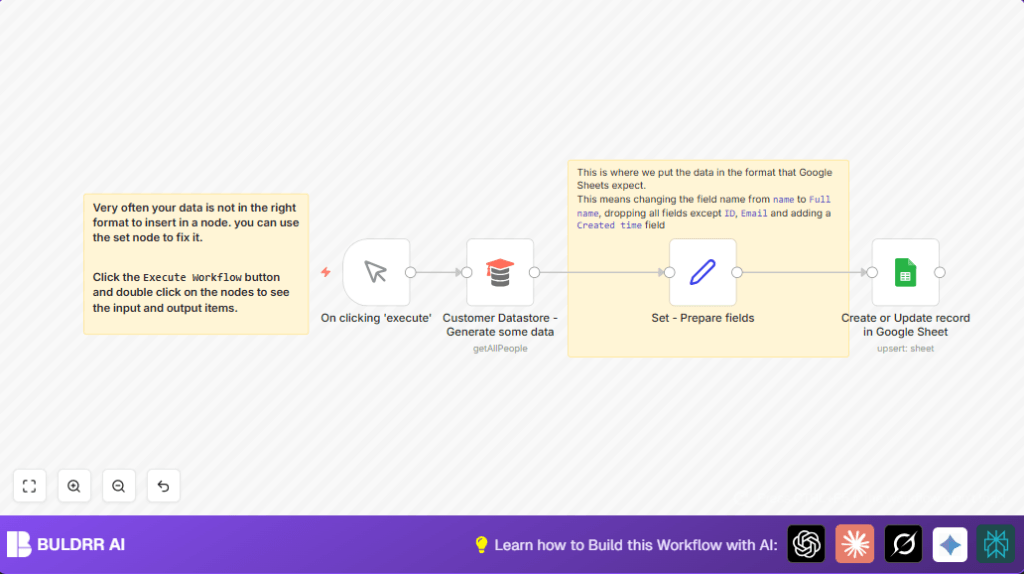
Navigate to the left panel in n8n, search for “Manual Trigger,” drag it onto the canvas, and rename it “On clicking ‘execute'”. This node allows you to start the workflow manually.
After running the workflow, this node will trigger the data fetching and update process.
Common mistake: Forgetting to add a trigger node will prevent the workflow from running.
Step 2: Insert the Customer Datastore Node to Fetch Data
Search for “n8nTrainingCustomerDatastore” node and add it. Rename it “Customer Datastore – Generate some data.” Configure it with the operation “getAllPeople” to fetch all customer records automatically.
This node simulates or connects to your customer database inside n8n, providing the raw data for processing.
You should see data fields like id, name, email in the output.
Common mistake: Not specifying the operation could result in empty or partial data.
Step 3: Add a Set Node to Format Fields
Add a Set node named “Set – Prepare fields” to shape the data.
Configure it to keep only these fields: ID, Full name, Email, and Created time.
Map ID to id from the datastore, rename name to Full name, keep email as-is, and add a new field Created time with the current timestamp using {{$now}}.
This step is vital because Google Sheets expects specific column names and formats.
Common mistake: Not using keepOnlySet option here can cause unexpected fields and errors downstream.
Step 4: Insert Google Sheets Node to Upsert Data
Drop in the Google Sheets node labeled “Create or Update record in Google Sheet.”
Set the operation to “Upsert” and specify the correct sheetId that points to your Google Sheet.
Authenticate using OAuth2 credentials linked to your Google account.
This node will insert new records or update existing ones matching the ID field.
Common mistake: Using wrong sheet ID or range may cause failure in data loading.
Step 5: Connect the Nodes
Connect “On clicking ‘execute'” → “Customer Datastore – Generate some data” → “Set – Prepare fields” → “Create or Update record in Google Sheet.”
Run the workflow manually by clicking the Execute button.
If configured correctly, your Google Sheet should update with the new or updated customer entries instantly.
Step 6: Add Sticky Notes for Clarity
For better maintainability, add sticky notes by dragging “Sticky Note” nodes and placing relevant instructions or explanations in your workflow, exactly like the example “Note” and “Note1”.
This practice helps in long-term understanding when you or teammates revisit the workflow.
5. Customizations ✏️
- Change field names: In the
Set - Prepare fieldsnode, modify the output keys (e.g., renameFull nametoCustomer Name) to match your sheet headers exactly. - Add more fields: Expand the
Setnode to include additional fields (like phone number) by pulling them from the datastore if available. - Change the Google Sheet: Use a different
sheetIdin the Google Sheets node to target another spreadsheet. - Trigger automation on a schedule: Replace the Manual Trigger with a Cron node to refresh data at set intervals automatically.
- Log outputs: Add a
Functionnode after Google Sheets to log success or failure details into a file or Slack.
6. Troubleshooting 🔧
Problem: “Google Sheets update fails with permission error”
Cause: OAuth2 credentials are not set properly or lack the required scopes.
Solution: Go to the Credentials section, re-authenticate Google Sheets OAuth2 with full spreadsheet access.
Problem: “Set node outputs empty data or missing fields”
Cause: Incorrect field mapping or ‘keepOnlySet’ option unchecked.
Solution: Double-check field names in the Set node and ensure ‘Keep Only Set’ option is enabled.
7. Pre-Production Checklist ✅
- Verify Google Sheets OAuth2 credentials have proper permissions
- Test fetching data from the Customer Datastore node shows expected fields
- Ensure the Set node correctly reshapes data to match the Google Sheet columns
- Confirm correct Google Sheet ID and range are set
- Run workflow in manual mode first to catch errors
- Backup your Google Sheet before running large data operations
8. Deployment Guide
Once tested successfully, activate the workflow by toggling the ‘Active’ switch in n8n.
You may schedule the workflow via a Cron node for regular data updates to your Google Sheet.
Monitor executions in the n8n dashboard to check for any failures or errors over time.
9. FAQs
Q: Can I use this workflow with Excel instead of Google Sheets?
A: No, this workflow specifically uses the Google Sheets node; Excel integration requires other nodes or an API-based approach.
Q: Does this workflow consume many Google API credits?
A: Upserting moderate amounts of data typically stays within free API limits for most use cases.
Q: Is my data safe while using this workflow?
A: Yes, OAuth2 authentication ensures secure access only with your consent. Data flows inside your n8n instance or cloud securely.
10. Conclusion
By following this detailed guide, you automated Sarah’s repetitive and error-prone process of updating customer records into Google Sheets. This specific n8n workflow saves hours weekly, reduces mistakes drastically, and simplifies data management with clear, structured field formatting and OAuth2 secured Google Sheets integration.
Next, you could extend this automation to trigger on events, include notifications on updates, or connect to other data sources like CRM or email platforms to enrich your customer data ecosystem.
Let’s embrace automation not just to save time, but to increase confidence in accurate business insights.