

1. Opening Problem Statement
Meet Sarah, a customer support manager for a growing e-commerce business. Every day, Sarah receives countless WhatsApp messages from customers: voice notes with order questions, videos showing product issues, images of damaged packages, and text inquiries. Manually sorting, understanding, and responding to each message takes Sarah hours every week, increasing the risk of delayed replies and unhappy customers.
If Sarah could automate WhatsApp message handling, transcribing audio, describing videos, analyzing images, and summarizing texts—all while providing intelligent, accurate answers—she could save valuable time, reduce errors, and improve customer satisfaction. This is exactly what this n8n workflow achieves by integrating powerful AI models like Google Gemini and LangChain with WhatsApp messaging.
2. What This Automation Does
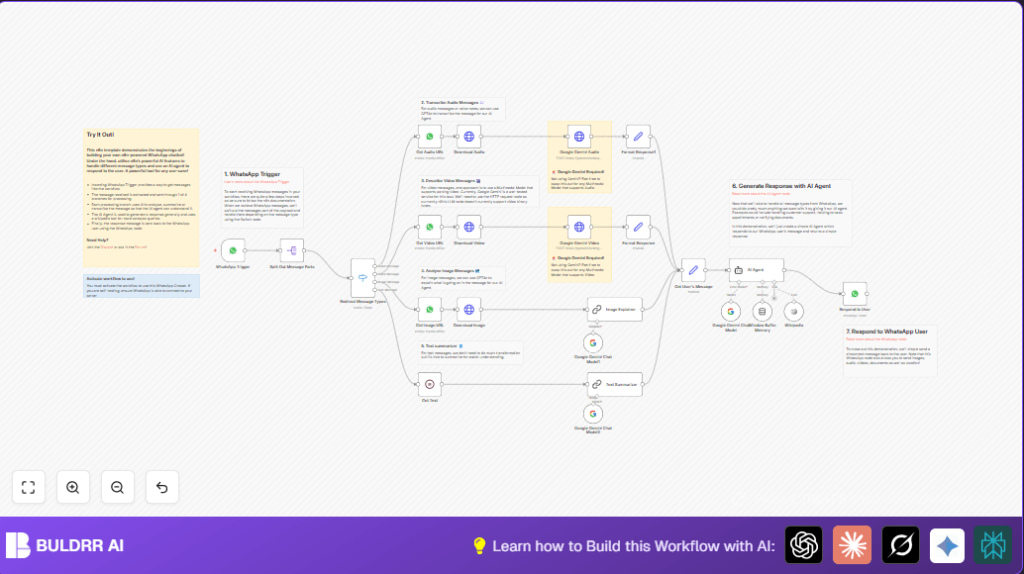
This automation is a sophisticated WhatsApp AI chatbot built using n8n’s visual automation platform. When a WhatsApp message arrives, the workflow:
- Detects message type—audio, video, image, or text.
- Fetches media URLs for audio, video, and images from WhatsApp’s servers.
- Downloads the media content securely using authenticated HTTP requests.
- Processes audio with Google Gemini to transcribe voice notes.
- Processes videos with Google Gemini to generate detailed descriptions.
- Processes images with GPT4o-powered LangChain nodes to analyze and describe contents.
- Summarizes text messages to aid AI understanding.
- Feeds all processed content into an AI Agent leveraging LangChain, which generates informed, context-aware responses.
- Sends the AI-generated answer back to the WhatsApp user automatically.
The workflow effectively transforms complex multimedia messages into actionable insights and responses, saving hours of manual work and streamlining customer interaction.
3. Prerequisites ⚙️
- n8n account with workflow activation capabilities.
- WhatsApp Business Cloud API account with OAuth credentials to connect via the WhatsApp Trigger and WhatsApp nodes.
- Google Cloud account with access to Google Gemini (PaLM API) for multimodal AI processing (Google Gemini API credentials).
- LangChain nodes for AI agents and memory buffering built into n8n.
- HTTP Request node credentials configured for WhatsApp and Google Gemini API calls.
- Optional: self-hosting n8n setup (see Hostinger guide) for better integration reliability.
4. Step-by-Step Guide
Step 1: Set Up WhatsApp Trigger to Receive Messages
Navigate to your n8n editor, add the WhatsApp Trigger node from the node panel. Configure it to listen for message updates. Connect your WhatsApp OAuth credentials to authenticate. This node listens for incoming WhatsApp messages and starts the workflow.
You should see a webhook URL generated. Use this URL to configure in your WhatsApp Business Cloud dashboard to route messages here.
Common mistake: Forgetting to authenticate the WhatsApp OAuth account will cause the trigger not to receive any messages.
Step 2: Split Incoming WhatsApp Message Bundle
Add the Split Out node with fieldToSplitOut set to messages. This breaks down the array of messages into single-message items for easier processing downstream.
You should see individual message items flowing through the workflow.
Step 3: Redirect Messages by Type Using Switch Node
Add a Switch node with rules to detect message type fields such as audio, video, and image. It routes messages to the correct processing branch based on these types, with a fallback for text messages.
Step 4: Retrieve Media URLs (Audio, Video, Image)
For audio, video, and image message types, use the WhatsApp mediaUrlGet operation in the respective WhatsApp nodes (Get Audio URL, Get Video URL, Get Image URL), passing the media ID from the message item.
This fetches a secure downloadable URL for each media message.
Step 5: Download Media Using HTTP Request Nodes
Use HTTP Request nodes configured with WhatsApp credentials to download audio, video, and image files by URL received in the previous step.
Ensure the authentication type is set to the predefined WhatsApp API credentials.
Step 6: Process Audio Messages with Google Gemini
Add an HTTP Request node configured to POST audio binary data to the Google Gemini API endpoint with a JSON body instructing transcription.
Example JSON body:
{
"contents": [{
"parts": [
{"text": "Transcribe this audio"},
{"inlineData": {
"mimeType": "audio/wav",
"data": "<>"
}}
]
}]
}
You will receive a transcription text response for use in the AI Agent.
Step 7: Process Video Messages with Google Gemini
Similarly, send the downloaded video binary to Google Gemini’s generateContent endpoint with instructions to describe the video. Use an HTTP Request node with POST method and appropriate headers.
Response includes a textual description of video content.
Step 8: Process Image Messages with LangChain GPT4o
Use the Chain LLM LangChain node configured to analyze or describe images. It accepts image binary inputs and returns a natural language explanation or transcription of visible text in the image.
Step 9: Summarize Text Messages
For plain text, use a LangChain Chain LLM with a simple prompt like “Summarize the user’s message succinctly.”
Step 10: Combine Processed Message Data
Use Set nodes to construct a structured message object containing the message type, text/body, sender information, and any captions.
Step 11: Keep Conversation Memory with Window Buffer Memory
Utilize the memoryBufferWindow LangChain node to maintain message history by session key linked to the WhatsApp user phone number. This helps AI generate context-aware responses.
Step 12: Generate Intelligent Reply with AI Agent
Add the AI Agent LangChain node, feeding it the structured user message and conversation memory. This agent provides factual, succinct answers using embedded Wikipedia tool integration for enriched knowledge.
Step 13: Send Response Back on WhatsApp
Finally, use the WhatsApp node configured to send message text content back to the user’s phone number from the original trigger.
This closes the interaction loop with an immediate AI-generated reply.
5. Customizations ✏️
- Swap Google Gemini for other multimodal models: In the
HTTP Requestnodes labeled “Google Gemini Audio” and “Google Gemini Video,” change the endpoint URL and credentials to use another AI provider that supports multimodal inputs. - Enhance AI Agent’s knowledge base: Add more tools or APIs linked to Wikipedia or custom databases by expanding the AI Agent node’s configuration in n8n.
- Add media types support: Extend the
Switchnode logic to handle document or location messages by adding conditions and processing branches accordingly. - Customize response tone: Edit the AI Agent’s system message field to change the style, such as making replies more formal, casual, or humorous.
- Integrate persistent storage: Use external database or Google Sheets nodes to log conversations or media for audit and analysis.
6. Troubleshooting 🔧
Problem: “401 Unauthorized” from WhatsApp API
Cause: Incorrect or expired OAuth credentials for WhatsApp API.
Solution: Go to the WhatsApp Trigger and WhatsApp nodes, re-authenticate OAuth credentials carefully, and test connection.
Problem: AI agent responses are irrelevant or empty
Cause: Improper formatting of input messages or missing conversation context.
Solution: Check the Set node where message text and captions are combined, ensure the session key usage in the Window Buffer Memory node is consistent, and verify the input to the AI Agent node is correctly constructed.
7. Pre-Production Checklist ✅
- Verify WhatsApp OAuth credentials and webhook URL connectivity.
- Test WhatsApp message reception by sending different media types (audio, video, image, text).
- Confirm media URLs are correctly fetched and HTTP downloads succeed.
- Validate Google Gemini API credentials and successful transcription/description calls.
- Run AI Agent test queries to check for sensible responses.
- Backup your n8n workflow JSON configuration file.
8. Deployment Guide
Activate the workflow in your n8n dashboard once configured. Ensure your WhatsApp Business Cloud API is properly linked, and Google Gemini API keys are valid.
Monitor workflow runs via n8n’s executions list for errors or delays. If self-hosted, confirm the webhook endpoint is publicly reachable by WhatsApp servers.
Regularly review AI-generated responses to ensure quality and update prompts in the AI Agent node as needed for evolving business goals.
9. FAQs
Can I use another AI model besides Google Gemini for video/audio?
Yes, you can. Replace the HTTP Request nodes calling Google Gemini with other providers’ APIs that handle multimodal inputs. Just update endpoints, authentication, and JSON bodies accordingly.
Does this workflow consume a lot of API credits?
The Google Gemini API usage depends on message volume and complexity. Monitor your usage carefully and optimize prompts to manage costs.
Is the WhatsApp chatbot scalable for high volume?
Yes, n8n workflows are scalable but consider the limits of your WhatsApp Business API and Google Gemini API quotas. Design workflow splitting or load balancing as needed.
10. Conclusion
By following this guide, you’ve built a powerful, multimodal WhatsApp AI chatbot in n8n, capable of transcribing audio, describing videos, analyzing images, summarizing texts, and generating intelligent replies. Sarah and her business can now save hours weekly, reduce response errors, and deliver top-tier customer service automatically.
Next steps could include adding appointment booking capabilities, integrating more AI tools for deeper analysis, or expanding multi-channel support for broader customer engagement.
Keep experimenting and enhancing your WhatsApp automation to stay ahead in digital customer care!