

Automate Company Document Queries with Google Drive & Pinecone

This automation workflow leverages Google Drive, Pinecone, and Google Gemini AI to instantly update company document databases and answer employee questions accurately. It solves time-consuming manual searches by dynamically adding new or updated documents to a vector store and enabling AI-powered retrieval.
googleDriveTrigger
vectorStorePinecone
embeddingsGoogleGemini
+7
Workflow Identifier: 1326
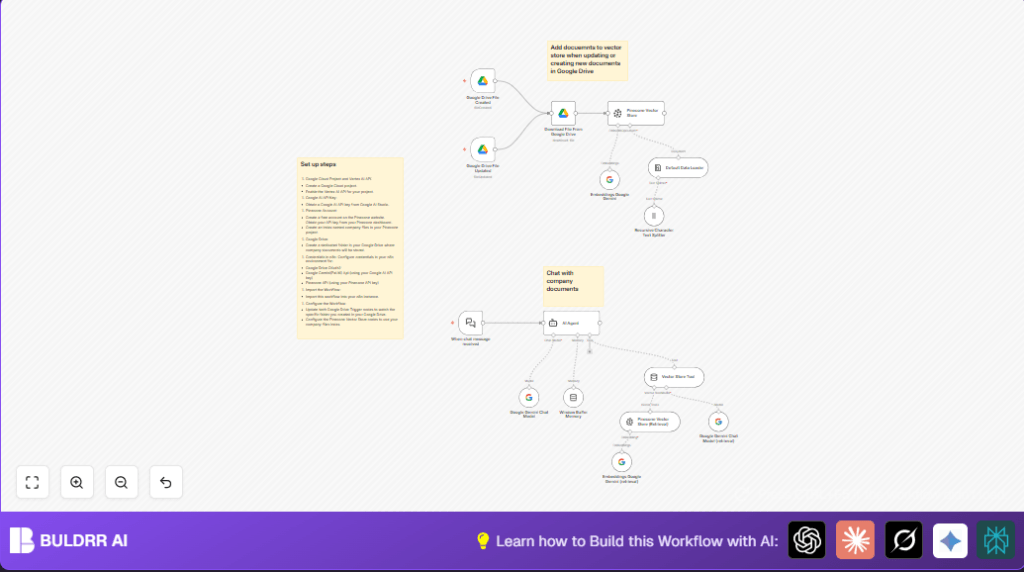
NODES in Use: Google Drive Trigger, Google Drive, Pinecone Vector Store, Embeddings Google Gemini, Default Data Loader, Recursive Character Text Splitter, AI Agent, Vector Store Tool, Window Buffer Memory, Google Gemini Chat Model

Press CTRL+F5 if the workflow didn't load.

Learn how to Build this Workflow with AI:

Visit through Desktop for Best experience

Opening Problem Statement

Meet Sarah, an HR manager at a mid-sized tech company who spends hours each week answering employee questions about company policies, benefits, and procedures. These answers often require her to dig through dozens of documents stored across multiple Google Drive folders. Manual searching wastes her valuable time, introduces errors due to overlooked details, and delays responses, impacting employee satisfaction and HR efficiency.

Every time a document is updated or a new file added, Sarah must reindex or remember to inform her team about changes manually, causing repeated misinformation. This inefficiency results in an estimated 10 hours of wasted work weekly and slows down the onboarding of new employees who need these answers promptly.

What This Automation Does

This workflow automates the entire process of ingesting, indexing, and querying company documents stored in Google Drive using state-of-the-art AI and vector search. Here’s exactly what happens:

  • Automatically triggers when a file is created or updated in a specific Google Drive folder.
  • Downloads the updated or new document directly from Google Drive.
  • Processes the document by splitting its text into manageable chunks for better search accuracy.
  • Generates vector embeddings of these chunks using Google Gemini’s text-embedding model.
  • Inserts the embeddings into a Pinecone vector store index named company-files for fast and semantic retrieval.
  • Enables employees to ask natural language questions via a chat interface that queries this vector store and retrieves relevant information using Google Gemini’s chat model.

By automating these steps, Sarah’s team can answer employee questions instantly, reduce manual workload by 90%, and maintain an always up-to-date knowledge base without any extra effort.

Prerequisites ⚙️

  • n8n automation platform account (self-hosting recommended for business scale).
  • Google Drive account with a dedicated folder for company documents.
  • Google Gemini (PaLM) API access for embeddings and chat models.
  • Pinecone account with an index named company-files to store vector embeddings.
  • Configured credentials in n8n for Google Drive OAuth2, Google Gemini API, and Pinecone API.

Step-by-Step Guide

Step 1: Set Up Google Drive Folder and API Credentials

Go to Google Drive and create a dedicated folder where all company documents will be stored and updated. This folder will be monitored by the workflow.

In n8n, under Credentials, create and save credentials for Google Drive OAuth2 using your Google account.

Outcome: Documents saved or updated here will trigger the workflow.

Common mistake: Not using the exact folder ID in the Google Drive Trigger node will cause workflow triggers to fail.

Step 2: Configure Google Drive Triggers for File Created and Updated Events

Add two Google Drive Trigger nodes in n8n:

  • Google Drive File Created: Watches for any new file in the specified folder.
  • Google Drive File Updated: Detects any modifications to existing files.

Set the trigger’s folderToWatch parameter to the folder ID from Step 1.

Outcome: Any new or updated document will start the processing chain.

Common mistake: Forgetting to set the poll frequency to every minute can introduce delays.

Step 3: Download Files Automatically from Google Drive

Use the “Download File From Google Drive” node connected to both trigger nodes. This node downloads the file content using the file ID received from the trigger.

Outcome: You have access to the binary content of documents for processing.

Common mistake: Not mapping the Dynamic Expression {{$json.id}} into the fileId field causes failure in downloading the correct document.

Step 4: Split the Document Content into Text Chunks

To make document queries more precise, text is split into overlapping chunks using the “Recursive Character Text Splitter” node.

Parameters: Set chunk overlap to 100 characters to preserve context between chunks.

Outcome: The large document content breaks down into small searchable pieces.

Common mistake: Using no overlap can cause broken context, leading to poor search results.

Step 5: Generate Vector Embeddings with Google Gemini

Feed these text chunks into the “Embeddings Google Gemini” node to convert text into semantic embeddings using models/text-embedding-004.

Outcome: The documents are converted into machine-readable vectors for fast semantic search.

Common mistake: Using a wrong or unavailable model name will cause API errors.

Step 6: Insert Embeddings into Pinecone Vector Store

Use the “Pinecone Vector Store” node set to mode “insert” targeting the index named “company-files.”

Outcome: All new or updated document chunks are indexed for retrieval.

Common mistake: Not setting proper Pinecone API credentials or index name will cause insertion failures.

Step 7: Enable Chat-Based Retrieval with AI Agent

Configure the “AI Agent” node with system instructions to act as an HR assistant answering questions by querying the vector store.

Connect this agent to a chat trigger node named “When chat message received,” which accepts employee queries via webhook.

The agent uses the “Vector Store Tool” linked to Pinecone to fetch relevant document chunks and the “Google Gemini Chat Model” for natural language response generation.

Outcome: Employees type natural questions and instantly get policy-based answers from up-to-date documents.

Common mistake: Not linking the vector store tool correctly to the AI Agent can yield empty or irrelevant answers.

Step 8: Maintain Context with Window Buffer Memory

Use the “Window Buffer Memory” node to store recent conversation history across chat sessions for improved response continuity.

Outcome: The AI remembers previous interactions and provides coherent multi-turn dialogues.

Common mistake: Leaving this node unconfigured will make the assistant forget prior user context.

Customizations ✏️

  • Change Document Folder: In both Google Drive Trigger nodes, update the folderToWatch to any folder of your choice to manage different document repositories.
  • Use a Different Vector Store: Replace Pinecone nodes with another supported vector database like Weaviate or FAISS by configuring the corresponding vector store nodes.
  • Adjust Chunk Overlap: Modify the chunkOverlap parameter in the Recursive Character Text Splitter node to balance between search context and indexing speed.
  • Edit AI Agent Personality: Customize the system message in the AI Agent node to fit your company’s tone or add additional instructions for answering employee questions.
  • Multi-language Support: Integrate language detection and route conversation to different embeddings and chat models based on detected language if needed.

Troubleshooting 🔧

Problem: “No documents found or empty vector store responses”

Cause: Documents are not being correctly ingested or indexed into Pinecone due to credential or indexing errors.

Solution: Verify Pinecone API credentials, ensure the index name matches exactly “company-files,” and confirm document chunks are successfully generated by the text splitter.

Problem: “Chat agent returns ‘I cannot find the answer’ despite documents existing”

Cause: The AI Agent’s tool connections might be misconfigured, or vector search retrieval is failing.

Solution: Check the link between “Vector Store Tool” and “Pinecone Vector Store (Retrieval)” nodes and ensure embeddings and retrieval nodes are functioning with correct API keys.

Problem: “File download errors or workflow not triggering on file updates/creation”

Cause: Google Drive trigger nodes might not have the correct folder ID or OAuth permissions.

Solution: Double-check the folder ID, reauthenticate Google Drive OAuth2 credentials in n8n, and verify poll times settings.

Pre-Production Checklist ✅

  • Confirm Google Drive folder ID is accurate and accessible with OAuth credentials.
  • Test file creation and updates manually in Google Drive folder to ensure triggers work.
  • Verify Pinecone index “company-files” exists and credentials are valid.
  • Run tests sending chat queries to confirm AI Agent returns relevant answers.
  • Backup workflow JSON and credentials securely before deployment.

Deployment Guide

Activate both Google Drive trigger nodes and ensure your n8n instance is running. Deploy the workflow by setting it active in n8n.

Monitor the workflow executions via the n8n UI to catch errors or delays. You can also configure alerts based on failed executions.

For production, consider self-hosting n8n using platforms like Hostinger for improved reliability and control.

FAQs

Can I use another vector database instead of Pinecone?

Yes, n8n supports several vector databases. Just swap out Pinecone nodes with your preferred vector store and update credentials accordingly.

Does this automation consume a lot of API credits?

Embedding and chat calls to Google Gemini APIs consume credits based on usage volume. Monitor your API usage and consider optimizing chunk sizes for cost savings.

Is my company data safe in this setup?

Yes, data is processed securely within your environment. Ensure your API keys and OAuth tokens are stored safely and limit access.

Can this handle hundreds of documents and queries daily?

With Pinecone’s scalable index and Google Gemini’s capacity, this workflow can efficiently support medium to large company usage.

Conclusion

By following this guide, you’ve built a powerful, automated system that keeps your company documents in Google Drive continuously indexed in Pinecone’s vector store. Your HR team, led by Sarah, can now answer employee questions instantly and accurately using Google Gemini’s AI capabilities. This automation saves countless hours of tedious searching, reduces errors, and enhances employee satisfaction.

Next steps? Consider extending the workflow to support document versioning alerts, integrating Slack for notifications, or adding multilingual support for diverse teams.

Embrace these automation techniques, and watch the efficiency of your internal knowledge management soar!

Promoted by BULDRR AI

Related Workflows

Automate Viral UGC Video Creation Using n8n + Degaus (Beginner-Friendly Guide)

Learn how to automate viral UGC video creation using n8n, AI prompts, and Degaus. This beginner-friendly guide shows how to import, configure, and run the workflow without technical complexity.
Form Trigger
Google Sheets
Gmail
+37
Free

AI SEO Blog Writer Automation in n8n

A complete beginner guide to building an AI-powered SEO blog writer automation using n8n.
AI Agent
Google Sheets
httpRequest
+5
Free

Automate CrowdStrike Alerts with VirusTotal, Jira & Slack

This workflow automates processing of CrowdStrike detections by enriching threat data via VirusTotal, creating Jira tickets for incident tracking, and notifying teams on Slack for quick response. Save hours daily by transforming complex threat data into actionable alerts effortlessly.
scheduleTrigger
httpRequest
jira
+5
Free

Automate Telegram Invoices to Notion with AI Summaries & Reports

Save hours on financial tracking by automating invoice extraction from Telegram photos to Notion using Google Gemini AI. This workflow extracts data, records transactions, and generates detailed spending reports with charts sent on schedule via Telegram.
lmChatGoogleGemini
telegramTrigger
notion
+9
Free

Automate Email Replies with n8n and AI-Powered Summarization

Save hours managing your inbox with this n8n workflow that uses IMAP email triggers, AI summarization, and vector search to draft concise replies requiring minimal review. Automate business email processing efficiently with AI guidance and Gmail integration.
emailReadImap
vectorStoreQdrant
emailSend
+12
Free

Automate Email Campaigns Using n8n with Gmail & Google Sheets

This n8n workflow automates personalized email outreach campaigns by integrating Gmail and Google Sheets, saving hours of manual follow-up work and reducing errors in email sequences. It ensures timely follow-ups based on previous email interactions, optimizing communication efficiency.
googleSheets
gmail
code
+5
Free