

1. The Challenge Sarah Faces: Managing Slack Event Invites Manually
Imagine Sarah, a community manager at a fast-growing tech startup. She monitors a busy Slack channel where team members frequently post event invite messages, often marked with a calendar emoji. Every time an invite is posted, Sarah has to manually create the corresponding event in Google Calendar, add details like time and location, and then keep track of who RSVP’d by monitoring emoji reactions. This process is tedious and error-prone β sometimes she misses adding attendees, duplicates events, or spends hours every week just coordinating these invites. The company loses time and risks lower event participation.
Sarahβs pain point is specific: extracting detailed event information from unstructured Slack messages, creating accurate calendar events, and ensuring all interested attendees are included β and doing so repeatedly and reliably.
2. What This Automation Does for You
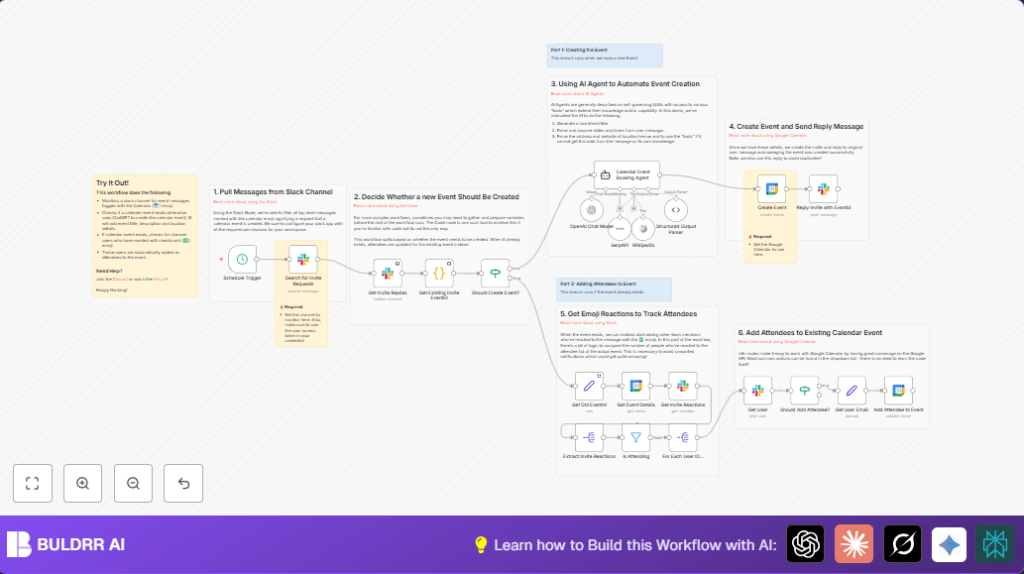
This n8n workflow integrates Slack, Google Calendar, and AI agents to fully automate handling event invites from Slack messages. When triggered every 30 minutes, it performs several crucial actions automatically:
- Monitors a specific Slack channel for new event invite messages tagged with the calendar emoji (π ).
- Checks if a calendar event already exists for the invite to avoid duplicates.
- If no event exists, uses an AI agent (based on OpenAI and LangChain) to parse the message, generate a professional event title, extract start/end times, and retrieve location details via SerpAPI.
- Creates the event in a dedicated Google Calendar with rich details including location and description.
- If the event exists, tracks which Slack users reacted with a β emoji and automatically adds them as attendees to the calendar event.
- Sends a reply in Slack confirming event creation or attendee addition to keep everyone informed.
This automation saves Sarah hours of repetitive work weekly, eliminates human errors in event creation, and keeps events and attendee lists perfectly synchronized between Slack and Google Calendar.
3. Prerequisites βοΈ
- n8n Account β needed to build and run the workflow.
- Slack Workspace & App β with permissions to read messages, fetch reactions, users, and post messages.
- Google Calendar Account β with a calendar set up to add events to.
- OpenAI API Access β for AI-based natural language extraction and event parsing.
- SerpAPI Account β to fetch accurate location information from web searches.
- LangChain n8n Nodes β installed to integrate AI agents into the workflow.
Optional: For those preferring full control, self-hosting n8n is possible. You can explore hosting options like Hostinger that support n8n deployments.
4. Step-by-Step Guide to Automate Slack Event Invites
Let’s walk through each step in the workflow to build and understand this automation:
Step 1: Triggering the Workflow Every 30 Minutes
Navigate to Nodes > Add Node > Schedule Trigger. Set it to run every 30 minutes using the interval field.
This ensures the workflow regularly checks the Slack channel for new invite messages.
Expected outcome: The workflow will kick off automatically on schedule.
Common issue: Incorrect interval settings mean missed event checks.
Step 2: Searching Slack for New Event Invite Messages
Add the Slack node configured with your Slack app credentials.
Set the operation to search, target your Slack channel, and query messages that contain the calendar emoji (π
). Limit results to avoid rate limits.
You should see a list of top-level Slack messages with calendar emoji mentions.
Note: Your Slack app must have permissions to read message history and perform searches.
Step 3: Extract Replies to the Invite Messages
Add another Slack node set to get all replies to each invite message using the timestamp (ts) of the message.
This collects conversation threads where attendees might comment or RSVP.
Step 4: Identify Existing Calendar Event via Code Node
Insert a Code node with the following JavaScript to parse invite replies and find if an event ID is already linked in message threads:
const channel = $('Search for Invite Requests').item.json.channel;
return $input
.all()
.filter(item => !item.json.thread_ts || item.json.ts === item.json.thread_ts)
.map(invite => {
const replies = $input
.all()
.filter(reply => reply.json.thread_ts === invite.json.thread_ts);
const replyWithEventTag = replies
.find(reply => reply.json.bot_id && reply.json.text.match(/#event([a-z0-9]+)/i));
const eventId = replyWithEventTag
? replyWithEventTag.json.text.match(/#event([a-z0-9]+)/i)[1]
: null;
return {
eventId,
invite,
channel,
}
});
return output;This identifies if the Slack thread already has a Google Calendar event linked, avoiding duplicate event creation.
Step 5: Decide Whether to Create a New Event or Use Existing
Add an If node named Should Create Event? configured to check if eventId exists.
If no eventId is found, continue to the event creation branch. Otherwise, proceed to update attendees on the existing event.
Step 6: Use AI Agent to Parse and Create Event Details
Add the Calendar Event Booking Agent node (LangChain agent) linked with OpenAI Chat and tools like Wikipedia and SerpAPI.
Configure prompt instructions so the AI extracts: event title, start/end dates and times, location address, location URL, and event type from the Slack invite message.
The AI automates parsing complex human language and web searches to formulate precise event details.
Step 7: Create the Event in Google Calendar
Add the Google Calendar node set to Create event.
Use expressions to dynamically populate the eventβs summary, start/end time, location, description, and guest options.
You will fetch the calendar ID, event title, and other details from the previous AI node output.
After execution, a new Google Calendar event is created with rich info.
Step 8: Reply in Slack Confirming Event Creation
Add a Slack node to post a message reply in the original invite thread,
Including the event link and a unique event ID tag in the reply to avoid duplicate processing in future runs.
Step 9: For Existing Events – Get Event Details and Invites
For events identified as existing, add a Google Calendar node fetching the event details by Event ID.
Then, use a Slack node to retrieve all reactions from the invite message to identify who reacted with checkmark emojis.
Step 10: Extract and Filter Attendee Reactions
Add a Split Out node to expand all reactions.
Follow with a Filter node that selects only reactions with a “white_check_mark” (β
) emoji indicating attendance.
Step 11: Fetch User Info and Email for Attendees
Use Slackβs Get User node to fetch profile information of each user who reacted.
Then with a Set node, extract and format emails for these users to add them as event attendees.
Step 12: Check If Attendee Is Already Added
Add an If node named Should Add Attendee? that checks if the userβs email is already on the calendar event attendees list.
If not, proceed to add them.
Step 13: Add Attendee to Google Calendar Event
Add a Google Calendar node configured to update the calendar event by adding new attendees.
Use expressions to dynamically update the eventβs attendees array with the new email.
Step 14: Loop Through All Attendees
Use a Split Out node set to split by users array to perform the above for each attendee reaction, ensuring the entire list is processed.
5. Customizations βοΈ
- Change Slack Channel to Monitor: In the Search for Invite Requests Slack node, update the channelId parameter to listen to a different Slack channel.
- Adjust Event Time Defaults: In the AI agent node prompt, change the default assumed start time if none specified (currently 9 am) to your preferred time.
- Modify Event Duration: In the Google Calendar create event node, tweak the duration logic by editing the expression that uses 3 hours as a default when end time is missing.
- Use Different Reaction Emoji: In the Is Attending filter node, adjust the emoji name from “white_check_mark” to any other emoji your team prefers to mark attendance.
- Enable Notifications on Event Creation: Extend the Slack reply node to tag users or channels when an event is created.
6. Troubleshooting π§
Problem: “Slack Search returns no messages”
Cause: Slack app lacks message history/search permission, or wrong channel ID.
Solution: Verify Slack app permissions under OAuth scopes, confirm channel ID is correctly set in the node.
Problem: “Event not created due to missing date/time”
Cause: AI agent failed to parse event start or end time.
Solution: Review AI prompt; consider adding fallback defaults or manual triggers for events with ambiguous timing.
Problem: “Attendees not added correctly”
Cause: Email parsing from Slack user profiles failed or attendee already exists on event.
Solution: Check the Should Add Attendee? node logic and Slack user profile fields; re-authorize Slack credentials if needed.
7. Pre-Production Checklist β
- Ensure Slack app credentials have all required scopes: reading messages, reactions, users, and posting messages.
- Confirm Google Calendar ID and credentials are correctly set and have write access.
- Test AI agent prompt with sample invite messages to confirm event detail extraction.
- Run the workflow manually first, confirm event creation and reply posting in Slack.
- Verify attendee addition by reacting to an invite message with the β emoji.
- Backup existing Google Calendar events and Slack data if needed before deployment for rollback.
8. Deployment Guide
Activate the workflow by toggling it live in n8n.
Monitor webhook logs and Slack channel interactions periodically for errors or missed events.
Use n8nβs built-in execution logs to troubleshoot any issues.
Schedule the trigger interval as needed, typically 30 minutes is a practical default.
9. FAQs
Q: Can I use Microsoft Teams instead of Slack?
A: This workflow specifically uses Slack nodes and APIs. To switch to Microsoft Teams, youβd need to replace Slack nodes with equivalent Teams API integrations and adjust logic accordingly.
Q: Does running this use many API credits?
A: OpenAI API usage depends on the frequency and message complexity. Slack and Google Calendar have usage limits but this workflowβs typical load is modest.
Q: Is my event data secure?
A: Yes, all data is handled via your authenticated Slack, Google, and OpenAI accounts within n8nβs secure environment.
10. Conclusion
By implementing this detailed n8n workflow, you’ve automated the entire process of monitoring Slack event invites, extracting event details intelligently using AI, creating precise Google Calendar events, and syncing attendees based on Slack reactions. Sarah, our community manager, would now save hours of repetitive manual work every week and reduce errors dramatically.
Next up, consider automating reminders for the created events or integrating attendee feedback collection. Happy automating!