

Opening Problem Statement: How Julie Streamlined Lead Capture and Enrichment
Meet Julie, a busy sales manager at a growing SaaS company. She often spends hours every week manually copying leads from web forms into Pipedrive CRM, checking if the leads’ emails are real, and enriching their profiles. This manual process is painfully error-prone — sometimes invalid emails slip through, causing failed contacts, and sometimes duplicate leads clutter the pipeline, wasting time and money. Julie estimates that she loses at least 5 hours weekly verifying emails and updating leads, not to mention the lost revenue from poor follow-up on bad data.
What This Automation Does ⚙️
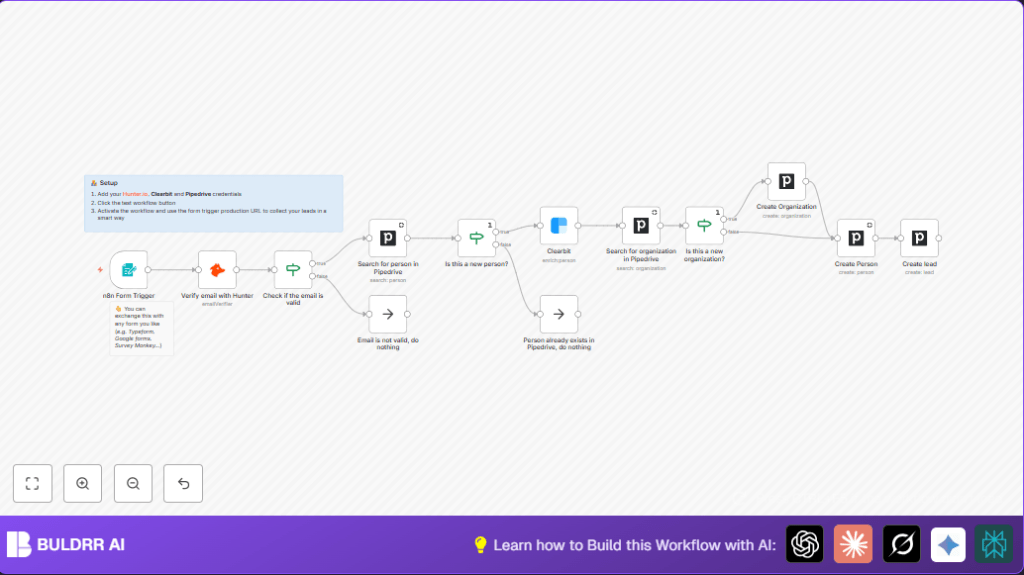
This unique n8n workflow automates Julie’s entire lead capture, validation, enrichment, and CRM entry process. When someone submits their business email through a web form, the workflow does the following:
- Validates the email address using Hunter.io’s Email Verifier to ensure only real emails are processed.
- Searches Pipedrive to check if the person already exists to prevent duplicate records.
- Enriches new lead data with Clearbit’s person API, getting full details including name, organization, and job title.
- Searches for the associated organization in Pipedrive and creates it if it doesn’t exist.
- Creates a new person and lead in Pipedrive CRM with enriched data linked to the correct organization.
By automating this entire lead management chain, Julie saves hours each week and improves data quality — which means faster, better sales follow-up and more closed deals.
Prerequisites ⚙️
- n8n account (self-hosted or cloud)
- Hunter.io API credentials (for verifying emails) 🔐
- Clearbit API credentials (for enriching lead data) 🔐
- Pipedrive API credentials (to manage contacts and leads) 🔐
- A web form configured via n8n Form Trigger or compatible alternative like Typeform, Google Forms, or Survey Monkey 💬
Step-by-Step Guide to Build This Workflow ✏️
1. Setup the n8n Form Trigger Node to Collect Leads
Navigate to your n8n editor. Click + Add Node and select Form Trigger. Configure the form fields to collect the business email with a label like “What’s your business email?”. Set a webhook path such as 0bf8840f-1cc4-46a9-86af-a3fa8da80608. You will receive a unique webhook URL after saving. This webhook URL is where your form submissions will be sent.
Try submitting a test email to see the trigger fire. A sticky note reminds you that you can swap this form trigger with any web form.
Common mistake: Forgetting to activate the webhook or mistyping field labels will prevent data capture.
2. Validate Email with Hunter.io Node
Add the Hunter node next, set the operation to emailVerifier, and use the input email from the form trigger {{$json["What's your business email?"]}}. Add your Hunter API credentials in the node’s credential section.
You’ll see a JSON response with a status field indicating if the email is “valid” or not.
3. Add an If Node to Check Email Validation Status
Use an If node named “Check if the email is valid”. Set condition to check {{$json.status}} equals “valid”.
The true branch will continue processing; the false branch leads to a NoOp node named “Email is not valid, do nothing” to stop invalid leads.
4. Search for the Person in Pipedrive
Add the Pipedrive node configured to search the “person” resource by the email address from the verified email step output. This prevents creating duplicates.
Set “term” to {{$json.email}} and use your Pipedrive API credentials.
5. Use an If Node to Check for New Person
Chain an If node named “Is this a new person?”. Check if {{$json.id}} does not exist (meaning the person was not found).
True branch will continue; false branch connects to a NoOp node “Person already exists in Pipedrive, do nothing”.
6. Enrich with Clearbit Person API
Add the Clearbit node to fetch detailed info about this email. Configure it to the person resource and set email input with {{$json.email}} from the previous node. Add Clearbit credentials.
This step enriches the lead with full name, job title, and employer.
7. Search for Organization in Pipedrive
Use another Pipedrive node to search organizations by the employer name from Clearbit as {{$json.employment.name}}.
This checks if the organization exists and helps link the lead properly.
8. Check if Organization is New and Create if Needed
Add an If node “Is this a new organization?” to check if organization ID exists. If not, use Pipedrive “Create Organization” node to add it by name.
Pass the organization name from Clearbit.
9. Create Person in Pipedrive
Once the organization is confirmed or created, add a Pipedrive node “Create Person”. Map the enriched name, email, and link to organization ID.
Use {{$('Clearbit').item.json.name.fullName}} for name, email from Clearbit, and organization ID from the previous step.
10. Create Lead in Pipedrive Linked to Person and Organization
Finally, add a Pipedrive node “Create Lead” to log the lead. Set title to something like “{{ $json.name }} from {{ $json.org_id.name }}”. Associate with the person and organization.
This ensures the sales team sees the enriched lead ready to act on.
Customizations ✏️
- Swap Form Trigger with External Forms: Change the first node to Typeform, Google Forms, or Survey Monkey triggers. Update webhook URLs accordingly.
- Modify Email Validation Strictness: In the “Check if the email is valid” If node, add more status checks like “webmail” or “risky” to filter differently.
- Add More Clearbit Fields: Enhance the Clearbit node output by mapping job title or Twitter handle to Pipedrive custom fields.
- Customize Lead Titles: Change the “Create Lead” node title format to match your sales pipeline naming conventions.
Troubleshooting 🔧
- Problem: “Email verification status missing or invalid”
Cause: Incorrect field mapping from Hunter node or unactivated credentials.
Solution: Verify you set email correctly with{{$json["What's your business email?"]}}and your Hunter API key is valid in credentials. - Problem: “Duplicate persons created in Pipedrive”
Cause: Search step failing due to wrong email input or API limit reached.
Solution: Ensure Pipedrive search node uses exact email field from Hunter verification and monitor Pipedrive API quota. - Problem: “Organization not linked properly”
Cause: Clearbit response missing employment info or Pipedrive organization create node misconfigured.
Solution: Test Clearbit output in debug and make sure organization creation uses correct name field from Clearbit response.
Pre-Production Checklist ✅
- Test form submissions with valid and invalid emails to confirm email validation node behaves as expected.
- Verify Pipedrive search nodes correctly return data or not found status.
- Check that Clearbit node enriches person data correctly with employment info.
- Make sure organizations and persons are created without duplication.
- Back up Pipedrive data before going live.
Deployment Guide
Once tested, activate the workflow by clicking the “Activate” button. Use the webhook URL from the Form Trigger node as your production form endpoint. Monitor workflow executions from n8n’s dashboard to ensure smooth data capture and no errors. Any failures will be logged for quick fix.
FAQs
- Can I use other email verification tools instead of Hunter? Yes, but you will need to replace the Hunter node with a compatible HTTP request or native node for your chosen tool.
- Does this use many API calls? The workflow calls Hunter, Clearbit, and Pipedrive APIs per lead, so monitor your API quotas to avoid limits.
- Is my data secure? All API credentials are stored securely in n8n. You control who has access to n8n workflows and data.
Conclusion
By building this customized n8n workflow, Julie automates lead capture from a simple web form through email verification, enrichment, and Pipedrive CRM entry. This automation saves her at least 5 hours per week, reduces errors, and improves sales follow-up efficiency.
Next, you might add SMS notifications for new leads, integrate Slack for sales alerts, or use additional enrichment sources to make your sales pipeline even smarter.
Start your workflow today and see how much easier lead management can be!