

Automate Zoom Meeting Summaries & Tasks with n8n AI

Stop wasting hours manually summarizing Zoom meetings and creating follow-up tasks. This n8n workflow automates transcript extraction, AI-powered meeting summaries, task creation in ClickUp, and scheduling follow-up Outlook calls to save you time and streamline post-meeting management.
zoom
openAiChatModel
clickUp
+13
Workflow Identifier: 1176
NODES in Use: manualTrigger, zoom, filter, httpRequest, set, extractFromFile, stopAndError, splitInBatches, openAiChatModel, sort, code, emailSend, clickUp, microsoftOutlookTool, langchain_toolWorkflow, langchain_agent

Press CTRL+F5 if the workflow didn't load.

Learn how to Build this Workflow with AI:

Visit through Desktop for Best experience

1. Opening Problem Statement

Meet Friedemann, a project manager who hosts multiple Zoom meetings daily for his growing consultancy firm. After each call, he spends hours listening again to recordings, manually extracting key discussion points, summarizing meeting minutes, assigning tasks, and scheduling follow-ups in Outlook. This cumbersome process often leads to delayed action items, missed deadlines, and frustrated team members, costing Friedemann precious time and potential revenue. Imagine losing 3-4 hours after every important meeting just to catch up on what was discussed!

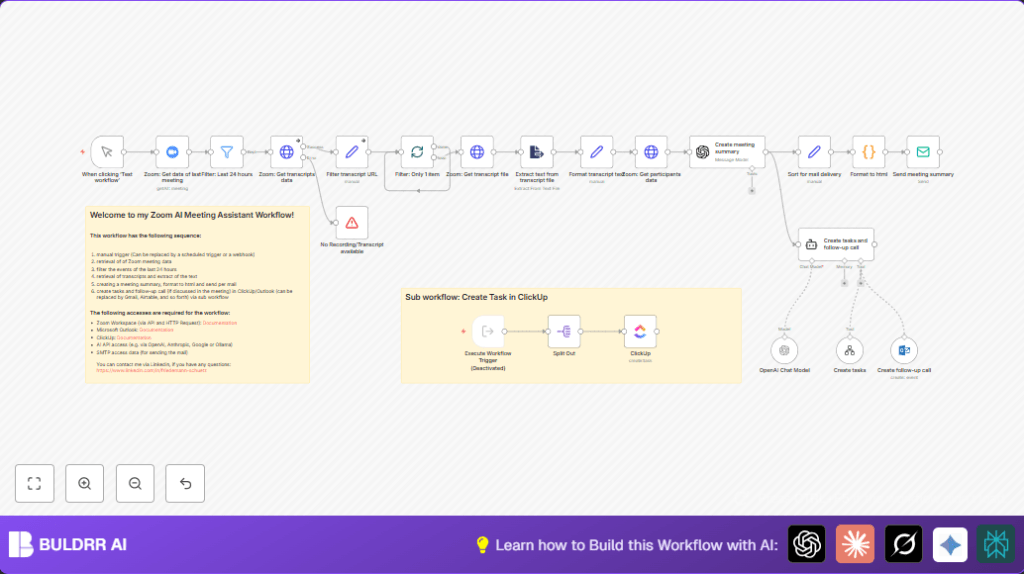
This is exactly the challenge that Friedemann’s Zoom AI Meeting Assistant workflow in n8n solves. By automating meeting data retrieval, transcript extraction, AI-powered summarization, task creation, and follow-up scheduling, it transforms tedious post-meeting work into a seamless, time-saving process.

2. What This Automation Does ⚙️

When you run this workflow, it automatically:

  • Fetches all scheduled Zoom meetings from the last 24 hours using Zoom’s API.
  • Retrieves and extracts the transcript file from the latest Zoom meeting record.
  • Uses OpenAI’s GPT-4o model to create a formal meeting summary including participants, key points, and action items.
  • Sends the formatted summary via email through SMTP to the meeting participants.
  • Identifies actionable tasks from the transcript and creates them in ClickUp with detailed descriptions and due dates.
  • Schedules a follow-up meeting in Microsoft Outlook if discussed during the meeting.

These 6 outcomes save Friedemann approximately 3-5 hours per meeting, prevent missed tasks, and keep the entire team aligned, all without manual intervention.

3. Prerequisites ⚙️

  • 📧 Zoom account with API OAuth2 credentials (to access meetings, transcripts, participants).
  • 🔑 OpenAI account for GPT-4o to generate meeting summaries and detect tasks.
  • 📧 SMTP email credentials (e.g., your email provider like Posteo or Gmail) to send emails.
  • 📊 ClickUp account with OAuth2 to create tasks automatically.
  • 📅 Microsoft Outlook account with OAuth2 for calendar scheduling of follow-up calls.
  • ⏱️ n8n account (cloud or self-hosted instance) to run the workflow. For self-hosting, check https://buldrr.com/hostinger for affordable hosting options.

4. Step-by-Step Guide to Build This Workflow ✏️

Step 1: Set Up Manual Trigger

Open your n8n editor, drag in a Manual Trigger node. This acts as the starting point to test the workflow on demand.

Click the node → No parameters needed here → Save.

Expected outcome: You can click “Execute Workflow” and start the process.

Common mistake: Forgetting to connect the next node will stop the workflow.

Step 2: Retrieve Last 24 Hours Zoom Meetings

Add a Zoom node configured as follows:

  • Operation: Get all scheduled meetings.
  • Return all: True to fetch all meetings.
  • Authentication: OAuth2 Zoom credentials set up earlier.

Then add a Filter node to keep only meetings started within the last 24 hours. Use the dateTime filter with condition “After or equal” and expression {{$now.minus({hours: 24}).toISO()}}.

Outcome: Only recent meetings are processed.

Tip: Make sure your Zoom account has meeting recordings enabled.

Step 3: Get Meeting Transcript Data

Use an HTTP Request node to call Zoom’s API endpoint /meetings/{{meetingId}}/recordings, authenticated via the same OAuth2 token. This fetches recording files including transcripts.

Then a Set node filters the transcript URL from the recording files array:

= {{$json.recording_files.find(f => f.file_type === 'TRANSCRIPT').download_url}}

Outcome: You extract the transcript file link for download.

Step 4: Download and Extract Transcript Text

Add an HTTP Request node again to download the transcript file using the URL from the previous step, authenticating with Zoom OAuth.

Then, link an Extract From File node to extract plain text from the transcript file.

Finally, a Set node processes the raw text to remove unwanted headers and non-text data, leaving clean transcript paragraphs using JavaScript (inside the Set node):

= {{$json.data.split('rnrn').slice(1).map(block => {
 const lines = block.split('rn');
 return lines.slice(2).join(' ');
}).join('n')}}

Outcome: Ready-to-use transcript text for AI processing.

Step 5: Fetch Meeting Participants

Add an HTTP Request node with Zoom API endpoint to get participants for the past meeting using /past_meetings/{{meetingId}}/participants. Include OAuth2 credentials.

Outcome: You get participant names and emails to include in the summary and task assignments.

Step 6: Generate Meeting Summary via OpenAI GPT-4o

Use the OpenAI Chat Model node (from @n8n/n8n-nodes-langchain.lmChatOpenAi) configured with GPT-4o.

Prompt input includes meeting date, participants, and the cleaned transcript text, asking GPT-4o to create formal meeting minutes with summary, tasks, and important dates.

Output includes structured text of the summary.

Step 7: Sort and Format Email Content

A Set node assigns email subject, recipient (first participant email), and body content from the OpenAI response.

Then a Code node formats this text into a styled HTML email with headings for participants, summary, tasks, and dates.

Step 8: Send Meeting Summary Email

Add an Email Send node configured with your SMTP credentials. Map the HTML body, subject, and recipient fields accordingly.

Outcome: Automated email of the meeting summary is delivered immediately after workflow execution.

Step 9: Extract To-Dos and Schedule Follow-Up Meetings

Use the LangChain Tool Workflow and LangChain Agent nodes configured to:

  • Parse the transcript for tasks assigned to Friedemann.
  • Create those tasks in ClickUp with due dates and descriptions.
  • Identify any follow-up meeting scheduling requirements and create Outlook calendar events.

The agent node receives transcript, participants, and meeting details, then calls the ClickUp node to create tasks and Outlook node to schedule meetings.

Step 10: Create Tasks in ClickUp

The ClickUp node creates tasks with detailed content, due dates, and priorities extracted from AI analysis.

Step 11: Schedule Follow-up Call in Microsoft Outlook

The Microsoft Outlook Tool node creates calendar events for follow-ups, using date/time and participants identified by the AI agent.

5. Customizations ✏️

  • Change AI Model: In the “OpenAI Chat Model” node, switch from GPT-4o to GPT-3.5-turbo for cost savings or faster execution.
  • Send to Multiple Recipients: Modify the “Sort for mail delivery” node to list all participant emails by mapping through the participants array instead of just the first.
  • Customize Task Destination: Replace the ClickUp node with Trello or Asana nodes to create tasks in your preferred project management tool.
  • Adjust Meeting Filters: In the “Filter: Last 24 hours” node, change the time range to last 48 hours or a specific date range as needed.
  • Add Webhook Trigger: Replace the manual trigger with a Webhook node to start the workflow automatically when a meeting ends in Zoom (requires Zoom webhook setup).

6. Troubleshooting 🔧

Problem: “No Recording/Transcript available” error stops workflow.

Cause: Meeting has no transcript or recording file.

Solution: Verify that Zoom Cloud Recording and transcription features are enabled in your Zoom account. If unavailable, adjust the workflow to skip or notify accordingly.

Problem: OpenAI response error or empty summary generated.

Cause: Incorrect prompt formatting or API quota exceeded.

Solution: Check the prompt inputs carefully, ensure valid API key with quota, and modify the prompt if needed for clarity.

Problem: SMTP email fails to send.

Cause: Incorrect SMTP credentials or blocked ports.

Solution: Test SMTP connection in n8n credentials settings and confirm correct “from” email address.

7. Pre-Production Checklist ✅

  • Confirm Zoom OAuth2 credentials with required scopes for meeting, recording, and participant access.
  • Test OpenAI GPT-4o API key and verify prompt outputs with sample transcripts.
  • Validate SMTP email sending with a test email.
  • Verify ClickUp API connections and permissions for task creation.
  • Run workflow in manual mode to check for dataset errors or missing transcripts.
  • Backup and version control your workflow before full deployment.

8. Deployment Guide

Activate the workflow in n8n by enabling it and setting a production trigger (e.g., scheduled Cron or webhook).

Monitor execution via n8n’s workflow logs to catch any runtime errors.

Set alerts or notifications for failures if high reliability is required.

This workflow can easily scale with increased meeting volume in n8n cloud or self-hosted setups.

9. FAQs

Q: Can I use Gmail instead of SMTP for sending meeting summaries?
A: Yes, replace the Email Send node with Gmail node and configure OAuth2 credentials accordingly.

Q: Does usage of OpenAI GPT-4o incur high costs?
A: GPT-4o is premium; opt for GPT-3.5-turbo to reduce costs if needed.

Q: Can this workflow handle meetings without transcripts?
A: It will stop with an error or skip – consider adding alternate workflow paths to notify or continue.

10. Conclusion

By following this comprehensive tutorial, you’ve automated the entire post-Zoom meeting process right from transcript retrieval to sending polished meeting summaries, creating detailed ClickUp tasks, and scheduling follow-up Outlook meetings.

This reduces Friedemann’s cumbersome 3+ hours of manual work per meeting to just a click of a button. You’ve also improved team coordination and task tracking, yielding better productivity and time management.

Next, consider adding advanced sentiment analysis of meeting discussions, integrating Slack notifications for new tasks, or auto-updating project status boards from Zoom action items.

Happy automating!

Promoted by BULDRR AI

Related Workflows

Automate Viral UGC Video Creation Using n8n + Degaus (Beginner-Friendly Guide)

Learn how to automate viral UGC video creation using n8n, AI prompts, and Degaus. This beginner-friendly guide shows how to import, configure, and run the workflow without technical complexity.
Form Trigger
Google Sheets
Gmail
+37
Free

AI SEO Blog Writer Automation in n8n

A complete beginner guide to building an AI-powered SEO blog writer automation using n8n.
AI Agent
Google Sheets
httpRequest
+5
Free

Automate CrowdStrike Alerts with VirusTotal, Jira & Slack

This workflow automates processing of CrowdStrike detections by enriching threat data via VirusTotal, creating Jira tickets for incident tracking, and notifying teams on Slack for quick response. Save hours daily by transforming complex threat data into actionable alerts effortlessly.
scheduleTrigger
httpRequest
jira
+5
Free

Automate Telegram Invoices to Notion with AI Summaries & Reports

Save hours on financial tracking by automating invoice extraction from Telegram photos to Notion using Google Gemini AI. This workflow extracts data, records transactions, and generates detailed spending reports with charts sent on schedule via Telegram.
lmChatGoogleGemini
telegramTrigger
notion
+9
Free

Automate Email Replies with n8n and AI-Powered Summarization

Save hours managing your inbox with this n8n workflow that uses IMAP email triggers, AI summarization, and vector search to draft concise replies requiring minimal review. Automate business email processing efficiently with AI guidance and Gmail integration.
emailReadImap
vectorStoreQdrant
emailSend
+12
Free

Automate Email Campaigns Using n8n with Gmail & Google Sheets

This n8n workflow automates personalized email outreach campaigns by integrating Gmail and Google Sheets, saving hours of manual follow-up work and reducing errors in email sequences. It ensures timely follow-ups based on previous email interactions, optimizing communication efficiency.
googleSheets
gmail
code
+5
Free