
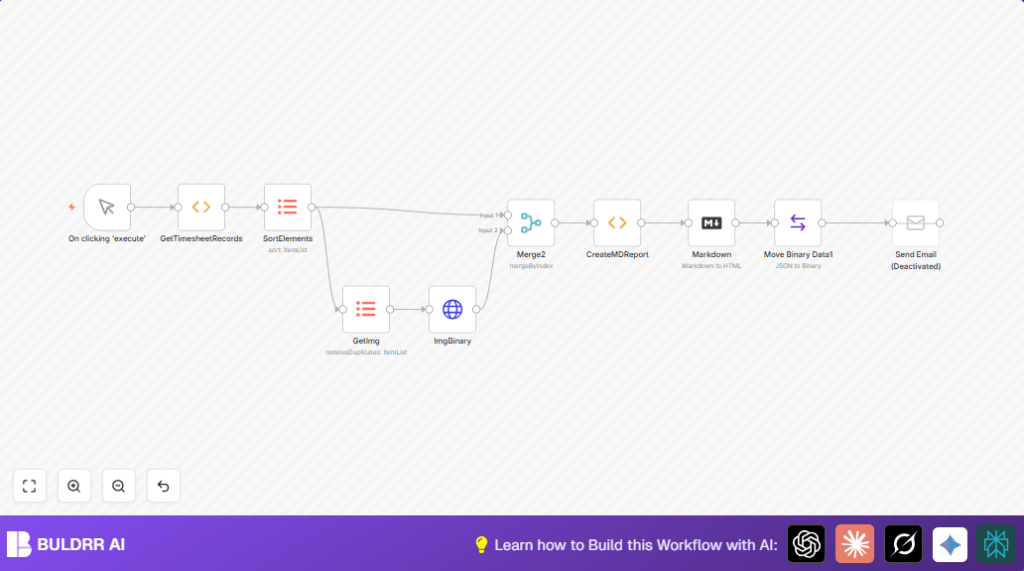

What this workflow does
This workflow takes timesheet entries from different users. It fixes the order by username, task, and date. It finds user avatars without repeats and downloads the images. Then it joins avatars with tasks. It makes a clear markdown report showing tasks and hours, with images included. The report turns into HTML and can be sent by email. This helps avoid manual errors and saves hours each month.
Inputs:
- Timesheet data with username, avatar link, task info, date, notes, and hours.
- User avatar image URLs.
Processing steps:
- Sort timesheets by user, task, date.
- Remove duplicate avatar URLs to avoid repeat download.
- Fetch avatar images by HTTP requests.
- Merge timesheet data with avatar images.
- Create a markdown report with grouped tasks, hours, and images.
- Convert markdown report to full styled HTML.
- Make the HTML report a file ready for email attachment.
Output:
- Formatted HTML report with user avatars and task details.
- Optional email sending with report attached.
Who should use this workflow
Anyone who manually collects timesheets from many people. This often takes too long and causes mistakes. It suits managers who want fast, clean reports including user photos. Also good for teams using n8n to reduce repeated manual work.
Tools and services used
- n8n workflow automation platform: orchestrates nodes and data flow.
- HTTP Request node: downloads avatar images from URLs.
- SMTP Email service: sends reports by mail.
- JavaScript Function nodes: simulate data and produce markdown.
- Markdown node: converts markdown to HTML.
Beginner step-by-step: How to use this workflow in n8n
Import the workflow
- Download the workflow file using the Download button on this page.
- Open n8n editor and click Import from File.
- Select the workflow file to import it.
Set up required items
- Add necessary SMTP credentials under the Send Email node.
- Verify any email addresses, IDs, or folder paths in the nodes and update if needed.
- Check the GetTimesheetRecords function node if you want to add or modify user tasks or details.
Test and activate
- Run the workflow manually using the Manual Trigger node to check report output and email sending.
- If all works, activate the workflow using the toggle button.
Note: For automated runs, replace the Manual Trigger node with a CRON Trigger node.
For users running self-host n8n, ensure network and credentials are correctly configured.
Inputs, processing, and outputs
Inputs
- Timesheet entries: username, avatar URL, task title, date, note, hours.
- Avatar images fetched by URL.
Processing
- Sort entries by user, task, date for logic.
- Remove duplicate avatar URLs.
- Download avatar images as binaries.
- Combine image binaries with timesheet data.
- Create markdown report string with grouped user and task sections.
- Apply CSS style for table design.
- Convert markdown to HTML.
- Convert that HTML string into a binary file.
Outputs
- Stylized HTML report file with embedded avatars.
- Email with attached report (optional).
Edge cases and failures
Sometimes avatar URLs may be wrong or broken. Then, HTTP Request fails. Check URLs in the GetImg node output and fix them.
Empty or wrong markdown input to the Markdown node causes no HTML output. Look at the CreateMDReport node carefully.
Email sending errors happen when SMTP credentials are wrong. Re-enter details in the Send Email node and test sending.
Customization ideas
- Change table colors or text fonts by editing the CSS in the CreateMDReport JavaScript.
- Add user contact info by expanding the timesheet records in GetTimesheetRecords.
- Use a CRON Trigger instead of manual trigger to automate report creation.
- Add a PDF convert node after markdown to send formal document copies.
- Insert functions to calculate total hours per user or project for deeper reports.
Summary
✓ Saves time by automating timesheet report creation.
✓ Removes repeated avatar downloads for faster processing.
✓ Produces clear reports with images and detailed task info.
→ Result is a ready HTML report file and optional email sending.
→ Simple steps let managers reduce errors and manual work.
return [{UserName: "User 1 - Lead Programmer",
         UserAvatar: "https://www.gravatar.com/avatar/?d=robohash&s=32",
         TaskTitle: "Admin",
         date: "2022-05-31T00:00:00.0000000+02:00",
         note: "Creating invoices and submitting timesheets",
         hours: 0.5},
         {UserName: "User 1 - Lead Programmer",
         UserAvatar: "https://www.gravatar.com/avatar/?d=robohash&s=32",
         TaskTitle: "Admin",
         date: "2022-05-02T00:00:00.0000000+02:00",
         note: "Reporting last month's activity",
         hours: 0.5},
         // continued as in original code
         ];
// created report header and custom table style
var md_reporthead="#Timesheet report\n";
var md_style = (`\n\n`);
var md_reportbody=md_style+md_reporthead;
var tablehead = "| Date | Hours | Task Description |\n|:---|:---:|---|\n";
var cur_user="";
var cur_usernum=0;
var cur_task="";
var cur_tasktotal=0;
for (item of items) {
if (item.json.UserName != cur_user) {
md_reportbody += (cur_tasktotal) ? "\n*"+cur_tasktotal.toFixed(2)+" - Total hours for this task*\n" : "";
cur_tasktotal = 0; cur_task="";
cur_user = item.json.UserName;
md_reportbody += `\n## ${cur_user}\n`;
cur_usernum += 1;
}
if (item.json.TaskTitle != cur_task) {
md_reportbody += (cur_tasktotal) ? `\n*${cur_tasktotal.toFixed(2)} - Total hours for this task*\n` : "";
cur_task = item.json.TaskTitle;
md_reportbody += `\n###${cur_task}\n${tablehead}`;
cur_tasktotal = 0;
}
md_reportbody += `| ${item.json.date.split('T',1)} | ${item.json.hours.toFixed(2)} | ${item.json.note} |\n`;
cur_tasktotal += item.json.hours;
}
md_reportbody += (cur_tasktotal) ? `\n*${cur_tasktotal.toFixed(2)} - Total hours for this task*\n` : "";
md_reportbody += `\n*Timesheet report generated on: ${$now.toISODate()}*`;
return [{mdreport: md_reportbody}];