

What this workflow does
This workflow lets you manage Google Calendar by chatting naturally. It helps you find events by date or create new ones by simple messages. It solves the problem of spending too much time clicking through your calendar and avoids mistakes like double bookings.
When you send a message, it understands what you want, talks to Google Calendar, and either shows your events or adds new events. This saves time and stops scheduling errors.
Who should use this workflow
This workflow is for busy people tracking many meetings on Google Calendar. It works well for project managers, team leaders, or anyone who wants to chat with a smart assistant instead of clicking a calendar app.
You do not need to be technical, but should know how to use n8n and get API keys ready.
Tools and services used
- OpenAI GPT-4o model: Understands your chat messages and generates responses.
- Google Calendar API: Gets and creates calendar events.
- n8n platform: Runs the workflow connecting chat, AI, and calendar.
- Langchain agent node in n8n: Manages the AI logic and memory.
- Window Buffer Memory node: Keeps chat context for follow-up questions.
The workflow works inside n8n which you can self-host n8n if you want full control.
Inputs, processing steps, and outputs
Inputs
- User chat messages typed naturally about calendar events.
- OpenAI API key for GPT-4o.
- Google Calendar OAuth2 credentials.
Processing steps
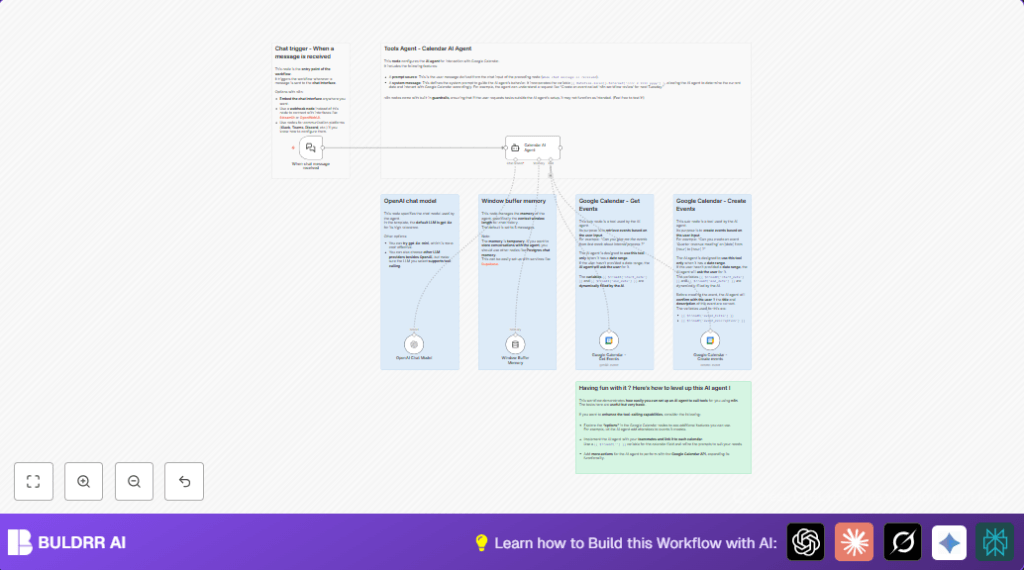
- The When chat message received node starts the workflow when a message arrives.
- The Calendar AI Agent node reads the message, figures out if you want to create or find events. It uses built-in prompts including the current date.
- The OpenAI Chat Model node uses GPT-4o to understand language and generate replies.
- The Window Buffer Memory node saves recent chat history so the agent can remember details across messages.
- For event searches, the Google Calendar – Get Events node fetches events between the dates given by the AI.
- For event creation, the Google Calendar – Create Events node adds new events with titles, descriptions, and times from the AI agent.
Outputs
- List of calendar events matching chat queries.
- New calendar event created with correct info.
- Conversational messages confirming tasks or asking for missing details.
Beginner step-by-step: How to build this in n8n
Import the workflow
- Download this workflow JSON using the Download button on this page.
- In the n8n editor, choose “Import from File” and upload the downloaded workflow.
Configure the workflow
- Open each node that needs authentication, like OpenAI Chat Model and Google Calendar nodes.
- Enter your OpenAI API key in the credentials section.
- Set your Google Calendar OAuth2 credentials for calendar access.
- If needed, update any calendar IDs, folder names, or emails in the Google Calendar nodes.
Test and activate
- Send a test chat message like “Show my meetings next week” in the chat interface linked to the When chat message received node.
- Check that the workflow runs without errors and responds correctly.
- After successful tests, activate the workflow so it runs automatically.
This makes the assistant live for everyday use.
Common errors and fixes
- Calendar API authorization failed: Check Google Calendar OAuth2 credentials. Reconfigure if needed.
- Invalid date format: AI output or user input may have wrong date format. Dates must be YYYY-MM-DD HH:mm:ss.
- Chat trigger not firing: Make sure the workflow is active. Verify chat webhook URL matches.
- AI agent tool calling failed: Check connections between AI node and Google Calendar nodes.
Customization ideas
- Change calendar accounts by switching OAuth2 credentials for different Google users.
- Adjust the memory size in the Window Buffer Memory node to remember more or less chat history.
- Add email attendees automatically to events by modifying the Create Event node to accept attendee emails.
- Localize responses by editing the system prompt in the AI agent node to use a preferred language.
- Use a smaller AI model like gpt-4o-mini in the OpenAI node to reduce cost.
Summary of results
✓ Saves hours weekly by automating calendar tasks.
✓ Prevents double bookings and missed appointments.
✓ Lets users find or create Google Calendar events by simple chat.
→ Runs inside n8n using OpenAI GPT-4o and Google Calendar API.
→ Provides easy conversation memory for smooth chat.
