

What This Workflow Does
This workflow gets job listings for marketing roles from Glassdoor automatically.
It finds jobs based on your location, keyword, and country inputs.
It saves these jobs in Google Sheets and makes short, polite messages to help start conversations.
This saves time, stops mistakes, and helps you find good job leads fast.
Who Should Use This Workflow
If you look for marketing jobs or clients online often and waste hours copying data or writing messages, this workflow is made for you.
It helps people who want to find jobs or clients faster and talk to companies with better messages.
Tools and Services Used
- n8n: Runs the workflow automation.
- Bright Data API: Scrapes job data from Glassdoor.
- Google Sheets: Stores job listings and messages.
- OpenAI API: Generates personalized icebreaker messages with GPT-4.
- Self-host n8n (optional): Run n8n on your own server if preferred.
Inputs, Processing, and Outputs
Inputs
- Location where you want jobs (like “New York”).
- Keyword(s) for job titles or skills (like “CMO, AI architect”).
- Country codes (2 letters) for job search area (like “US, UK”).
Processing Steps
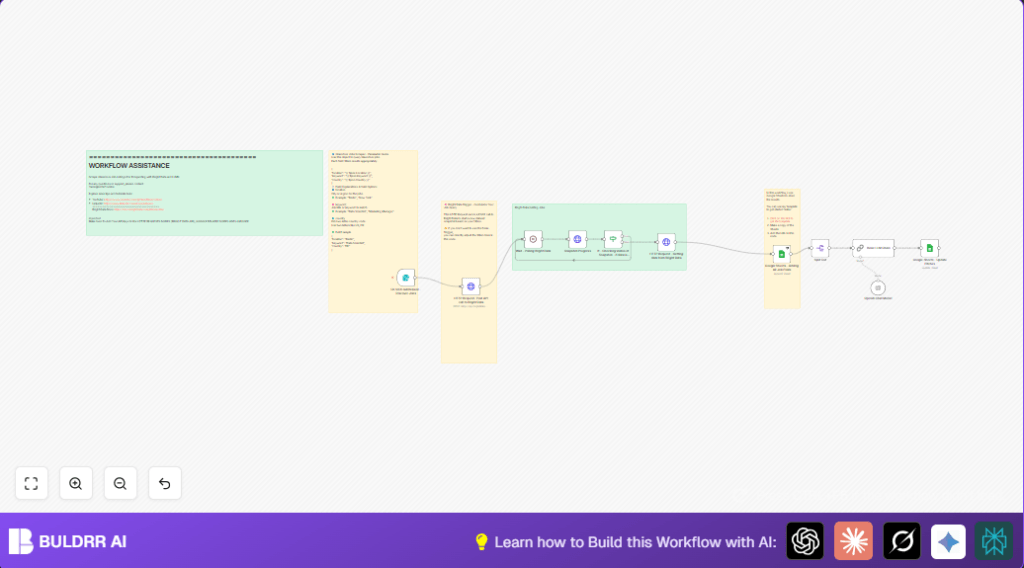
- The workflow uses those inputs to ask Bright Data API to scrape matching jobs from Glassdoor.
- It waits for the scrape to finish, checking status with repeated calls after short breaks.
- Once done, it fetches job listings in JSON format.
- All job posts are saved into a Google Sheets document neatly.
- Each job is processed with a split node to handle them separately.
- Each job goes to AI that reads company and job info, then writes 1-2 sentence personalized pitches if job is marketing related.
- Generated icebreakers are saved back to Google Sheets in right rows linked to companies.
Outputs
- Google Sheet filled with job listings matching search criteria.
- Custom AI messages ready for outreach linked to each job.
Beginner Step-by-Step: How to Use This Workflow in n8n
Import the Workflow
- Download the workflow file using the Download button on this page.
- Open n8n editor where you work on automations.
- Click on menu and select “Import from File.”
- Choose the downloaded workflow file to import it.
Configure Required Settings
- Open node settings for each API call in the workflow.
- Enter your Bright Data API Key exactly as given.
- Set your OpenAI API Key in the AI nodes.
- Make sure Google Sheets nodes use your Sheet ID and you have given access to the workflow for editing.
- Update any IDs, emails, or channel info if needed (usually just Sheet IDs).
Test the Workflow
- Use the form URL of the Webhook node to send test job search inputs.
- Check if job data appears in Google Sheets and if messages are generated.
- Look at n8n execution logs to see if any error happens.
Activate the Workflow
- If testing works, activate the workflow by switching it from draft to live.
- Share the form link or integrate it with your systems.
- Now this workflow runs automatically when someone sends job search queries.
Common Edge Cases and Failure Handling
- If Bright Data API returns authentication errors, check the API key and the “Bearer ” prefix in headers.
- Google Sheets may reject writes if OAuth token expired; re-authenticate the node credentials.
- Polling too fast for scrape progress triggers rate limits; increase wait time between calls.
- AI might generate “—JOB POST NOT RELEVANT—” if job role is outside marketing or content areas.
- Empty or incorrect form submissions cause no results; make sure required fields are filled.
Customization Ideas
- Change job searching filters by editing the JSON sent to Bright Data, like adding salary or job type.
- Adjust wait node timing to avoid rate limits or get faster checks.
- Switch AI model version in OpenAI node for cheaper or different outputs.
- Use other storage like PostgreSQL instead of Google Sheets for larger datasets.
- Edit AI prompt in Basic LLM Chain to make pitches friendlier or match other job types.
Summary of Workflow Benefits and Outcome
✓ Saves hours of manual searching and copying.
✓ Keeps job data organized in one place.
✓ Creates short, relevant messages for outreach automatically.
✓ Lets users pick job search terms easily with a form.
✓ Helps find and reach marketing prospects faster.
