

What This Automation Does
This workflow answers questions about people or topics by searching information stored inside another workflow.
It reads data from a saved workflow in n8n and gives back clear answers using AI.
This saves time digging through many files and stops mistakes when looking for details like emails or notes.
Who Should Use This Workflow
This workflow is for project managers, team leads, or any user needing fast answers about people or project details stored in notes.
If searching through many databases or documents is slow and frustrating, this tool helps by automating the search and giving clear results.
Tools / Services Used
- n8n Platform: Automates workflows and connects services.
- OpenAI API: Runs GPT-4 mini model for natural language answers.
- LangChain Nodes in n8n: Handle question answering by retrieving data from sub-workflows.
Inputs, Processing Steps, and Output
Inputs
- User writes a question about a person or topic inside the workflow.
- The workflow ID of saved data must be provided in the retriever node.
Processing Steps
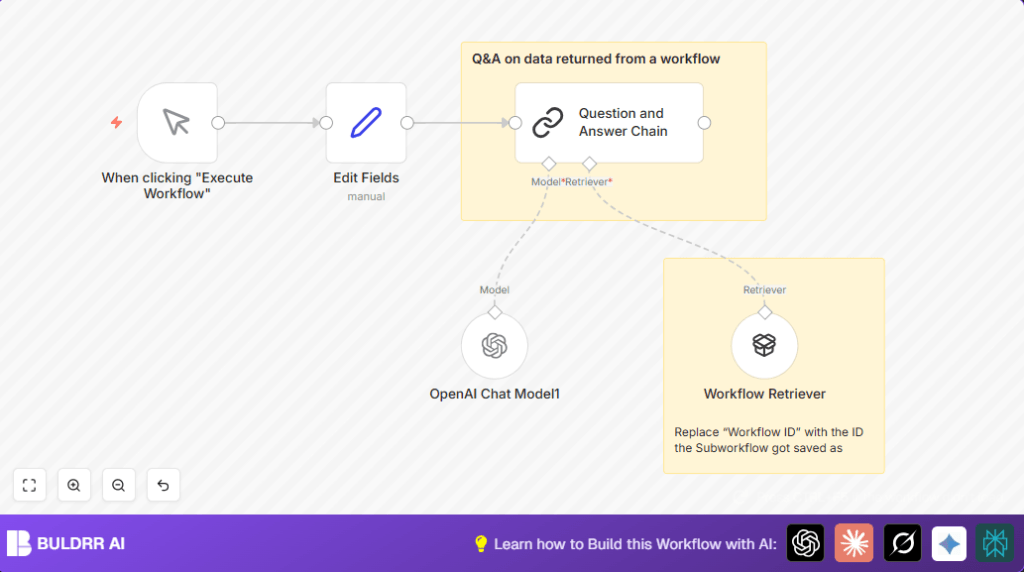
- Manual Trigger node starts the workflow.
- Set (Edit Fields) node holds the user question as the input field “chatInput”.
- Question and Answer Chain node manages Q&A using input and linked nodes.
- Workflow Retriever node fetches data from the saved sub-workflow by ID.
- OpenAI Chat Model node uses GPT-4 mini to turn data into simple, natural answers.
Output
- The workflow returns clear, detailed answers about requested people or notes.
- Output is found in the response of the Question and Answer Chain node after execution.
Beginner Step-by-Step: How to Use This Workflow in Production
1. Import the Workflow
- Download the workflow file using the Download button on this page.
- In the n8n editor (already open), click “Import from File” and upload the downloaded workflow.
2. Configure the Workflow
- Add OpenAI API Key credentials inside n8n, if not done yet.
- Open the Workflow Retriever node and enter the correct sub-workflow ID where your data is stored.
- In the Set (Edit Fields) node, edit the field “chatInput” to put the question you want to ask.
- Make sure all node connections and credentials are set correctly.
3. Test the Workflow
- Click “Execute Workflow” on the Manual Trigger node.
- Watch the workflow run and see the answer from the Question and Answer Chain node output.
4. Activate for Production
- After confirming outputs are correct, toggle the workflow to activate it.
- Run it manually or connect to trigger events as needed for daily use.
Using self-host n8n can improve workflow availability if running on your own server.
Customization Ideas
- Change the question field “chatInput” to accept different or multiple questions.
- Update the Workflow Retriever to search other saved workflows for more data pools.
- Pick a different OpenAI GPT-4 compatible model in the OpenAI Chat Model node.
- Add a Logging node to save all questions and answers for future review.
- Replace Manual Trigger node with Webhook node to accept questions from external sources.
Troubleshooting
- Issue: No data from Workflow Retriever.
Fix: Check workflow ID is correct and the sub-workflow is active and accessible.
- Issue: OpenAI API Key errors during workflow run.
Fix: Update OpenAI API credentials in n8n and check for expiration or usage limits.
- Issue: No response or errors from Question and Answer Chain node.
Fix: Ensure “chatInput” is passed correctly from Set (Edit Fields) node and named exactly.
Pre-Production Checklist
- Confirm OpenAI credentials are connected in n8n.
- Test the sub-workflow independently for data accuracy.
- Run the full workflow manually and verify answers returned.
- Update any sticky notes in the workflow with new IDs or instructions if changed.
Deployment Guide
Activate the workflow toggle in n8n to make it live.
Since it starts manually, use the editor to run when needed.
Check execution logs in n8n to review questions processed and answers returned.
Summary of Benefits and Results
✓ Saves hours of manual data searching daily.
✓ Provides clear, helpful answers about team members or project info.
✓ Reduces errors when communicating by giving accurate contact details.
✓ Makes complex data easy to access with one simple question.
✓ Enables quick decision-making by having info at your fingertips.