

What This Automation Does
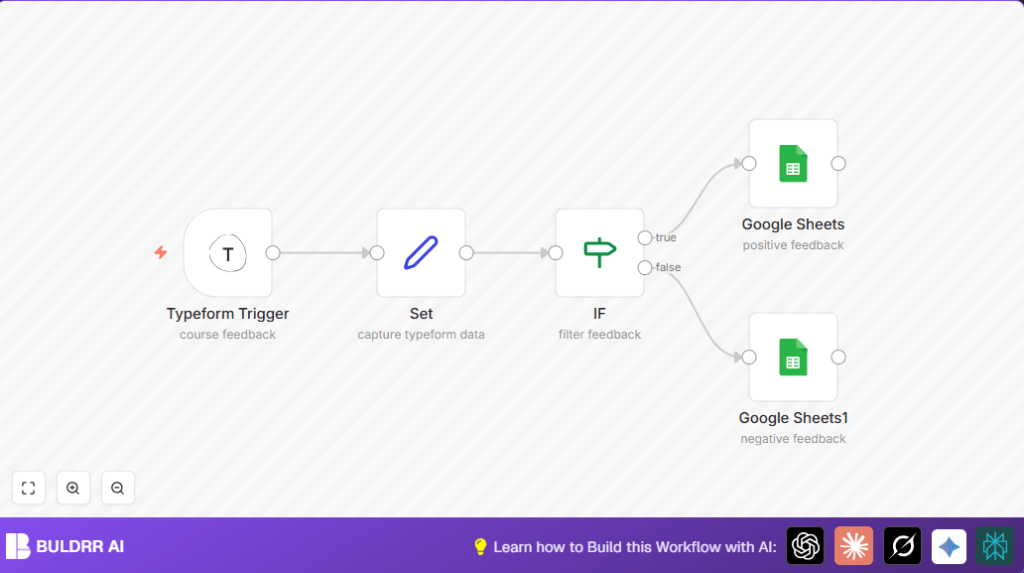
This workflow runs automatically when a new form entry arrives from Typeform.
It picks up the feedback fields like usefulness rating and opinions from the form data.
Based on the usefulness score, it sorts feedback into positive or negative groups.
Positive feedback is saved to one Google Sheets tab, negative to another.
This helps save time and cuts errors from manual sorting and typing.
Inputs, Processing Steps, and Outputs
Inputs
- Typeform form submission: Feedback data including usefulness score and opinion text.
Processing Steps
- The Typeform Trigger node listens for new feedback.
- The Set node extracts and labels key fields like usefulness and opinion.
- The IF node checks if usefulness is 3 or higher to sort feedback.
- Depending on the check, the workflow sends data to one of two Google Sheets nodes.
Outputs
- New row appended to the positive feedback sheet for scores 3 and up.
- New row appended to the negative feedback sheet for scores below 3.
Who Should Use This Workflow
Teachers or course creators who get feedback through Typeform forms.
Anyone tired of sorting feedback manually into spreadsheets.
Non-technical users who want to save hours on feedback management.
Tools & Services Used
- Typeform API: Sends new form submission data via webhook.
- Google Sheets API: Appends feedback rows into spreadsheet tabs.
- n8n: Automates and links the trigger, data processing, and storage.
Beginner Step-by-Step: How to Use This Workflow in n8n Production
Import Workflow
- Click the Download button on this page to get the workflow file.
- Open your n8n editor.
- Use the Import from File option to add the workflow.
Setup Credentials and IDs
- Add your Typeform API credentials in the Typeform Trigger node.
- Update the Form ID to match your feedback form’s ID.
- Provide Google Sheets OAuth2 credentials in the Google Sheets nodes.
- Change the spreadsheet IDs and sheet names if your sheets differ.
Test and Activate
- Submit a test feedback entry in your Typeform.
- Check that feedback appears in the right Google Sheets tab.
- If all works, activate the workflow to run automatically.
This process gets the workflow working live fast without knowing internal node building.
If running on your own server, consider self-host n8n options for reliability.
Customization Ideas
- Change the usefulness threshold in the IF node to reclassify feedback.
- Add more fields in the Set node to capture extra form answers.
- Attach email or Slack notifications after Google Sheets to get alerts on new negative feedback.
- Adjust mappings for multi-language forms in the Set node.
Common Issues and Fixes
- Typeform trigger not firing: Check if the Form ID in the Typeform Trigger node is exact.
- Verify Typeform webhook settings allow sending data.
- Google Sheets append fails: Reauthenticate the OAuth2 Google credentials.
- When spreadsheet IDs or sheet tabs are wrong, update them correctly.
Before Using in Production
- Confirm your Typeform webhook is active and using the right Form ID.
- Run several test submissions to check logging works.
- Verify positive and negative feedback logs correct data.
- Backup existing Google Sheets content to avoid data loss.
Deployment Guide
After testing, simply enable the workflow by activating it in the editor.
Observe the workflow logs for errors during first days.
Keep an eye on Google API limits if feedback volume grows.
Summary
✓ Saves hours by sorting and logging feedback automatically
✓ Avoids mistakes from manual copying
✓ Separates positive and negative feedback clearly
✓ Easy to set up by importing in n8n and adding credentials
✓ Works well for small to medium feedback volumes
→ Results in faster course improvements based on clear student input